
Most WordPress users check their pageviews religiously. But here’s the thing — knowing how many people visited your site is only half the story. Understanding your GA4 traffic sources tells you where those visitors actually come from. And that changes everything about how you create content, spend your marketing budget, and grow your site.
If you’ve ever opened Google Analytics 4, stared at the Acquisition report, and thought “what am I looking at?” — you’re not alone. In this guide, I’ll break down exactly how to read your GA4 traffic sources so you can make smarter decisions for your WordPress site.
What Are Traffic Sources in GA4?
Traffic sources in GA4 describe where your visitors were before they landed on your WordPress site. Were they searching on Google? Clicking a link on Twitter? Typing your URL directly? Each of these is a different traffic source, and GA4 tracks them automatically.
In other words, traffic sources answer the question: “How did this person find me?” That’s arguably more valuable than knowing how many people showed up. For example, if 80% of your traffic comes from organic search, you know your SEO strategy is working. If most visitors arrive via social media, your sharing efforts are paying off.
GA4 uses a combination of signals to determine traffic sources — including UTM parameters, HTTP referrer headers, and Google’s own click data from Search and Ads. Additionally, it groups these individual sources into broader categories called channels, which makes analysis much easier.
How GA4 Organizes Your GA4 Traffic Sources
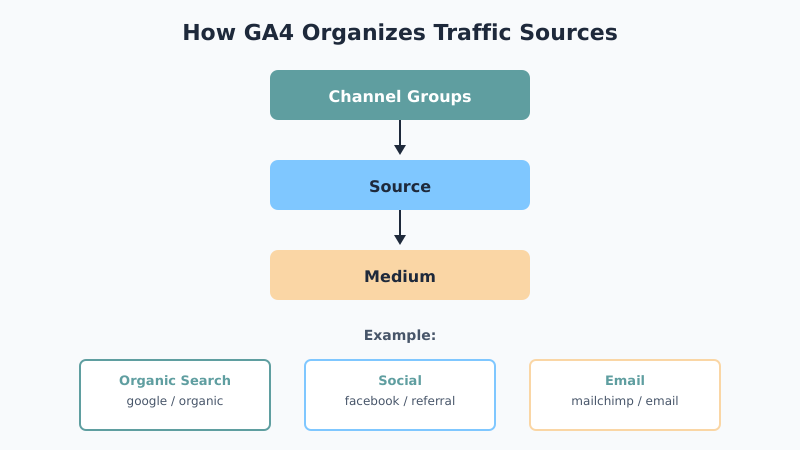
GA4 organizes traffic data in a three-level hierarchy. Understanding this structure is essential for reading your reports correctly.
Channel Groups sit at the top level. These are broad categories like “Organic Search” or “Direct.” They give you a high-level view of where your traffic comes from. Meanwhile, Source identifies the specific origin — such as “google,” “facebook,” or “newsletter.” Finally, Medium describes how the visitor arrived — “organic,” “cpc” (cost-per-click), “referral,” or “email.”
Here’s how these levels work together:
- Channel Group: Organic Search → Source: google → Medium: organic
- Channel Group: Social → Source: facebook → Medium: referral
- Channel Group: Email → Source: mailchimp → Medium: email
Furthermore, GA4 also tracks Campaigns — a fourth dimension that identifies specific marketing efforts. If you’ve set up UTM parameters on your links, the campaign name shows up here. As a result, you can see exactly which email blast or social post drove traffic.
Finding Your GA4 Traffic Sources Report
To find your traffic sources in GA4, follow these steps:
- Log into Google Analytics 4
- In the left sidebar, click Reports
- Navigate to Acquisition → Traffic acquisition
- You’ll see a table showing your default channel groups with key metrics
By default, this report groups traffic by Session default channel group. However, you can change the primary dimension to “Session source/medium” for more granular data. Specifically, click the dropdown above the table to switch between views.
You can also adjust the date range in the top-right corner. I recommend looking at at least 30 days of data to spot meaningful patterns. A single week can be misleading due to normal fluctuations.
For WordPress users who prefer a plugin-based approach, tools like MonsterInsights or Site Kit can surface traffic source data right inside your WordPress dashboard. That said, learning to read GA4 directly gives you access to far more detail.
The Default Channel Groups Explained
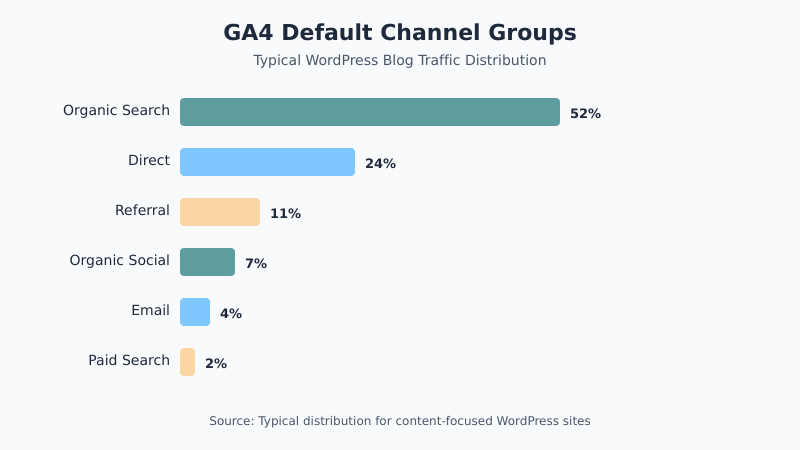
GA4 comes with predefined channel groups that automatically categorize your traffic. Here’s what each one means for your WordPress site:
| Channel | What It Means | Example Sources |
|---|---|---|
| Organic Search | Visitors who found you through a search engine (unpaid) | Google, Bing, DuckDuckGo |
| Direct | Visitors who typed your URL or used a bookmark | No referrer data available |
| Referral | Visitors who clicked a link on another website | Other blogs, forums, news sites |
| Organic Social | Visitors from social media (unpaid posts) | Facebook, Twitter, LinkedIn, Pinterest |
| Visitors from email campaigns (requires UTM tagging) | Mailchimp, ConvertKit newsletters | |
| Paid Search | Visitors from paid search ads | Google Ads, Microsoft Ads |
| Paid Social | Visitors from paid social media campaigns | Facebook Ads, promoted tweets |
One important note: GA4’s “Direct” channel is something of a catch-all. When GA4 can’t determine where a visitor came from, it labels the traffic as Direct. Consequently, your Direct traffic number is likely inflated. Some of it is genuinely people typing your URL, but some is untagged email links, dark social shares, or app traffic. Therefore, take your Direct numbers with a grain of salt.
What Your WordPress GA4 Traffic Sources Tell You
Now comes the practical part. Once you can read the data, what should you actually do with it? Here’s how to interpret common GA4 traffic source patterns for a WordPress site:
High Organic Search traffic means your SEO is working. Your content ranks in search results and people are finding it. If this is your dominant channel, double down on keyword research and content creation. Also, check which specific pages drive the most organic traffic — those are your winners.
High Direct traffic suggests brand recognition, but remember the catch-all issue. If Direct seems unusually high, make sure your email campaigns and social posts use proper UTM tags. As a result, you’ll get more accurate attribution across your other channels.
Growing Referral traffic means other sites are linking to you. This is great for both traffic and SEO. Check which referring sites send the most visitors and consider building relationships with those publishers.
Low Social traffic doesn’t necessarily mean your social strategy is failing. Social media often drives awareness rather than clicks. However, if you’re spending significant time on social media content, you want to see at least some traffic from it.
Beyond channel-level analysis, look at the engagement metrics for each source. A channel that sends 100 highly engaged visitors is more valuable than one that sends 1,000 visitors who leave immediately. Specifically, compare engagement rate and time on page across your traffic sources.
Common GA4 Traffic Source Mistakes WordPress Users Make
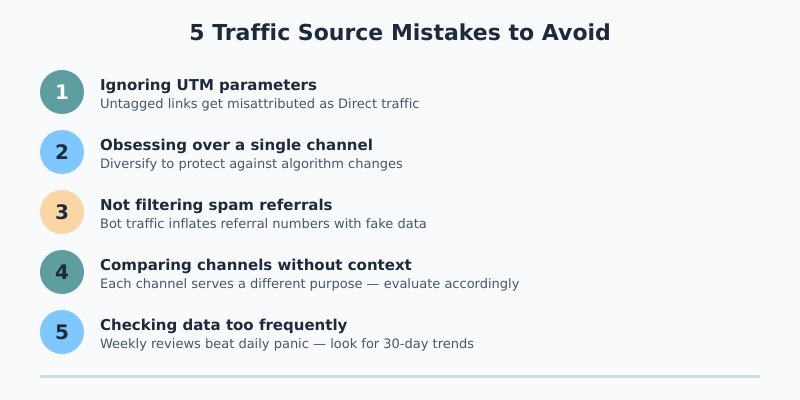
After setting up GA4 on dozens of WordPress sites, I’ve seen the same mistakes come up repeatedly. Here are the most common ones:
1. Ignoring UTM parameters. If you share links on social media, in emails, or in partnerships without UTM tags, GA4 can’t properly categorize that traffic. It often ends up as “Direct” — which means you’re flying blind on your marketing efforts. Consequently, always tag your links.
2. Obsessing over a single channel. Your traffic source mix matters more than any individual channel. A healthy WordPress site typically gets traffic from 3-4 different sources. If you’re 90% dependent on organic search, one algorithm update could devastate your traffic. Therefore, aim for diversification.
3. Not filtering out spam referrals. Some “referral” traffic in GA4 is actually spam — bots that hit your site and show up as fake referrers. You can set up data filters to exclude known spam domains. Otherwise, your referral data will be unreliable.
4. Comparing channels without context. Organic Search and Email serve different purposes. Search brings in new visitors; email nurtures existing ones. Comparing their raw session numbers is like comparing apples to oranges. Instead, evaluate each channel against its own goals.
5. Checking data too frequently. Daily traffic source fluctuations are normal. Looking at your GA4 traffic sources every day leads to overreaction and bad decisions. In my experience, a weekly or biweekly review gives you much clearer trends to act on.
Additionally, many WordPress users forget to verify their GA4 setup is working correctly. If you’re using a plugin to connect GA4, make sure the Realtime report shows your own visits when you test. A misconfigured tracking code means all your traffic data is unreliable.
Bottom Line
Your GA4 traffic sources are one of the most actionable reports in Google Analytics. They tell you where your audience comes from, which marketing channels work, and where you’re wasting effort. For WordPress site owners, this data directly informs content strategy, SEO priorities, and marketing spend.
Start by checking your Traffic acquisition report weekly. Look for trends over 30+ days rather than daily snapshots. Make sure your links are properly tagged with UTMs. And most importantly, don’t just look at volume — look at which traffic sources bring visitors who actually engage with your content.
The numbers only matter if they lead to better decisions. Now you know how to read them.