Google quietly changed the name of one of GA4’s core features in March 2024, and plenty of WordPress site owners are still confused about where things went. If you’ve been searching for “conversions” inside GA4 and coming up empty, that’s why. They’re now called key events (formerly conversions) — and once you understand why, the whole system makes a lot more sense.
This guide walks you through what GA4 key events are, how to mark one, how to create a custom event from scratch, and how to verify everything is firing correctly. By the end, you’ll have real tracking set up for the things that actually matter on your WordPress site — newsletter signups, contact form submissions, outbound clicks, and more.
What Are GA4 Key Events?
A key event is a specific action you’ve told GA4 to treat as important. Technically, GA4 records dozens of events automatically — page views, scrolls, session starts, clicks. Key events are simply the ones you’ve flagged as meaningful for your goals.
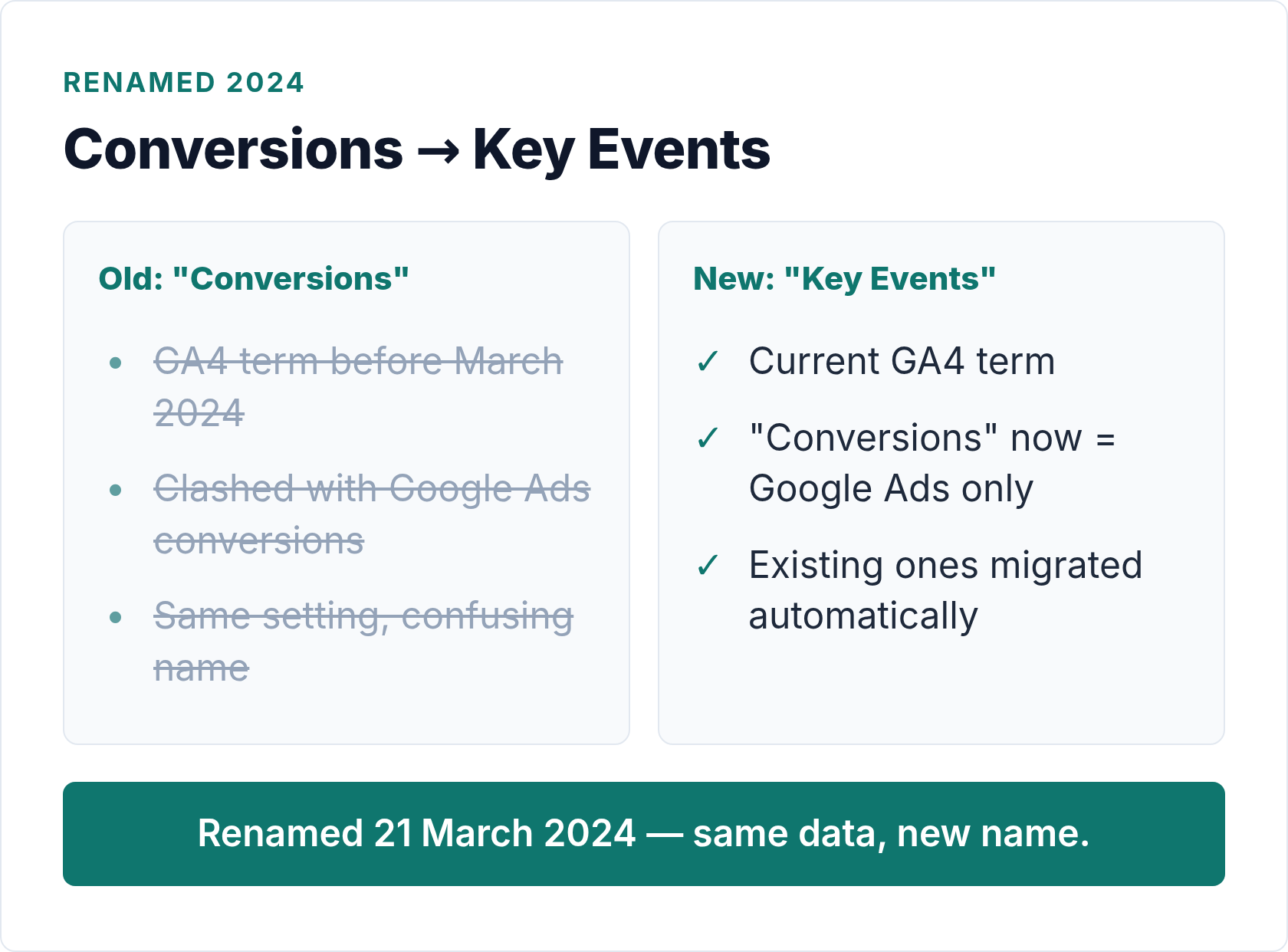
Before March 2024, these were called “conversions” inside GA4. Google made the rename to remove the confusion between GA4 goals and Google Ads conversion tracking. Now the terminology is cleaner: in GA4, they’re key events. When you import one of those key events into Google Ads, it becomes an “Ads conversion” there. Two different tools, two different labels — same underlying event data.
So if you were using GA4 conversions before the rename, nothing broke. Your existing toggles migrated automatically. The UI just uses different language now.
Quick definition: A key event = any event in GA4 that you’ve marked as important. GA4 reports it separately so you can see at a glance how often that action happens.
Understanding key events is closely tied to understanding your conversion funnel — which steps lead a visitor toward the action you care about. If you haven’t thought through that yet, it’s worth a read alongside this setup guide.
Why the “Conversions” Rename Matters
The rename isn’t just cosmetic. It reflects a real distinction that used to trip people up.
In Universal Analytics (the old Google Analytics), “goals” and “conversions” were the same thing — you defined a goal, and hitting it counted as a conversion in your reports. Simple enough. GA4 ditched the goals interface entirely and moved everything to an event-based model. However, “conversions” in GA4 didn’t mean the same thing as “conversions” in Google Ads, which caused constant confusion when people tried to cross-reference their data.
Google’s solution: rename GA4 conversions to “key events.” Now each tool uses its own vocabulary. You mark key events inside GA4 to understand on-site behavior. You import those key events into Google Ads when you want to optimize paid campaigns around them. The data flows between the tools, but the labels keep the contexts separate.
For WordPress site owners who don’t run Google Ads, the distinction barely matters in practice. You’re using GA4 key events to answer one question: Is this thing I care about actually happening?
Before You Start: What You Need
A few things need to be in place before you can mark key events:
- A GA4 property connected to your WordPress site. If you haven’t done this yet, the plugin-based GA4 setup guide covers it without requiring any code.
- The event you want to mark as a key event must already be firing in GA4. You can’t mark something that doesn’t exist yet.
- Editor or Administrator access to your GA4 property.
Also worth noting: GA4 can take 24–48 hours to show newly collected events in the standard reports. The real-time report updates immediately, which is useful for testing.
How to Mark an Existing Event as a Key Event
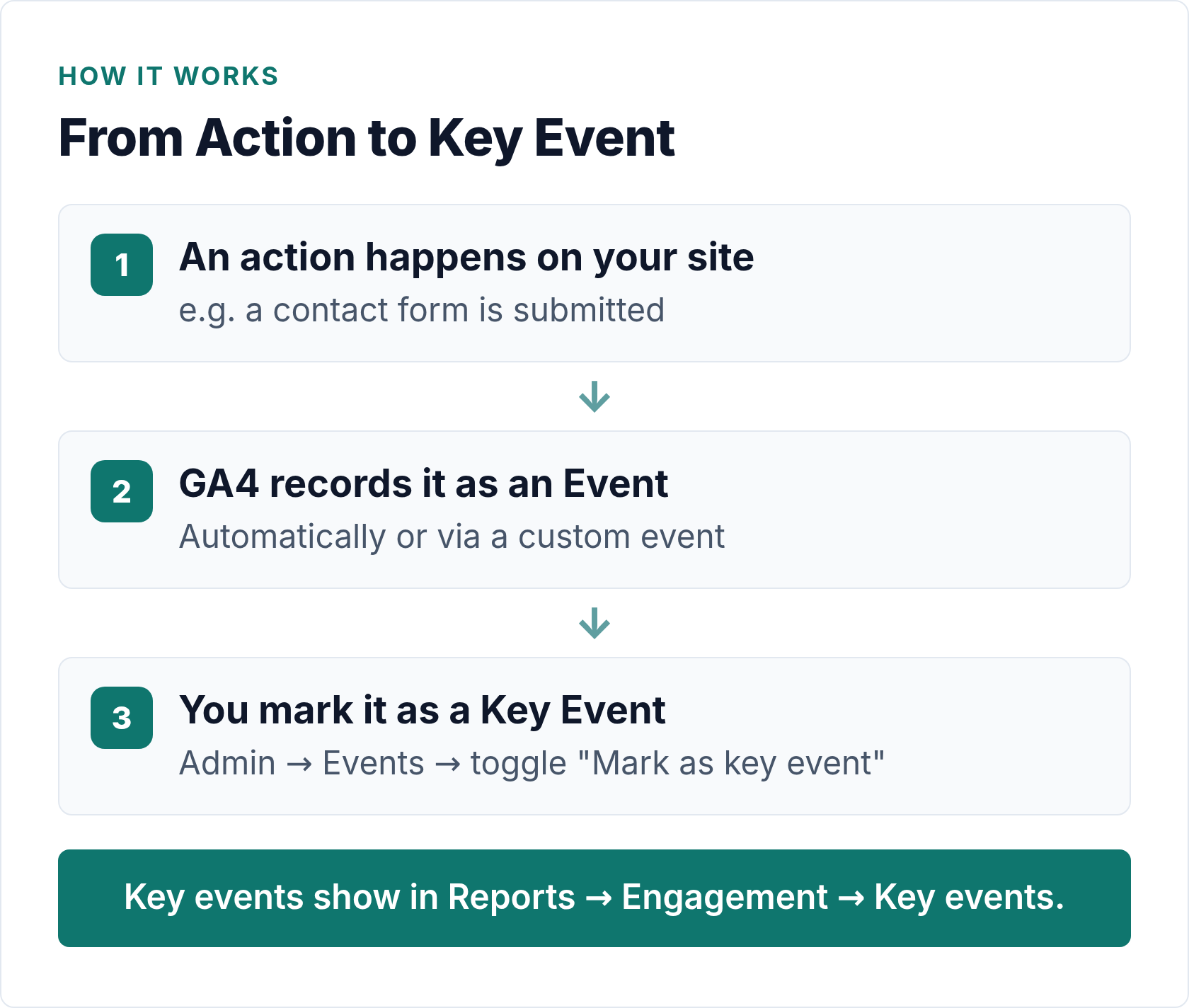
If the event is already showing up in GA4 — for example, GA4 automatically tracks form_submit for many contact form plugins — marking it as a key event takes about 30 seconds.
- Open your GA4 property and go to Admin (the gear icon, bottom left).
- Under the Property column, click Events.
- You’ll see a list of all events GA4 has recorded. Find the event you want to mark.
- Toggle the Mark as key event switch on the right side of that row.
- Confirm if prompted.
That’s it. The event now appears in your Key Events report (under Reports → Engagement → Key events). It also shows up in Explorations and as a metric option across most GA4 reports.
Note: It can take up to 24 hours for a newly marked key event to appear in your standard reports. The toggle itself saves instantly.
GA4 gives you up to 30 key events per property. For most WordPress sites — blogs, small business, portfolio — you’ll realistically use five or fewer.
Creating a Custom Event in GA4
Sometimes the event you want to track doesn’t exist yet. GA4 auto-collects a useful set of events, but it won’t automatically track every newsletter signup or every click on your affiliate links. In those cases, you need to create a custom event first, then mark it as a key event.
There are two ways to do this: directly in GA4 (no code, but limited) or via a WordPress plugin.
Option 1: Create a Custom Event Inside GA4
GA4 lets you define new events based on existing ones — essentially filtering or renaming events with specific parameter conditions. This is useful when, for example, GA4 is already tracking click events and you want to isolate clicks on a specific element.
- In GA4 Admin, go to Events → Create event.
- Name your custom event (use lowercase and underscores, e.g.,
newsletter_signup). - Set a condition: for example,
event_name equals clickandlink_url contains /newsletter-confirm. - Save. GA4 will create this derived event going forward (not retroactively).
- Then go back to the Events list and mark your new event as a key event.
The limitation here: GA4 can only create custom events by filtering existing events. If GA4 isn’t already capturing something close to what you want, you’ll need Option 2.
Option 2: Use a WordPress Plugin
For most WordPress users, a plugin is the more practical route. MonsterInsights (even the free Lite version) and Google Site Kit both let you add event tracking without touching code.
MonsterInsights Plus, for example, includes form conversion reports that automatically detect popular form plugins (Gravity Forms, WPForms, Contact Form 7) and track submission events. Those events land in GA4 and you can mark them as key events from there. For custom outbound link tracking, MonsterInsights handles that automatically — any click on an external link fires an outbound_click event in GA4.
Google Site Kit takes a different approach: it surfaces key GA4 events directly in your WordPress dashboard, so you don’t have to keep switching tabs. It’s free and official, though it has fewer configuration options than MonsterInsights.
If you want deeper control — custom button click tracking, scroll depth triggers, specific element interactions — Google Tag Manager is the right tool. It has a learning curve, but it gives you complete flexibility over what events fire and when.
Key Event Examples for WordPress Sites
Here’s a practical table showing common actions worth tracking as key events, along with why each one matters.
| Event / Action | GA4 Event Name | Why It Matters |
|---|---|---|
| Newsletter signup | newsletter_signup (custom) |
Measures list growth — often the primary goal for content-focused blogs |
| Contact form submission | form_submit or custom |
Indicates real purchase intent for service businesses; low volume = high value |
| Outbound click (affiliate or partner link) | click (filtered by URL) |
Tracks revenue-generating behavior; shows which content drives clicks |
| File download (PDF, guide, template) | file_download (auto-collected) |
Signals high engagement; useful for lead magnets and resource pages |
| Scroll to 90% of post | scroll (auto-collected) |
Identifies content that holds readers to the end — good editorial signal |
| Video play (embedded) | video_start (auto-collected) |
Shows whether embedded video content actually gets watched |
| WooCommerce purchase | purchase (auto-collected via enhanced ecommerce) |
The most direct revenue signal if you’re selling anything |
You don’t need to mark all of these. Pick the two or three that match what your site is actually trying to do. A recipe blog tracking “newsletter signup” and “scroll to 90%” gets more useful insight than one trying to track seven things at once.
How to Verify Your Key Events Are Firing
Marking an event as a key event only makes it visible in reports — it doesn’t verify the event is actually firing. Verification is a separate step, and it’s the one people most often skip. I’ve seen sites where the “thank you” page event was broken for months because no one checked.
There are two reliable ways to verify:
Use the GA4 Real-Time Report
- In GA4, go to Reports → Real-time.
- Open your site in another browser tab.
- Complete the action you’re tracking — fill out a contact form, click a signup button, etc.
- Back in GA4, look for your event name under the Event count by Event name card. It should appear within 30–60 seconds.
If the event shows up in real-time but not in standard reports, that’s normal — standard reports are 24–48 hours behind. If it doesn’t show up in real-time either, the tracking isn’t working.
Use GA4 DebugView
For more detail, GA4 has a built-in DebugView (Admin → DebugView) that shows events firing in sequence from a specific device. You’ll need to enable debug mode first — the easiest way is to install the Google Analytics Debugger Chrome extension, then trigger your event on the site. DebugView shows each event with its parameters in real time, which makes it much easier to diagnose problems than the standard real-time report.
Also worth checking: your GA4 property shouldn’t be filtering out your own IP address during testing. If you have an internal traffic filter set up, disable it temporarily while you verify, or use a mobile connection to test from a different IP.
Common Issues and Quick Fixes
A few things that commonly go wrong:
- Event shows in real-time but never shows in key events report. Check that you actually toggled “Mark as key event” — it’s easy to miss the confirm step. Also, give it 24–48 hours before worrying.
- Form submit event not firing at all. Many caching plugins or security plugins block GA4’s script from loading on form success pages. Temporarily disable caching and retest. Also check that your GA4 tracking snippet is present on the thank-you or confirmation page.
- Event fires multiple times per action. This usually means your plugin or tag is loading twice — for example, you have both Site Kit and MonsterInsights active, both connecting to the same GA4 property. Pick one.
- GA4 shows “0 key events” even after setup. Your site may not have enough traffic yet for GA4 to display a meaningful count. Use the real-time report to confirm the event fires correctly, then wait for normal traffic to accumulate data.
For a deeper look at how GA4 counts and groups visits around these events, the sessions explainer fills in the context on how session data and event data relate to each other.
Bottom Line
GA4 key events are the renamed version of what used to be called conversions — same function, cleaner terminology. Marking an event as a key event is a five-second toggle in Admin → Events, as long as the event is already firing. If it isn’t, you’ll need to create it first, either through GA4’s built-in event builder or a WordPress plugin.
Start with one or two key events that actually reflect your site’s goals. Verify they’re firing before trusting the data. Then check back in a few weeks — the numbers will tell you whether the things you’re doing to drive those actions are actually working.
That’s the whole point of analytics. Not more dashboards — better answers.

Written by Ellie
Former Head of Analytics at a European digital agency. 8+ years making WordPress analytics make sense. Google Analytics certified. I write the guides I wish existed when I started.
More about me →