Your contact form is getting submissions — or so you hope. But without tracking, you have no idea which traffic source sent those leads, which page drove the conversion, or whether your tweaks last month actually helped. That’s the problem with leaving form tracking in WordPress on the default setting: you get silence.
This guide covers every practical method to track form submissions in WordPress with GA4, from the zero-config option to manual event setups. I’ll tell you honestly which approach suits non-technical users and which ones require you to touch code. By the end, you’ll know which method to use and how to confirm it’s working.
Why Track Form Submissions at All?
Pageviews tell you what people read. Form submissions tell you what they decided. That gap matters enormously.
When you track form submits in GA4, you can answer questions that are otherwise guesswork. Which blog post drives the most contact requests? Does your pricing page actually convert? Did that new call-to-action button move the needle? Without form tracking data, you’re making those decisions based on intuition rather than evidence.
There’s also the funnel question. GA4 lets you connect form submissions to the full visitor journey — where people came from, what they read first, how long it took them to convert. If you’re spending money on ads or producing content consistently, you need that data. Otherwise you’re flying blind on what’s working.
Once you’re tracking form submits, you’ll mark them as key events (formerly conversions) in GA4 so they appear in your reports prominently. More on that in a moment.
Method 1: GA4 Enhanced Measurement (Zero Config)
GA4 ships with Enhanced Measurement turned on by default. This includes automatic detection of form interactions — specifically two events: form_start (when a visitor clicks into a form field for the first time) and form_submit (when the form is submitted).
To check if it’s active, go to GA4 Admin → Data Streams → your web stream → Enhanced Measurement. You’ll see a toggle for “Form interactions” — make sure it’s on.
The honest assessment: this works on some WordPress setups and fails on others. GA4’s enhanced measurement detects standard HTML form submission events. Many WordPress form plugins — including Contact Form 7 and WPForms — use AJAX to submit forms without a full page reload. That means the native browser submit event either fires differently or not in a way GA4 catches reliably. Additionally, if your thank-you message appears inline rather than redirecting to a new URL, GA4 enhanced measurement may miss the submission entirely.
Use this method if you have a simple HTML form (not AJAX-based) and you want a quick sanity check. Don’t rely on it as your only tracking method for a business-critical form.
For details on getting GA4 connected to your WordPress site in the first place, see how to set up GA4 using WordPress plugins.
Method 2: Plugin-Based Tracking (Best for Non-Technical Users)
This is where most WordPress site owners should start. Two plugins make GA4 form tracking nearly automatic.
MonsterInsights Form Tracking
MonsterInsights Plus ($99.50/year for one site) includes built-in form conversion tracking. Once activated, it automatically detects and tracks submissions from Contact Form 7, WPForms, Gravity Forms, Ninja Forms, and several others — no custom code required.
The setup is straightforward:
- Install MonsterInsights and connect it to your GA4 property.
- Upgrade to Plus (the Lite version does not include form tracking).
- Navigate to Insights → Addons and activate the Forms addon.
- That’s it. MonsterInsights will start pushing form submission events to GA4 automatically.
Inside your WordPress dashboard, you’ll find a Forms report under Insights → Reports → Forms. It shows form impressions, conversions, and conversion rate per form. That’s genuinely useful for comparing forms without digging through GA4 reports.
The trade-off is cost. If you’re already paying for MonsterInsights Plus for other features, the form tracking is a nice bonus. If you’re buying it solely for form tracking, weigh that against the alternatives below.
Google Site Kit
Google Site Kit is free and official. It connects GA4, Search Console, AdSense, and PageSpeed Insights into your WordPress dashboard. However, it does not include dedicated form tracking out of the box. It surfaces GA4 data inside WordPress but doesn’t add automatic form event detection beyond what enhanced measurement already provides.
So Site Kit is excellent for general analytics setup but won’t solve form tracking on its own if enhanced measurement isn’t catching your submissions. You’d need to combine it with one of the other methods here.
Method 3: Form Plugin Native Tracking
Several WordPress form plugins have GA4 event integration built in. This is worth checking before you buy a third-party addon.
WPForms
WPForms Pro includes a Form Abandonment addon and integrates with GA4 through its Google Analytics connection feature. When enabled, WPForms fires a GA4 event on form submission automatically. Check the WPForms documentation for your specific version — the feature availability varies between Lite, Basic, and Pro tiers.
Contact Form 7
Contact Form 7 fires a JavaScript event called wpcf7mailsent on successful submission. You can use this to push a custom GA4 event. The plugin itself doesn’t push anything to GA4 natively, but its event hook is clean and reliable. The Contact Form 7 documentation covers the available JavaScript events in detail.
Connecting that hook to GA4 requires either a Google Tag Manager setup (a few minutes if you’re comfortable with GTM) or a small snippet in your theme’s JavaScript. I’ll cover a minimal code approach in the next section.
Gravity Forms
Gravity Forms has a dedicated Google Analytics feed available as an add-on. It sends a GA4 event when a form is submitted, with the form title passed as a parameter. Configuration is done entirely inside the form settings — no code needed.
Method 4: Manual Event with Google Tag Manager
If your form plugin doesn’t have native GA4 integration and you need something more reliable than enhanced measurement, Google Tag Manager is the most flexible path without editing theme code directly.
Here’s the core logic for a Contact Form 7 setup via GTM:
- Add GTM to your WordPress site. MonsterInsights Lite or the official GTM plugin both handle this without touching code.
- Create a Custom Event Trigger in GTM. Set the trigger type to “Custom Event” and enter
wpcf7mailsentas the event name. This fires whenever CF7 successfully sends a form. - Create a GA4 Event Tag. Use the GA4 Event tag type, connect your measurement ID, and set the event name to something clear like
form_submit_contact. - Publish the GTM container. Test in Preview mode first — you’ll see the event fire in GTM’s debug panel when you submit the form.
For WPForms without native GA4 support, the equivalent trigger is a “Page View” or “Form Submission” trigger targeting your thank-you page URL — simpler if you redirect after submission.
GTM is free. The learning curve is real, but it’s worth it if you manage multiple tracking requirements across your site. Google’s Tag Manager help center has step-by-step guides on triggers and GA4 event tags.
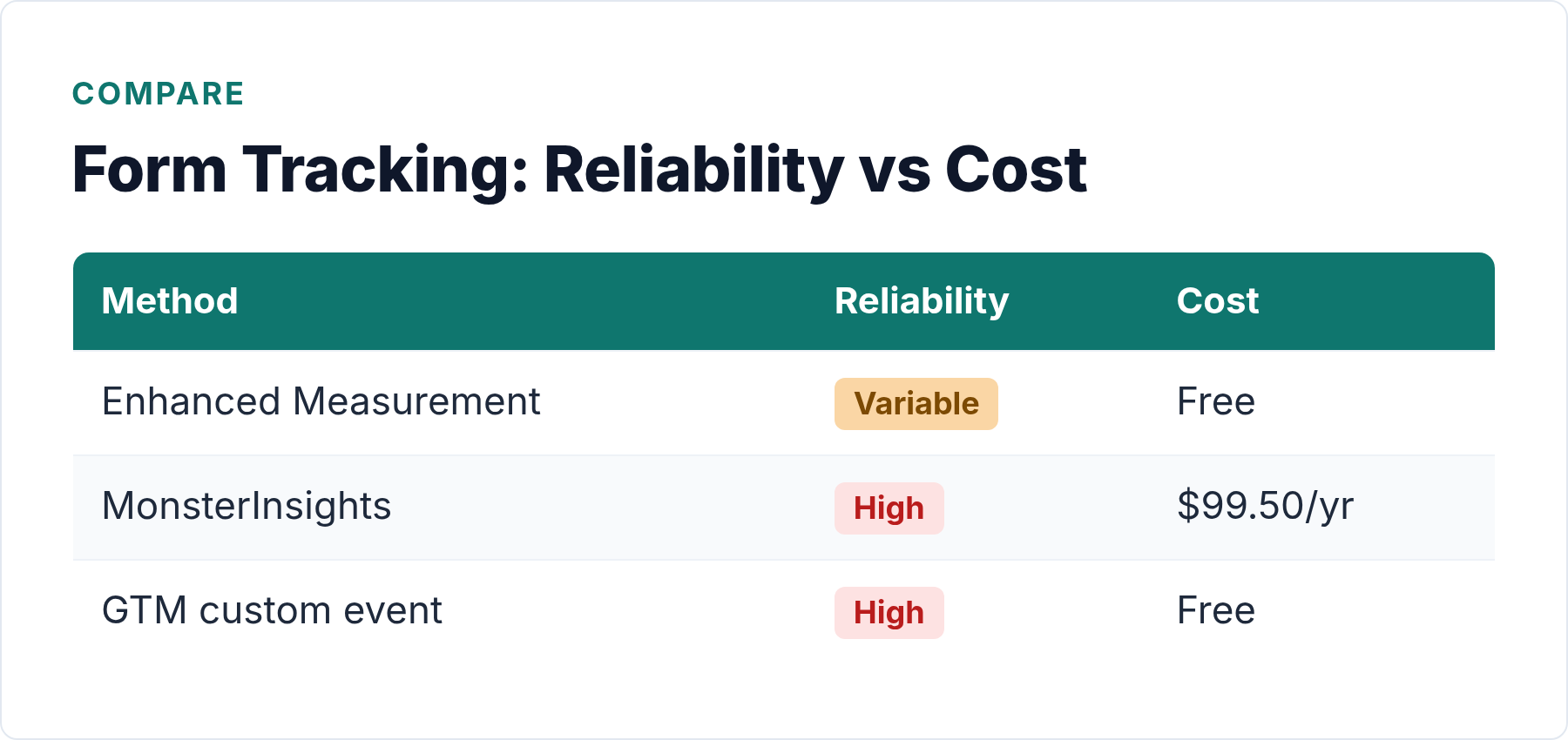
Methods Comparison: Which Should You Use?
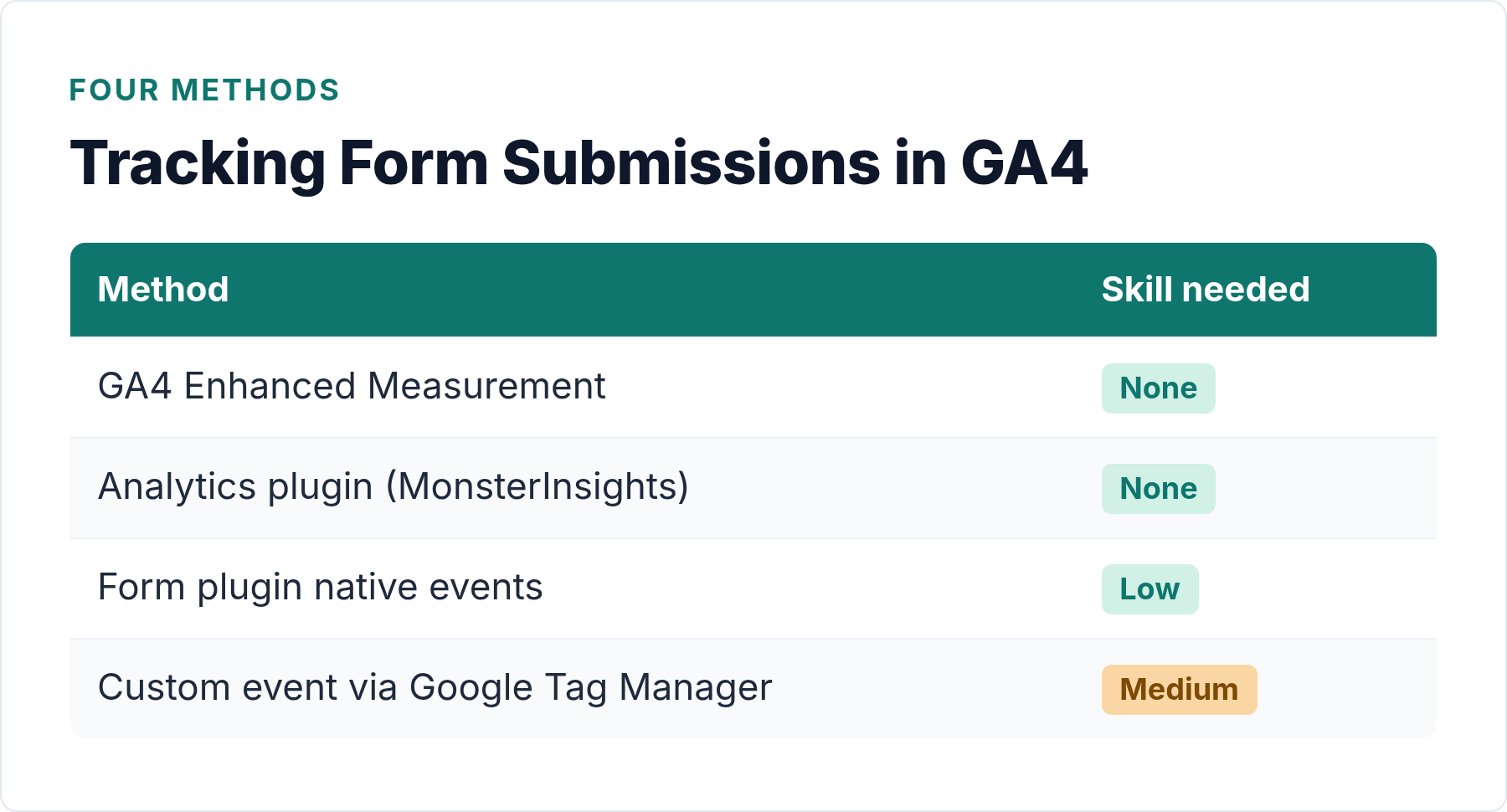
| Method | Technical Skill Required | Cost | Reliability | Best For |
|---|---|---|---|---|
| GA4 Enhanced Measurement | None | Free | Variable — misses AJAX forms | Quick check on simple HTML forms |
| MonsterInsights Plus | None | $99.50/year | High — auto-detects major plugins | Non-technical users who want a dashboard inside WP |
| Site Kit | None | Free | Low (no dedicated form tracking) | GA4 setup — combine with another method for forms |
| Form plugin native tracking | Low — in-plugin settings | Included in Pro tiers | High when supported | WPForms Pro / Gravity Forms Pro users |
| Google Tag Manager | Medium | Free | High — precise control | Sites with multiple tracking needs, CF7 users |
For most WordPress site owners who aren’t developers: MonsterInsights Plus is the least friction. If you’re already on WPForms Pro or Gravity Forms Pro, check native settings first — you may already have it. Contact Form 7 users who want free: GTM is the right path.
Mark the Form Submit as a GA4 Key Event
Tracking the event is step one. Making it count in your reports requires one more action: marking the event as a key event.
GA4 renamed what used to be called “conversions” to “key events” in March 2024. The label change is cosmetic — the mechanism is the same. When you mark an event as a key event, it surfaces prominently in GA4 reports and lets you measure conversion rates across traffic sources, campaigns, and landing pages.
Here’s how to do it:
- Go to GA4 Admin → Events (under your property, not account).
- Find your form submission event — for example,
form_submit,form_submit_contact, or whatever name your plugin or GTM setup uses. Note: it needs to have fired at least once to appear in this list. - Toggle “Mark as key event” on the right side of the row.
- The event now appears in Reports → Engagement → Key events and factors into session key event rates across your acquisition reports.
If you connect this GA4 property to Google Ads, that key event becomes available as an Ads conversion action — but that’s a separate step and only relevant if you’re running paid campaigns.
Funnels are a natural next step once you have key events set up. If you want to understand the full path visitors take before submitting a form, check out what a conversion funnel is and whether you need one.
How to Verify Your Form Tracking Is Working
Don’t assume it’s working. Verify. I’ve seen setups where everything looked correct but the events were firing twice, or not at all, because of a plugin conflict.
Here’s a step-by-step verification checklist:
- Open GA4 DebugView. Go to GA4 Admin → DebugView. This shows real-time events from your browser — you can see exactly what’s firing and what parameters are being sent. Google’s DebugView documentation explains how to activate debug mode via the GA4 browser extension.
- Install the Google Analytics Debugger extension. Add the GA Debugger Chrome extension and enable it. This activates DebugView for your browser session without affecting other visitors.
- Submit your form. Fill in your contact form or test form with dummy data and submit it.
- Watch DebugView. Within 5–10 seconds, you should see your event name appear in the DebugView timeline on the left. Click it to expand and check parameters — look for the form title or ID if your plugin sends them.
- Check Realtime reports. Go to Reports → Realtime in GA4. Under “Key events in last 30 minutes,” your form submit key event should appear if you’ve already marked it.
- Confirm no double-firing. Submit the form once. You should see exactly one event. Two identical events firing simultaneously is a common issue when both enhanced measurement and a plugin are tracking the same form submission — disable one if this happens.
- Test from a private/incognito window. This eliminates cookie or session caching issues that can muddy debug results.
If the event doesn’t appear in DebugView after submission, work backwards: check that GA4 is actually loading on the page (use the GA Debugger extension to confirm), verify your event name matches what you configured, and check for JavaScript errors in the browser console that might be blocking the event.
Bottom Line
Form submissions are some of the most valuable actions visitors take on a WordPress site. Leaving them untracked means you’re measuring everything except what matters most.
The practical starting point: check whether GA4’s enhanced measurement is catching your form submissions in DebugView first — it costs nothing to verify. If it’s not reliable (common with AJAX-based plugins like CF7), pick the method that fits your setup. MonsterInsights Plus is the lowest-friction paid option; GTM with a custom event trigger is the best free option if you’re willing to spend 30 minutes learning it. Form plugin native tracking is the cleanest path if your plugin supports it.
Once the event is firing, mark it as a key event in GA4 and let the data accumulate for a week or two before drawing conclusions. Then connect it to your traffic sources and start asking the question that actually matters: which channels are driving form submissions, not just visits.
If you’re still in the process of getting GA4 connected to WordPress, start with the easy plugin-based analytics setup guide first, then come back here.

Written by Ellie
Former Head of Analytics at a European digital agency. 8+ years making WordPress analytics make sense. Google Analytics certified. I write the guides I wish existed when I started.
More about me →