You installed Google Analytics, it tracked everything, and now you want it gone — or at least under control. Maybe you got a GDPR complaint. Maybe you’re switching to a cookieless tool. Maybe you just want to know how your visitors can opt out without calling their IT department. Whatever brought you here, this guide covers all of it: how to disable Google Analytics on WordPress as the site owner, how to let visitors opt out, and how to verify that GA is actually gone.
Two different situations, one article. Let’s start with you, the site owner.
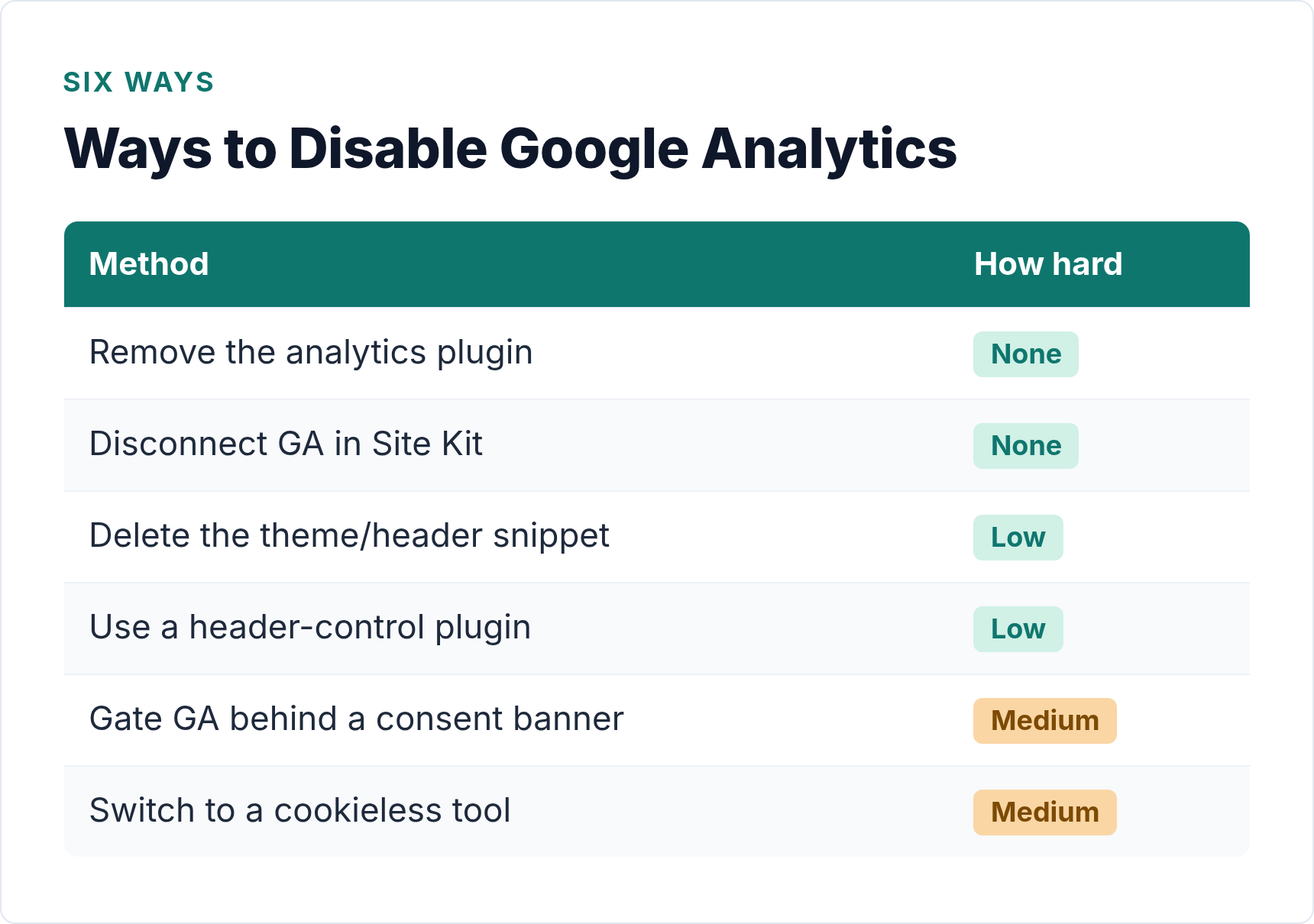
Ways to Disable Google Analytics on WordPress: A Quick Comparison
There are several routes to removing or restricting GA, and the right one depends on how you installed it. Here’s the full picture before we get into the steps.
| Method | Best if you installed GA via… | Result | Difficulty |
|---|---|---|---|
| Deactivate / delete MonsterInsights | MonsterInsights plugin | GA fully removed | Easy |
| Disconnect & remove Site Kit | Google Site Kit plugin | GA fully removed | Easy |
| Delete the snippet from your theme | functions.php or child theme | GA fully removed | Moderate |
| Remove from header/footer plugin | Insert Headers and Footers or similar | GA fully removed | Easy |
| Gate behind a consent banner (CMP) | Any method | GA loads only after consent | Moderate |
| Switch to a cookieless analytics tool | Any method | GA gone; new tool replaces it | Easy–Moderate |
Pick your row from the table and jump to the matching section below.
Option 1: Remove GA Installed via a Plugin
MonsterInsights
If MonsterInsights is how your GA snippet ended up on your site, deactivating the plugin is all it takes. Go to Plugins → Installed Plugins, find MonsterInsights, and click Deactivate. That stops the tracking immediately. If you’re sure you won’t need it again, click Delete too — it removes the plugin files but leaves your WordPress database settings intact (not a problem).
Want to keep MonsterInsights active for other features but stop GA tracking? Open the plugin settings, go to General → Google Authentication, and click Disconnect MonsterInsights from Google. The plugin stays installed but stops firing the GA script.
Google Site Kit
Google Site Kit works slightly differently because it’s a multi-service plugin. Deactivating it kills Analytics, but it also disconnects Search Console, PageSpeed Insights, and AdSense if you have those connected. If you only want to remove GA while keeping the other services, there’s a more surgical option.
In your WordPress dashboard, go to Site Kit → Settings → Connected Services. Find Analytics and click Disconnect. Site Kit stops loading the GA snippet, and your other connected Google services stay intact.
If you want the whole plugin gone: Plugins → Installed Plugins → Deactivate → Delete.
One thing to check after removing Site Kit: it sometimes leaves behind a `googlesitekit-*` option in your WordPress database. It’s harmless, but if you want a clean break, a quick database search for `googlesitekit` in `wp_options` will show you what’s left.
Option 2: Remove a Manually Pasted GA Snippet
If you or a developer pasted the GA snippet directly into your theme or a header/footer plugin, the approach is a bit different.
Removing from functions.php
Open your WordPress dashboard and go to Appearance → Theme File Editor (or use an FTP client). Find your active theme’s functions.php file. Search for the string gtag or G-XXXXXXXXXX (your GA Measurement ID). Delete the entire code block — it usually starts with <?php function add_google_analytics() or similar and ends with a closing action hook.
If you’re editing a parent theme’s
functions.phpdirectly, updates will wipe your changes. Always use a child theme for code customizations.
Save the file. The snippet is gone.
Removing from a Header/Footer Plugin
Plugins like Insert Headers and Footers or WPCode store the snippet as a database value. Go to the plugin’s settings page (usually under Settings or Code Snippets), find the GA script in the header section, and delete it. Save. Done.
If you used WPCode specifically, you can also just toggle the snippet off rather than deleting it — useful if you might want to re-enable it later.
Option 3: Gate GA Behind a Consent Banner (Consent Mode v2)
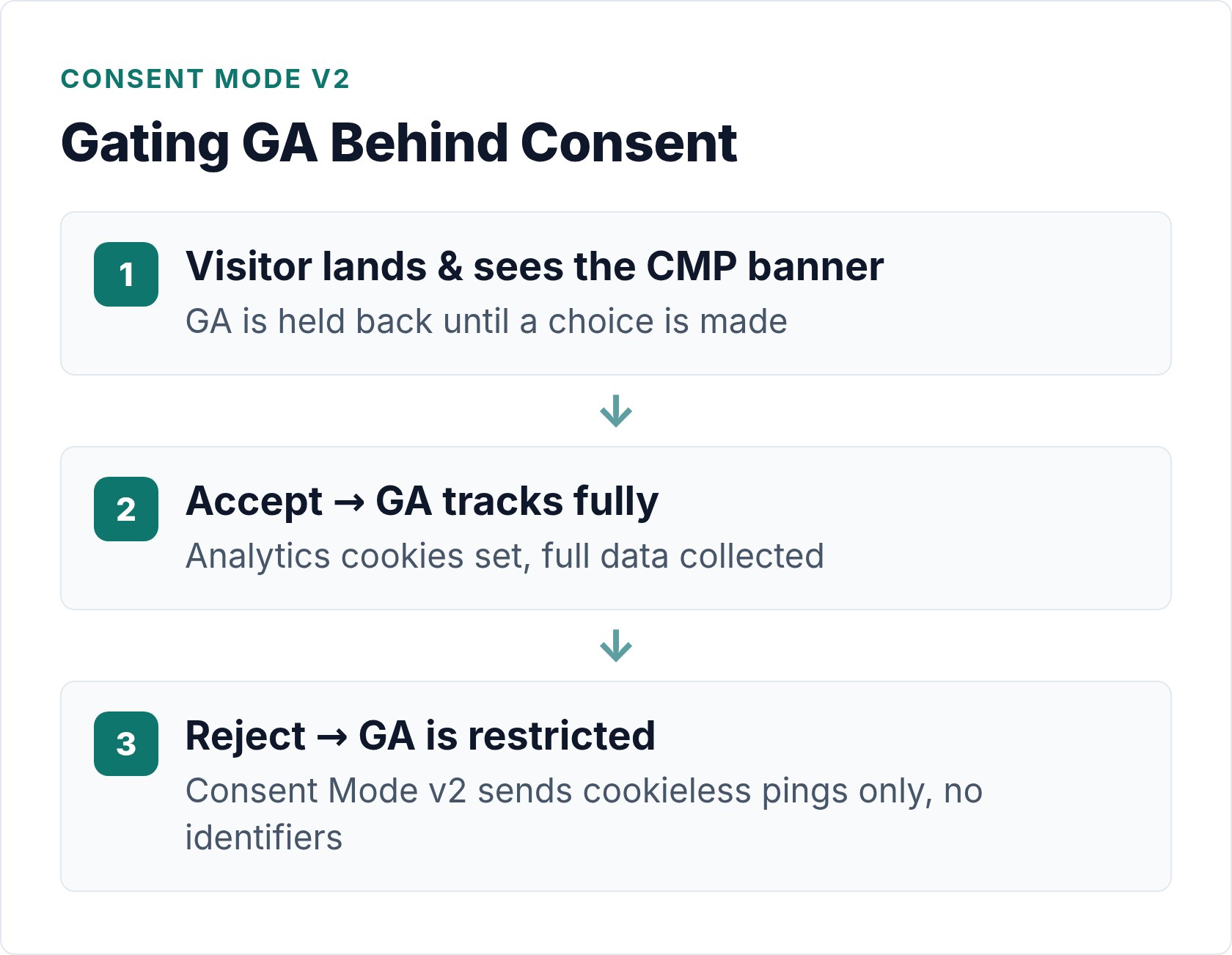
Removing GA entirely isn’t always the right move. If you rely on GA data for business decisions, you might want to keep it running — but only fire it after a visitor gives consent. That’s what a Consent Management Platform (CMP) does.
Under Google Consent Mode v2, when a visitor lands on your site, the GA script loads in a restricted state (no cookies, no personal data). If the visitor clicks “Accept,” GA switches to full tracking mode. If they reject, GA stays restricted or doesn’t fire at all, depending on your CMP configuration.
To set this up on WordPress, you need two things:
- A CMP plugin that supports Consent Mode v2 — popular options include CookieYes, Complianz, and Real Cookie Banner.
- Your GA implementation to be compatible with Consent Mode (MonsterInsights Plus, Site Kit, or a manual
gtagsetup with the properconsentcommands).
The official Google Consent Mode documentation covers the technical implementation. For the WordPress-specific GDPR side of this, I’ve written a more detailed breakdown: see GDPR-compliant analytics for WordPress — what you actually need to do.
One important note: Consent Mode v2 uses behavioral modelling to estimate conversions from users who decline. It’s useful for Google Ads reporting, but it doesn’t give you real data from non-consenting visitors — it fills the gap with estimates. Know what you’re working with.
Option 4: Switch to a Cookieless Analytics Tool
The cleanest solution — especially if GDPR compliance or data accuracy is your main concern — is to swap GA out entirely for a privacy-friendly alternative. Tools like Plausible, Fathom, or Koko Analytics don’t use cookies, don’t process personal data, and work without a consent banner.
I’ve covered this in detail elsewhere, so I won’t rehash it here. If you’re weighing your options: analytics without cookies — what WordPress site owners should know is a good starting point.
How Visitors Can Opt Out of Google Analytics
If you’re a site owner who wants to give your visitors a way to opt out — or you’re a visitor yourself trying to stop GA tracking across sites — here are the real options.
Google Analytics Opt-Out Browser Add-On
Google provides an official browser extension for this. The Google Analytics opt-out browser add-on is available for Chrome, Firefox, Safari, Edge, and Opera. Once installed, it sets a ga-disable flag that prevents the GA script from sending data. It works across every website using GA — not just yours.
This is the most reliable visitor-side opt-out method. It’s free, official, and widely supported.
Do Not Track (DNT)
Most browsers let users enable a Do Not Track signal in their privacy settings. However, DNT is not legally binding and Google Analytics does not honor it by default. Some WordPress analytics plugins (like the Matomo WordPress plugin) can be configured to respect DNT, but GA4 ignores it. So: DNT is a signal of intent, not a technical block.
Your Site’s Cookie Consent Banner
If you’ve set up a proper CMP with Consent Mode v2, visitors who click Reject (or Decline, depending on your button labels) will prevent GA from collecting their data in full tracking mode. This is the method that’s legally meaningful under GDPR, because it documents the visitor’s choice and has a technical effect on what’s tracked.
The European Data Protection Board (EDPB) guidelines on consent are worth reading if you’re setting up a consent flow and want to understand what “freely given, specific, informed and unambiguous” actually requires. Short version: pre-ticked boxes and dark patterns don’t count as consent.
How to Verify Google Analytics Is Actually Gone
Removing GA and confirming it’s removed are two different things. Here’s how to check.
Use Your Browser’s Developer Tools
- Open your site in Chrome or Firefox.
- Right-click anywhere and choose Inspect (or press F12).
- Go to the Network tab.
- Reload the page.
- In the filter box, type
google-analyticsorgtag.
If no requests appear, GA isn’t loading. If you see requests to www.google-analytics.com or analytics.google.com, something is still firing the script. Go back and check for any secondary plugins or hard-coded snippets you may have missed.
Check Your Page Source
In your browser, press Ctrl+U (or Cmd+U on Mac) to view the page source. Search for G- (your Measurement ID prefix) or gtag. If you find nothing, you’re clean.
Check GA Real-Time Reports
Log into your Google Analytics account and open Reports → Real-time. Visit your own site from a different browser or device (use incognito mode to avoid filters). If GA is still tracking, your visit will appear within a few seconds. No visit showing up after 30 seconds = GA is no longer receiving data from your site.
Note: this test only tells you whether GA is firing. It doesn’t confirm whether a consent banner is correctly blocking GA before consent — for that, use the Network tab method described above, but test without accepting the consent banner.
What to Do Next
Once GA is disabled or properly gated, you have a decision to make: track nothing, track with consent, or switch tools.
- Track nothing: Fine for personal blogs with no monetization or compliance requirements. You’ll lose visibility into what content works, but that’s a trade-off some site owners are happy to make.
- Gate GA behind consent: Keeps your GA data flowing from visitors who agree. Works well if you rely on GA for Google Ads conversion data. Requires a properly configured CMP. See the GDPR analytics guide for implementation details.
- Switch to a cookieless tool: The cleanest option for compliance. No consent banner needed, no personal data processed, and your numbers are often more accurate because nothing gets blocked by ad blockers or consent refusals. Check out the cookieless analytics overview to compare your options.
- Set up GA4 properly with a plugin: If you’re removing GA because your current setup was messy, sometimes starting fresh is the answer. The GA4 setup guide with WordPress plugins walks through the right way to do it.
Whatever direction you go, at least now you know GA is actually off — not just assumed to be off because you deleted a plugin three months ago.
Bottom Line
Disabling Google Analytics on WordPress is straightforward once you know how it was installed in the first place. Plugin-based installs (MonsterInsights, Site Kit) take two clicks. Manual snippets in functions.php or header plugins take a bit more care. Consent-gating keeps your data while respecting visitor choices. And for visitors who want out entirely, the Google Analytics opt-out add-on is the most reliable tool available.
After removing GA, verify with the Network tab — don’t assume. Five minutes of checking now saves a lot of confusion later when your GA property shows zero traffic and you can’t remember whether that’s intentional.

Written by Ellie
Former Head of Analytics at a European digital agency. 8+ years making WordPress analytics make sense. Google Analytics certified. I write the guides I wish existed when I started.
More about me →