Most WordPress sites have posts that nobody reads. Old tutorials with outdated screenshots, thin posts that overlap with better ones, and articles that ranked once but dropped off a cliff months ago. A content audit using analytics finds them — and tells you exactly what to do about each one.
Instead of guessing which posts need work, you pull the data from GA4 and let the numbers decide. In this guide, you will learn how to run a complete content audit analytics process, score every post on your site, and prioritize updates that actually move the needle.
What Is a Content Audit (And Why Analytics Makes It Easier)
A content audit is a systematic review of every piece of content on your site. You evaluate each post based on performance, relevance, and quality — then decide whether to keep it, update it, merge it, or remove it.
Without analytics, a content audit is just opinion. You read through posts and guess what is working. With analytics data, however, you have concrete numbers: pageviews, engagement time, bounce rate, and traffic trends over time. That transforms a subjective exercise into a data-driven process.
For example, a post might feel solid because you spent hours writing it. But if GA4 shows it gets 3 pageviews per month and an average engagement time of 12 seconds, that post needs attention. On the other hand, a quick post you wrote in 30 minutes might be pulling in hundreds of visits monthly. The data doesn’t care about your feelings — and that is exactly why it works.
Additionally, running a content audit analytics review helps with SEO. Google favors sites with consistently high-quality content. Thin, outdated, or duplicate pages can drag down your overall site quality signals. Cleaning house improves your entire domain, not just individual posts.
What You Need Before Starting Your Content Audit
Before diving in, make sure you have the following ready:
- Google Analytics 4 connected to your WordPress site — if you haven’t set this up yet, follow our GA4 setup guide for WordPress
- At least 3 months of data — ideally 6-12 months for meaningful trends
- A spreadsheet (Google Sheets or Excel) for scoring and tracking
- Your full post list — you can export this from WordPress or pull it from GA4
You also need to decide on your time range. For most WordPress sites, comparing the last 6 months to the previous 6 months gives you a clear picture of what is trending up, what is flat, and what is declining.
Tip: If your site has fewer than 50 posts, the entire audit should take 2-3 hours. For sites with 100+ posts, budget a full afternoon.
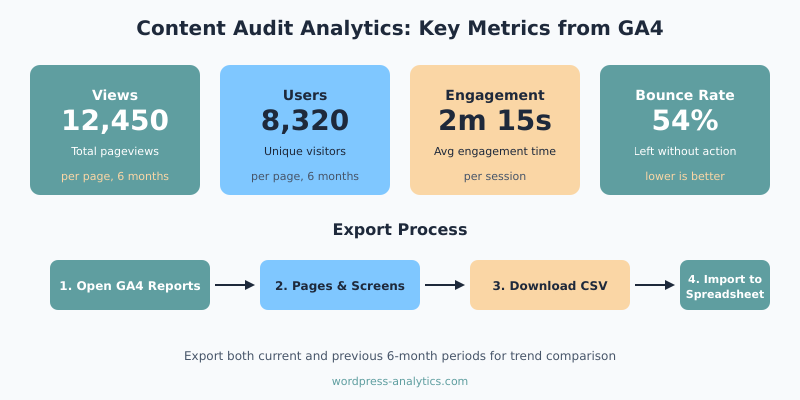
Step 1 — Pull Your Content Audit Analytics Data from GA4
First, you need page-level performance data. Here is how to get it from GA4.
- Open Google Analytics 4
- Go to Reports → Engagement → Pages and screens
- Set your date range to the last 6 months
- Make sure the primary dimension is set to Page path and screen class
- Click the Share this report icon (top right) and select Download file → Download CSV
The export gives you these key metrics for every page:
- Views — total pageviews in the period
- Users — unique visitors to that page
- Average engagement time — how long people actually spend reading
- Bounce rate — percentage who left without interacting (if you have bounce rate enabled in GA4)
Next, repeat the export for the previous 6 months. This comparison is essential for identifying trends. A post with 500 views might look fine — until you realize it had 2,000 views in the same period last year.
Import both CSV files into your spreadsheet. Use VLOOKUP or INDEX/MATCH to combine them by page path, so you have current and previous period data side by side.
Step 2 — Score Every Post (The 4-Bucket System)
Now comes the core of your content audit analytics process. You are going to sort every post into one of four buckets based on the data. This system works for any WordPress site regardless of size.
Keep (High Traffic, High Engagement)
These are your winners. They pull consistent traffic, readers stay engaged, and the content is still accurate. Don’t touch them unless something is factually outdated.
Criteria:
- Traffic is stable or growing compared to the previous period
- Average engagement time is above 1 minute
- Content is still accurate and relevant
Typically, 10-20% of your posts will fall in this bucket. These are the posts that justify your entire content strategy.
Update (Declining Traffic, Outdated Info)
These posts used to perform well but are slipping. Maybe traffic dropped 30% or more, or the information is outdated. They have proven potential — they just need a refresh.
Criteria:
- Traffic declined 20%+ from the previous period
- The topic is still relevant to your audience
- Content has outdated stats, screenshots, or recommendations
This is where you will get the most ROI from your content audit. Updating a post that already has backlinks and search history is far easier than writing something new from scratch. As a result, this bucket should be your top priority.
Merge (Thin Content, Overlapping Topics)
Thin posts under 500 words and posts that cover nearly the same topic should be merged into a single, stronger piece. This is also known as content consolidation.
Criteria:
- Post is under 500 words with minimal unique value
- Another post on your site covers the same topic better
- Both posts get some traffic, but neither ranks well
When merging, keep the URL with the most backlinks and redirect the other with a 301 redirect. Consequently, you preserve any link equity and avoid broken links.
Remove (Zero Traffic, Irrelevant)
Some posts just need to go. They get zero traffic, cover topics you no longer care about, or are so outdated that updating them would mean rewriting from scratch.
Criteria:
- Fewer than 10 pageviews in 6 months
- No backlinks pointing to the page
- Topic is no longer relevant to your site
Before deleting, always check for backlinks using Google Search Console or a tool like Ahrefs. If a dead post has quality backlinks, redirect it to a relevant page instead.
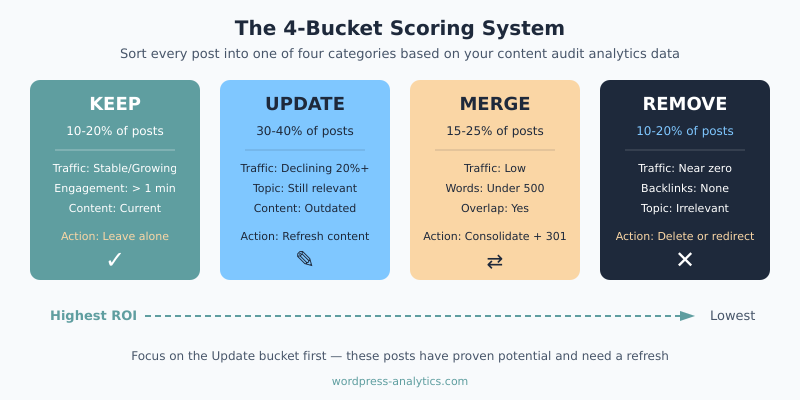
Here is a quick decision table to help you sort posts:
| Metric | Keep | Update | Merge | Remove |
|---|---|---|---|---|
| Traffic trend | Stable or growing | Declining 20%+ | Low but present | Near zero |
| Engagement time | Above 1 min | Any | Below 30 sec | Below 10 sec |
| Word count | 500+ | 500+ | Under 500 | Any |
| Content accuracy | Current | Outdated | Partial overlap | Irrelevant |
| Backlinks | Any | Any | Check before merging | None |
Step 3 — Prioritize Updates by Potential Impact
Once you have scored every post, you will probably have a long list in the “Update” bucket. You cannot fix everything at once, so you need to prioritize.
Here is a simple scoring formula that works well:
Priority Score = Previous Traffic × Traffic Drop % × Topic Relevance (1-3)
For instance, a post that had 1,000 views, dropped 40%, and covers a highly relevant topic (score 3) gets a priority score of 1,200. Meanwhile, a post with 200 previous views, a 50% drop, and medium relevance (score 2) gets 200. The first post gets attention first.
In addition, consider these factors when prioritizing:
- Search position — posts ranking on page 2 (positions 11-20) have the highest potential. A small improvement could push them to page 1. Check Google Search Console for average position data.
- Seasonal relevance — if a post covers a seasonal topic, time your update before peak season
- Update effort — a post that needs new screenshots takes less work than one that needs a complete rewrite
Furthermore, look at your blog traffic patterns to understand which content types tend to perform best on your site. That context helps you decide where to invest your time.
Step 4 — Track Results After Updating
After updating posts, you need to track whether the changes actually worked. Otherwise, you are just guessing again.
Create a simple tracking spreadsheet with these columns:
- Post URL
- Date updated
- What changed (new info, expanded sections, better images, etc.)
- Traffic at time of update
- Traffic 30 days after
- Traffic 90 days after
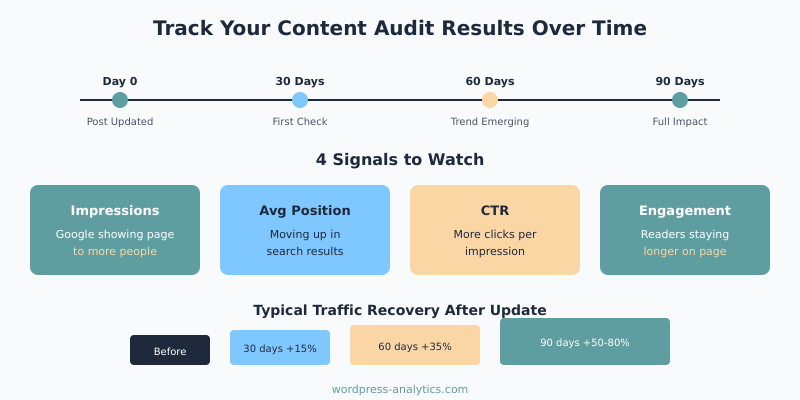
Give each updated post at least 4-6 weeks before judging results. Google needs time to recrawl and reindex the page. In some cases, you may not see the full effect for 2-3 months.
Specifically, watch for these signals:
- Impressions increasing in Google Search Console — this means Google is showing the page to more people
- Average position improving — you are moving up in search results
- Click-through rate changing — if you updated the title or meta description, CTR should improve
- Engagement time increasing — better content keeps readers on the page longer
If you are tracking content performance more broadly, our guide on setting up data filters and traffic segments can help you isolate updated posts in your analytics.
Content Audit Analytics Mistakes to Avoid
I have run content audits on dozens of WordPress sites, and the same mistakes come up repeatedly. Here are the ones that waste the most time:
- Deleting posts without checking backlinks. If a post has quality backlinks, removing it throws away link equity. Always redirect instead.
- Only looking at traffic. A post with low traffic but high engagement time and conversions might be your most valuable page. Therefore, never judge by a single metric.
- Updating everything at once. If you change 50 posts in one week, you will have no idea which updates moved the needle. Space them out so you can measure results.
- Ignoring thin content. Posts under 300 words rarely rank for anything meaningful. They clutter your site and dilute your crawl budget.
- Skipping the comparison period. Looking at only current traffic gives you a snapshot, not a trend. You need both periods to identify posts that are declining.
How Often Should You Audit Your WordPress Content?
For most WordPress sites, a full content audit analytics review once or twice a year is sufficient. Here is a rough schedule:
| Site Size | Audit Frequency | Estimated Time |
|---|---|---|
| Under 50 posts | Once a year | 2-3 hours |
| 50-200 posts | Twice a year | Half a day |
| 200+ posts | Quarterly | 1-2 days |
Between full audits, keep an eye on your top-performing content monthly. If you notice a key post losing traffic in your blog traffic reports, don’t wait for the next audit to take action.
Also, trigger an audit whenever you make a major site change — like switching themes, restructuring categories, or migrating to a new domain. These events often cause unexpected traffic shifts that a content audit can catch early.
Bottom Line
A content audit analytics approach takes the guesswork out of managing your WordPress content. Pull your data from GA4, score every post using the 4-bucket system, prioritize updates by potential impact, and track your results. Most sites find that 20-30% of their posts need attention — and updating those posts is almost always easier and more effective than creating new content from scratch.
Start with the posts that have the biggest gap between previous traffic and current performance. Those are the ones where a refresh can have the most impact. Then work your way down the list, one post at a time.
Your content library is an asset. Treat it like one.

Written by Ellie
Former Head of Analytics at a European digital agency. 8+ years making WordPress analytics make sense. Google Analytics certified. I write the guides I wish existed when I started.
More about me →