Open a fresh WordPress install and look for a visitor count.
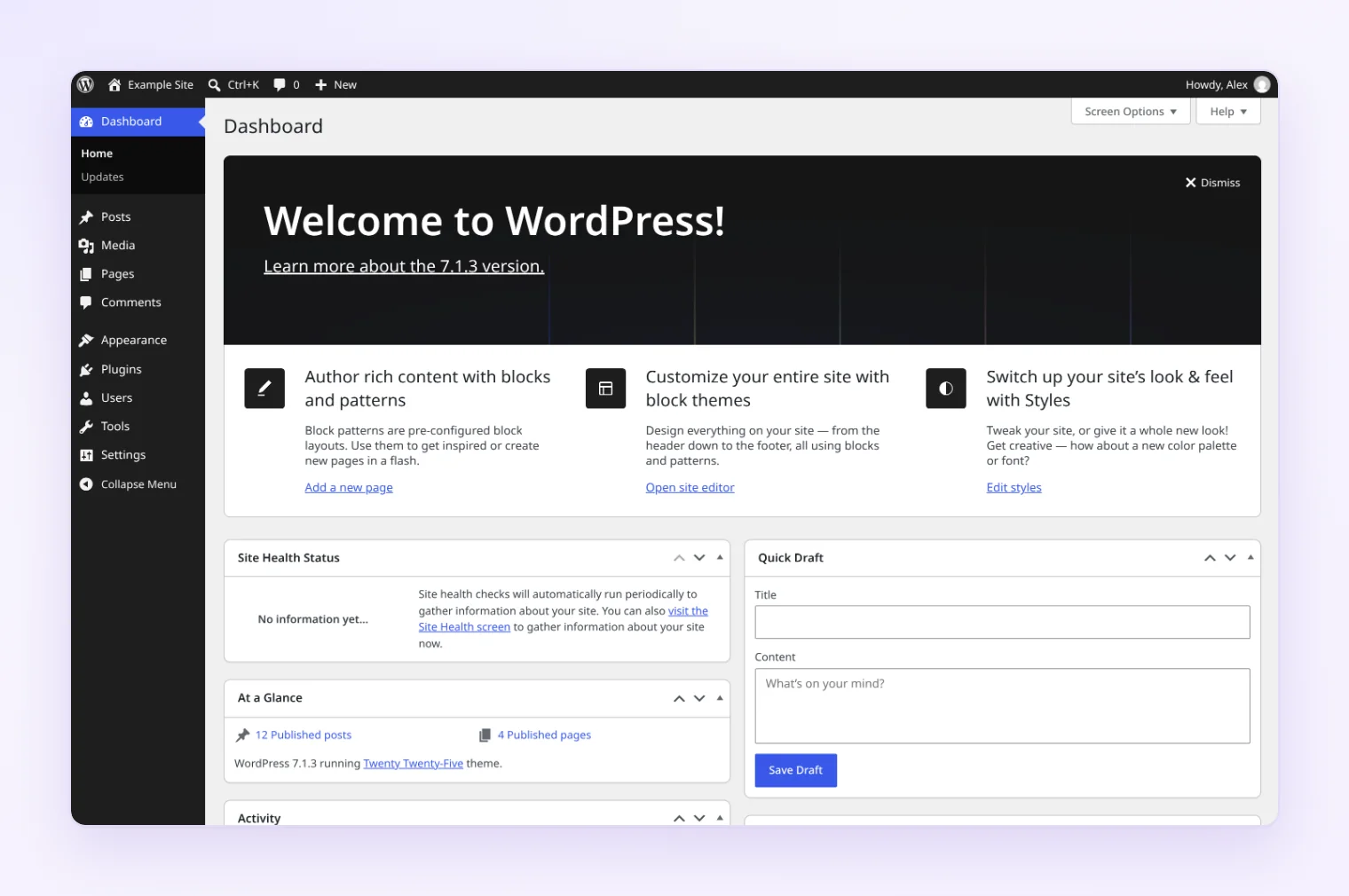
You’ll find a welcome panel, a Quick Draft box, recent activity and a Site Health check, but not a single traffic number.
So where do the numbers come from? Either your server already logs them, or you add a counter.
To check website traffic in WordPress, start with what already runs: your hosting panel logs every request. For visitor counts, add one tool: Jetpack Stats, Site Kit or Google Analytics 4, a plugin that stores stats in your WordPress database, or a cookie-free analytics service with a WordPress plugin. Search Console adds the Google-search view.
On WordPress.com? Your site stats are already there: click Stats in the sidebar. Section 2 explains what you’ll see.
Everyone else, here are eight ways to get WordPress site analytics, from “nothing to install” to “a plugin and an account.”
Which way to check your WordPress traffic fits you
Here are all eight ways to check website traffic in WordPress, side by side. If you’d rather skip a cookie consent banner, start with the cookie column.
| Way | Cookies on visitors’ devices | Cost | Where you see the numbers | Where the data lives | Good for |
|---|---|---|---|---|---|
| 1. Hosting panel | None | Included in hosting | cPanel, Plesk or your host’s dashboard | Your host’s server logs | A quick sanity check, spotting bot load |
| 2. Jetpack Stats | None for visitors | Free, paid tier $8.33/mo billed yearly | Jetpack, plus a Stats column in Posts | WordPress |
Bloggers who want simple numbers in WordPress |
| 3. Site Kit by Google | Yes, if you connect GA4 | Free | Site Kit dashboard in wp-admin | Sites already using Google tools | |
| 4. Google Analytics 4 | Yes, _ga for 2 years |
Free | analytics. |
Depth: traffic sources, campaigns, conversions | |
| 5. MonsterInsights or ExactMetrics | Yes, through GA4 | Lite free, Plus $99.50/yr first year | Their reports screen in wp-admin | GA4 users who’d rather stay in WordPress | |
| 6. Plugins that store stats in your database | None for WP Statistics and Independent Analytics, yes by default for Burst and Koko | Free, paid add-ons optional | Statistics or Analytics menu in wp-admin | Your WordPress database | No Google and no outside account |
| 7. Cookie-free service with a plugin, such as Fathom, Plausible or Statable | None | Paid after a 7 to 30-day trial, from $9 to $15/mo | In wp-admin through the plugin, plus the service’s own dashboard | The vendor’s servers | Numbers in WordPress with no analytics cookies and nothing added to your database |
| 8. Google Search Console | None. No tracking script, just a one-time verification | Free | search.google.com/ |
How people find you in Google Search |
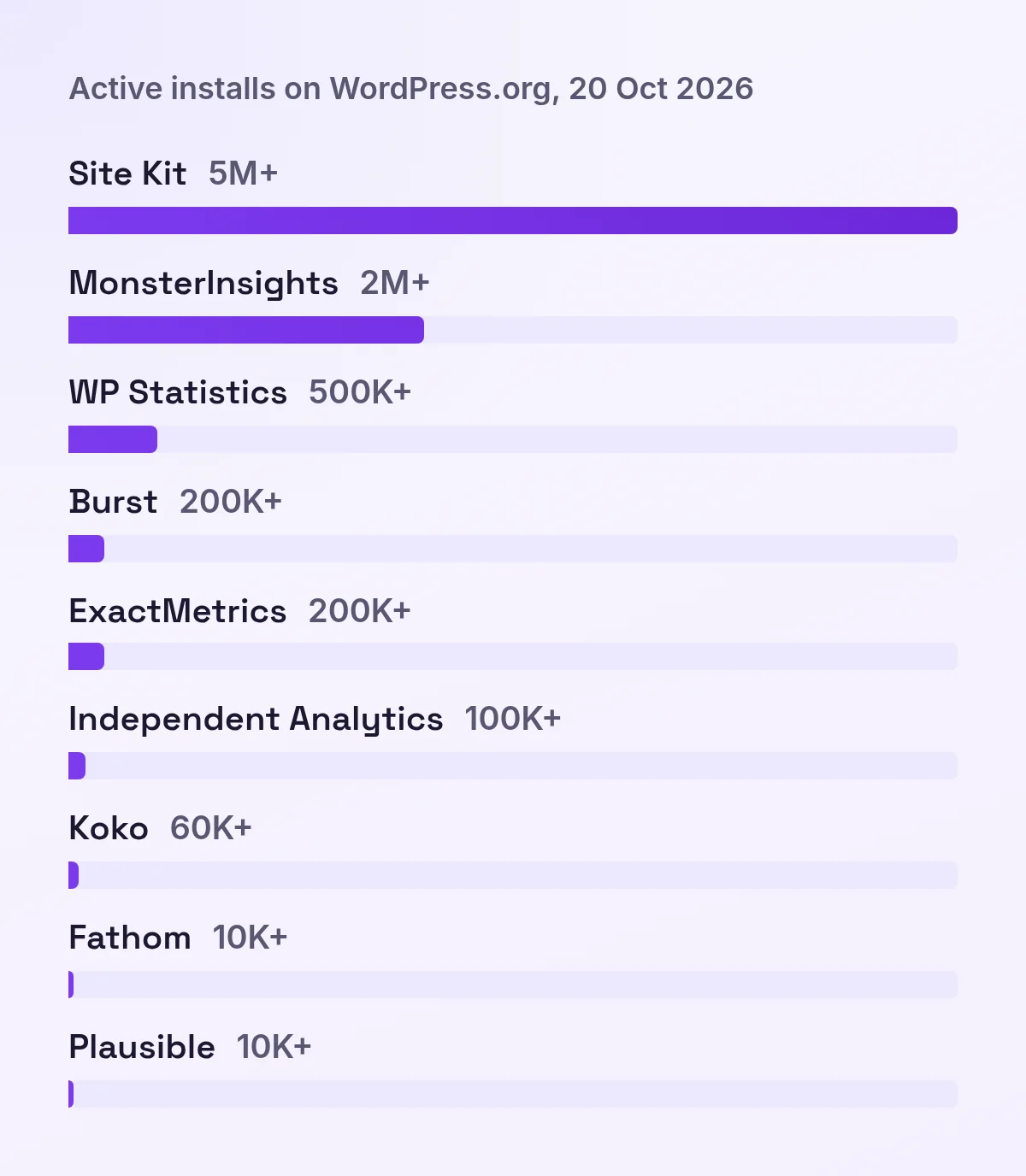
The two biggest analytics plugins here, Site Kit and MonsterInsights, both connect your site to Google, so popularity alone won’t tell you what fits.
1. Check traffic in your hosting control panel (nothing to install)
Your host already logs every request to your site, and most control panels turn that log into a traffic report.
That makes it the one way that needs no plugin and no account.
Where to look depends on your host:
- cPanel: Metrics, then Awstats for monthly, daily and hourly charts.
- cPanel, raw hits: Metrics, then Visitors lists recent hits with IP, page, referrer and browser.
- Plesk: Web Statistics on your domain.
- Hostinger: Analytics in the Hostinger dashboard (hPanel) sidebar shows total requests, unique IP addresses and bandwidth.
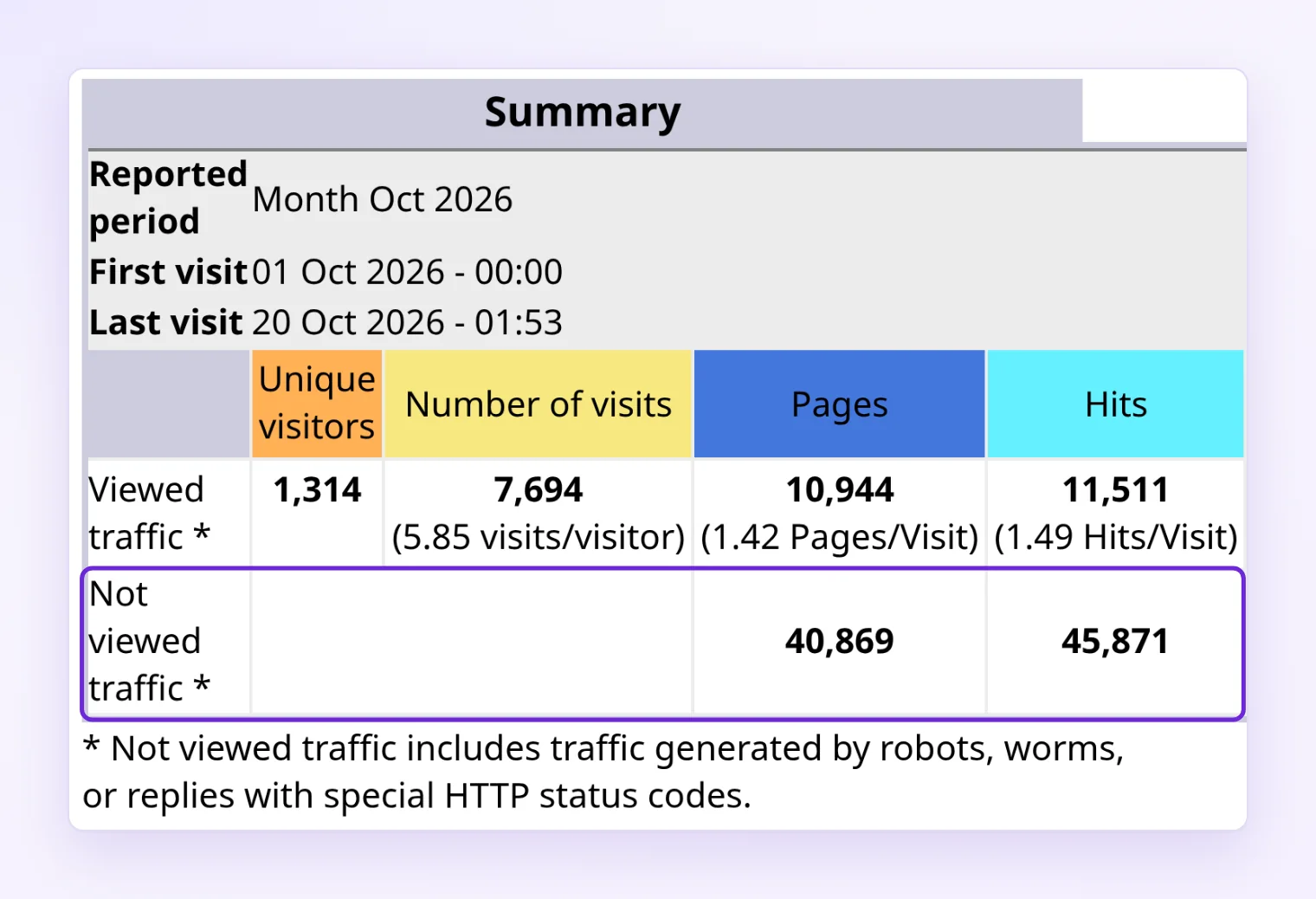
The catch: these reports count requests, not people. The public demo of AWStats shows the gap nicely.
Between October 1 and the early hours of October 20, 2026, it logged 10,944 pages viewed by visitors and another 40,869 pages that weren’t.
That’s almost four pages nobody looked at for every page someone did.
“Unique IP addresses” aren’t people either, because a whole household or office often sits behind one IP.
The tools themselves are aging, too. The AWStats site says it’s no longer receiving new versions from its original author, and Plesk is phasing AWStats out while it makes GoAccess the default on new Linux servers.
Raw access logs, if you want the source
Many hosts also let you download the raw access log. Each line is one request: IP, time, page, referrer and browser.
Feed that file to a log analyzer like GoAccess, and you’ll get the same kind of report on your own computer.
It’s the quickest way to check that anyone visits at all, and to see how much of your server’s work goes to bots.
2. Jetpack Stats (built into WordPress.com)
Jetpack Stats is the counter WordPress.com uses, and the Jetpack plugin brings it to a self-hosted site. You’ll also need a free WordPress.com account to connect it.
- Turn it on: Jetpack, then Settings, then the Traffic tab, then Activate Jetpack Stats.
- Per-post numbers: a Stats column with page views appears in your Posts and Pages lists.
- Price: Jetpack now says Stats is free for “any type of site, any amount of traffic.” Older guides that say commercial sites must pay are out of date.
- Paid Stats: $8.33 a month billed yearly, with the discount for the first year only. It adds UTM tracking, device stats and region and city locations.
- Privacy: no cookies for your visitors. Automattic keeps stats logs with IP addresses for 28 days.
On WordPress.com, a view usually shows up within about five minutes. A new visitor can take up to two hours, and your own logged-in visits aren’t counted.
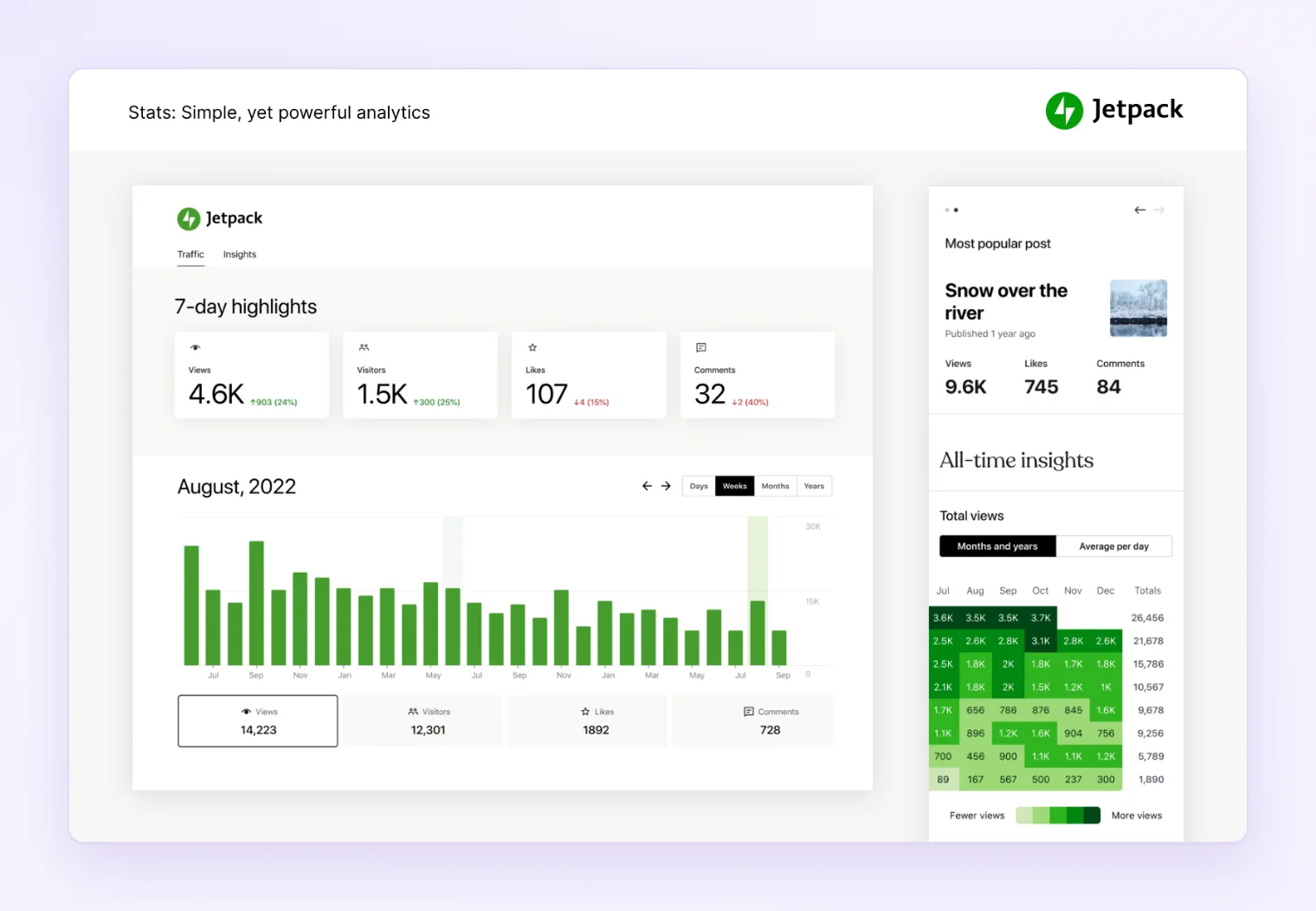
Jetpack has 3 million+ active installs, though that counts the whole plugin, not just Stats.
Good for:
- bloggers who want views, top posts and referral sources without a Google account
- anyone already running Jetpack for other features
3. Site Kit by Google
Site Kit is Google’s free plugin that pulls Search Console, Google Analytics and PageSpeed Insights into one WordPress dashboard. With 5 million+ active installs, it’s the most-installed analytics plugin on WordPress.org.
- Setup: install and activate it, then sign in with your Google account. Search Console connects first.
- More services: add Analytics, PageSpeed Insights, AdSense or Tag Manager under Site Kit, then Settings.
- New sites: expect a “gathering data” message until Google has numbers to show.
- Cost: the plugin is free and open source.
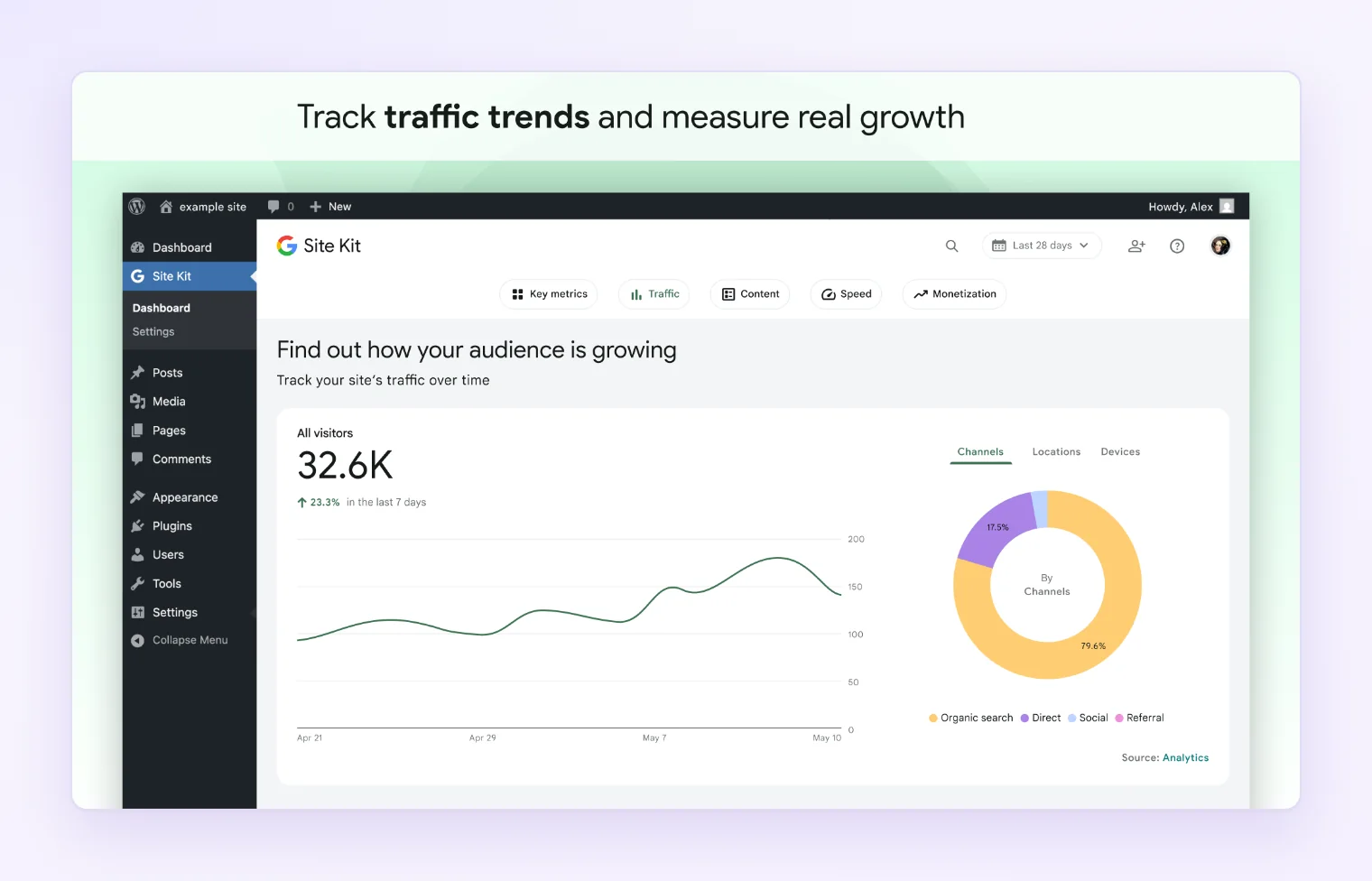
The widgets are summaries, so you can read them at a glance. For anything deeper than “how many people came this week,” though, you’ll click through to Google Analytics.
Once you connect Analytics, Site Kit adds the GA4 tag, so GA4’s cookies come with it. Its own FAQ also says site owners are responsible for notice and consent.
Site Kit makes the most sense if you already use Search Console or AdSense.
4. Google Analytics 4, where the full reports live
GA4 is free, and it gives you the deepest view: sources, campaigns, pages, devices and conversions.
Site Kit or MonsterInsights can add the tag for you, or you can set up GA4 through a plugin of your choice.
Three reports answer most traffic questions:
- Realtime: who’s on the site in the last 30 minutes.
- Acquisition, then Traffic acquisition: where your visitors are coming from. Here’s how to read the traffic sources report without getting lost.
- Engagement, then Pages and screens: which pages people actually read.
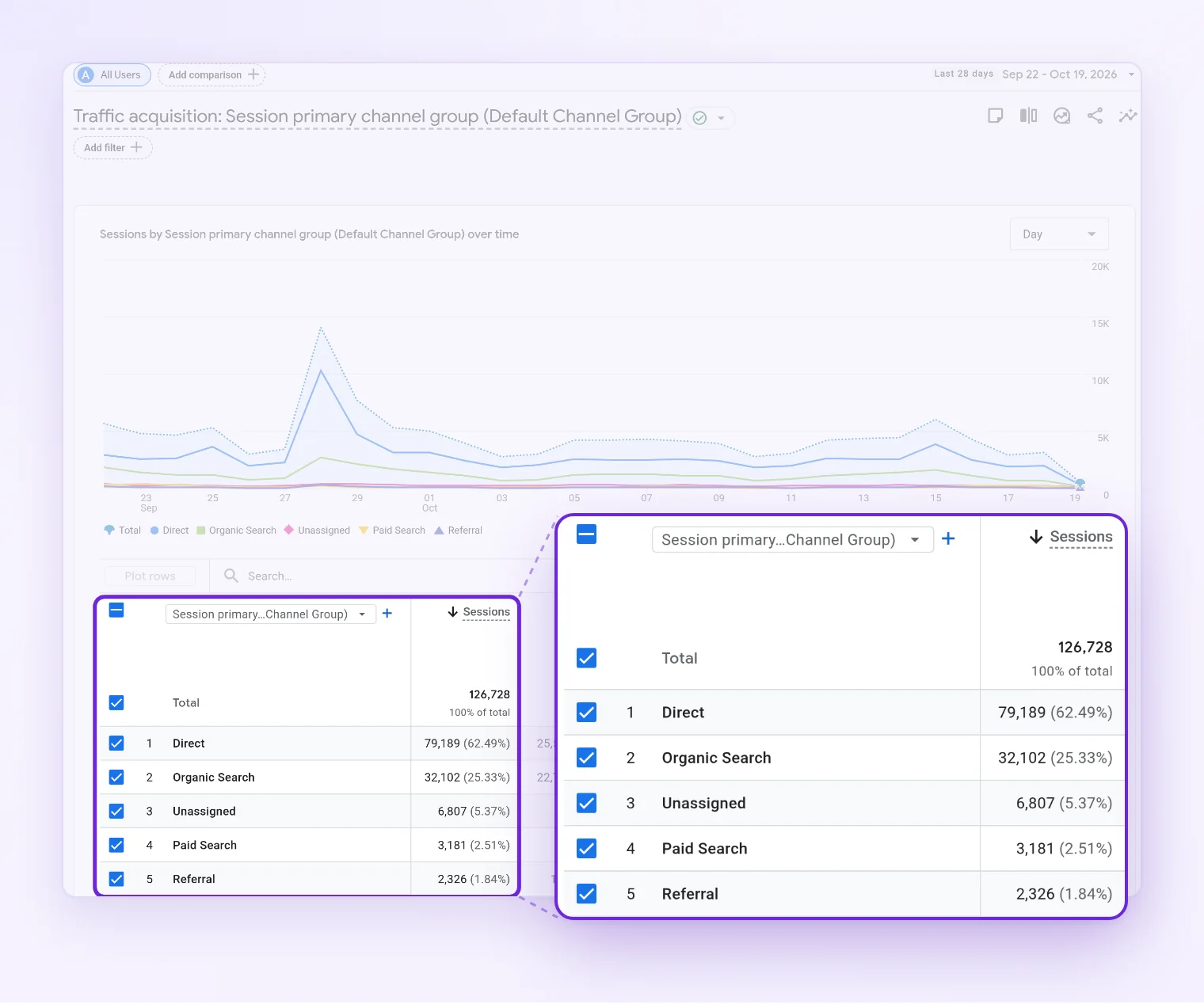
Don’t panic if yesterday’s traffic data looks empty, because Google says data processing can take 24 to 48 hours for standard reports.
The data retention setting (2 or 14 months) only affects explorations and funnel reports, so your standard reports aren’t touched.
GA4 sets two cookies, _ga and _ga_<container-id>, and both last 2 years. If your site asks for cookie consent, expect gaps from visitors who decline.
Reach for GA4 when you need:
- reports on ad campaigns, ecommerce and UTM links
- answers a summary widget can’t give
5. MonsterInsights or ExactMetrics: GA4 inside wp-admin
Both plugins connect Google Analytics to your site and show GA4’s numbers as simpler reports inside your WordPress dashboard. It’s the same data as GA4, but easier to read.
- Free version: the Lite plugins cover the basic reports.
- Paid: MonsterInsights Plus is $99.50 a year for the first year (normally $199), and ExactMetrics Plus is the same.
- Cookies: the same as GA4, because GA4 does the tracking.
- Reach: WordPress.org lists 2 million+ active installs for MonsterInsights. The plugin’s own description says over 3 million.
You still need a working GA4 property, since these plugins change where you read the numbers, not who collects them.
They suit GA4 users who live in WordPress all day. WooCommerce stores can get sales reports too, but those start on the Pro plan.
6. Plugins that keep the numbers in your WordPress database
These plugins track visitors on your own server and keep the statistics in WordPress itself, in your database.
You don’t need Google or an outside account, and you see the numbers right in wp-admin.
I installed four popular ones on a test site and sent the same simulated visits through all of them.
| Plugin | Active installs | Menu in wp-admin | Cookie by default (our test) | Paid version |
|---|---|---|---|---|
| WP Statistics | 500,000+ | Statistics | None | Premium $119/yr |
| Burst Statistics | 200,000+ | Statistics | burst_uid, 30 days (cookieless mode available) |
Pro from $49/yr |
| Independent Analytics | 100,000+ | Analytics | None | Pro from $49/yr |
| Koko Analytics | 60,000+ | Dashboard, then Analytics | _koko_analytics_pages_viewed, until midnight (cookieless mode available) |
Pro from €59/yr |
Two of them call their menu “Statistics,” so it gets confusing fast if you try both.
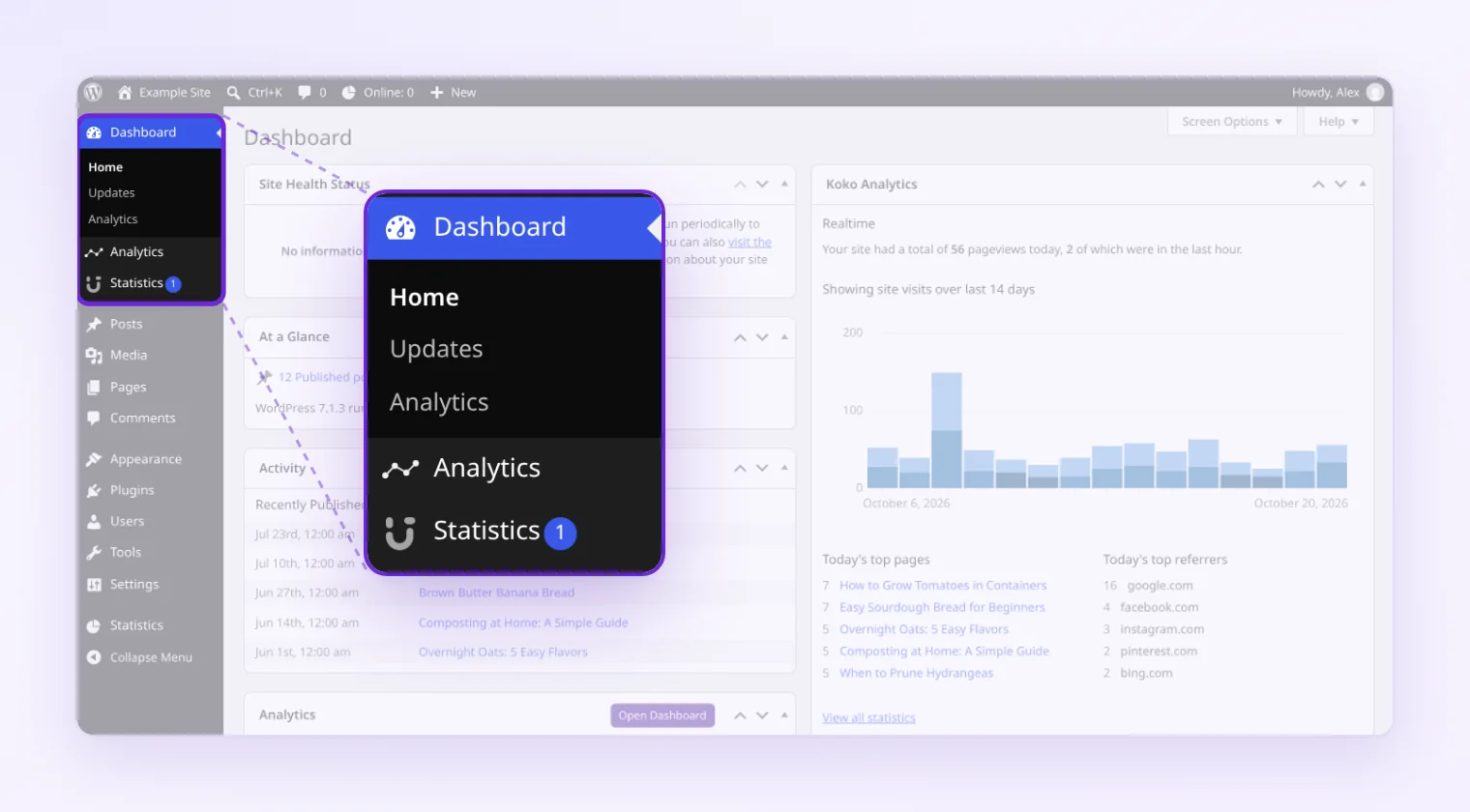
Most of them are quick.
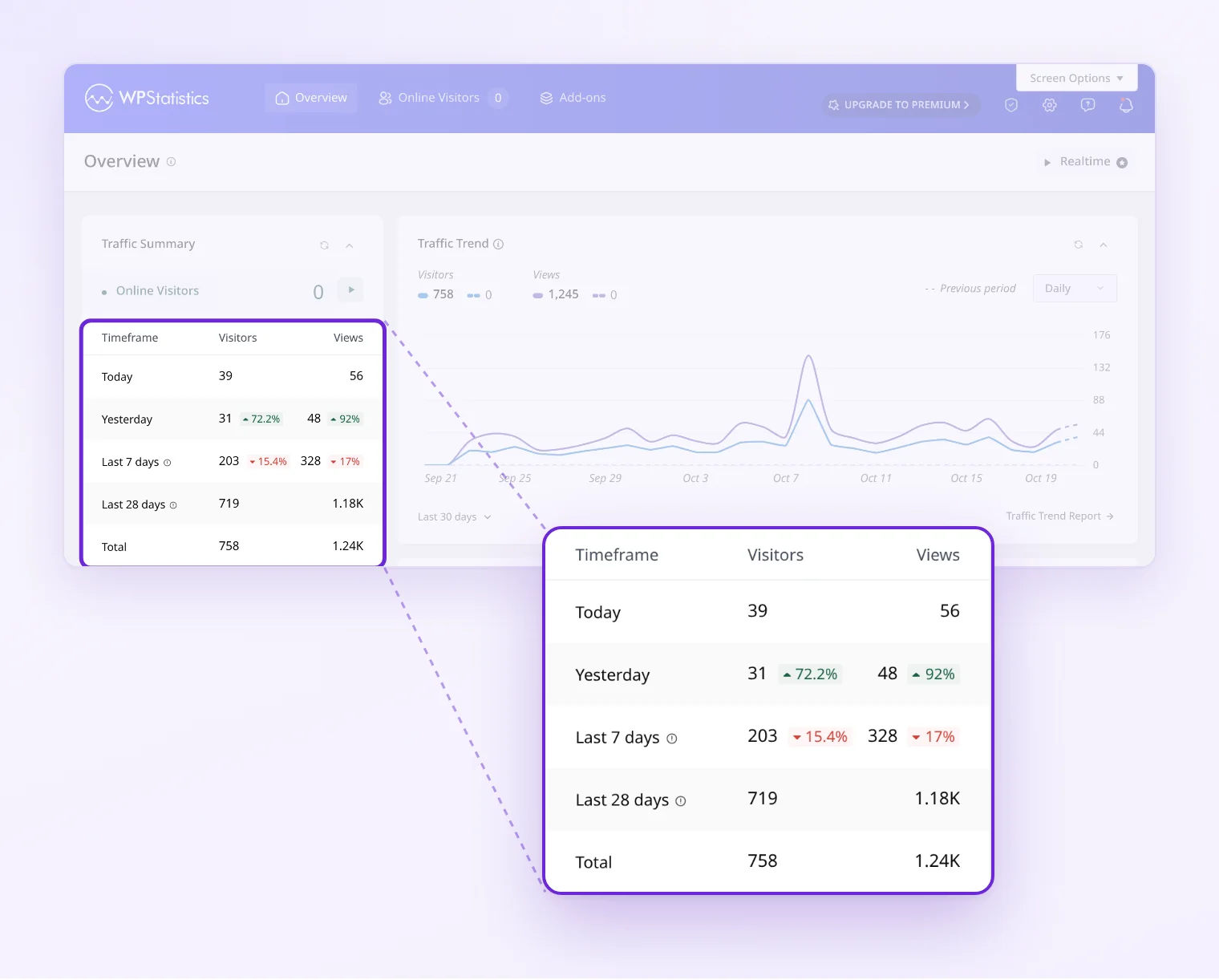
On the test site, WP Statistics, Burst and Independent Analytics showed each new visit right away, while Koko waited for its background job, which runs every minute through WP-Cron.
What it costs your database
Every visit becomes rows in your database, and every report is calculated by your hosting.
On the test install, WordPress itself had 12 tables. Independent Analytics added 27, Burst 20, WP Statistics 7 and Koko 5.
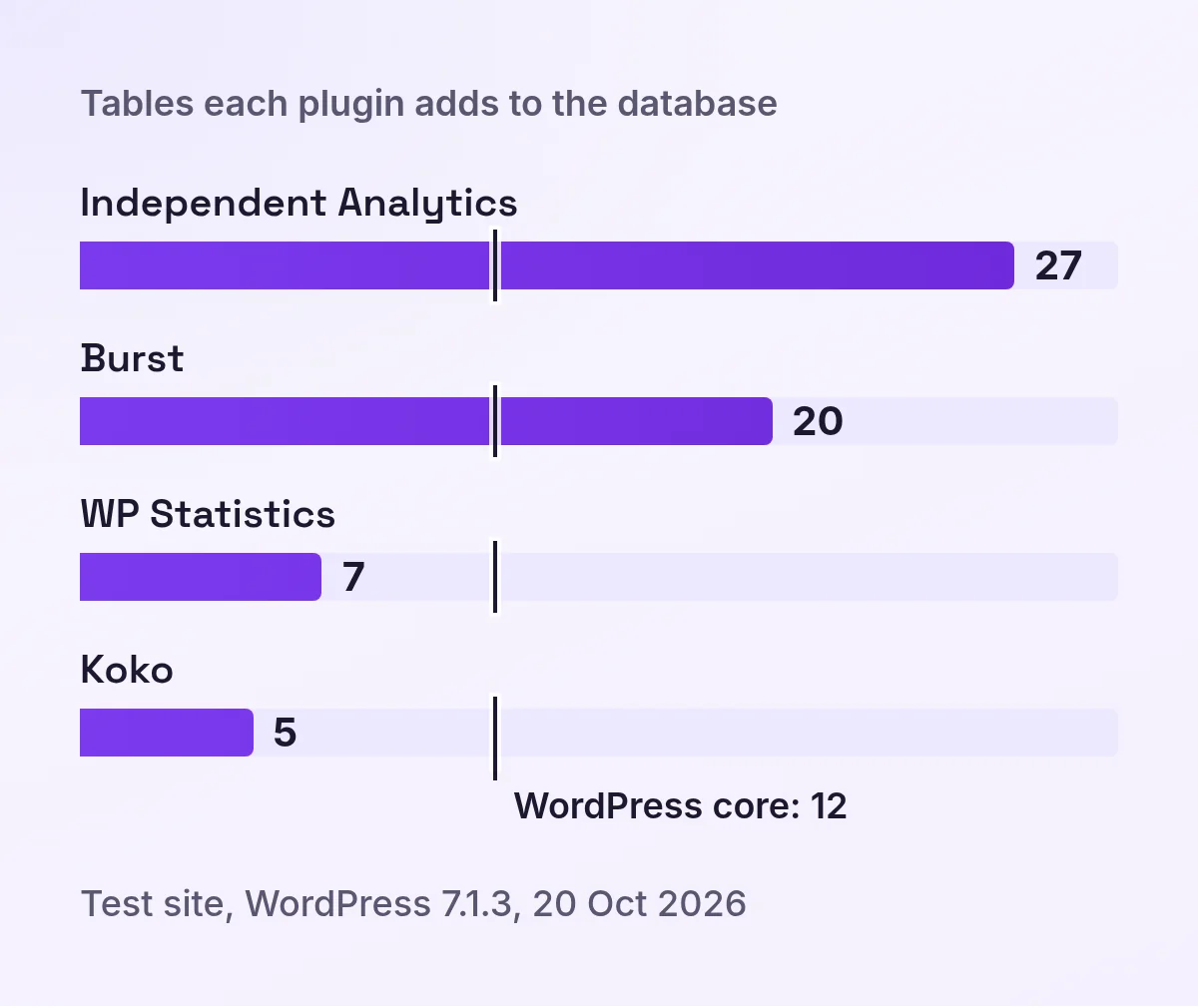
That’s fine on most hosting, but it adds up on busy sites and in your backups. Some plugins clean up after themselves: Koko deletes data older than three years by default.
Choose this route if you’d rather keep Google and outside services out of it, and you’re happy to let your own server do the counting.
Still choosing? This breakdown compares Burst, Independent Analytics and Koko with the Google options.
7. A cookie-free analytics service with a WordPress plugin
A small script sends each visit to an outside analytics service, and the service’s plugin shows your numbers inside wp-admin.
These services set no cookies, and your database only stores the plugin’s settings.
Fathom, Plausible and Statable are three of the services that work this way. All three are paid after a free trial.
Fathom. The Fathom plugin takes your site ID, adds the script and lets you exclude user roles. It can also show your dashboard in wp-admin, if you share it as public or password-protected.
Visitors are counted with a signature built from the IP address, browser, site and a salt that changes at midnight UTC, and pageview records don’t keep the raw IP.
EU visitors’ IPs are stripped on EU servers, and your data then sits on Fathom’s US servers.
Plans start at $15 a month for 100,000 pageviews across 50 sites, after a 7-day trial.
Plausible. The Plausible plugin adds the script and skips logged-in administrators by default.
Once you turn on View stats in WordPress and add a token from your Plausible account, your stats appear under Dashboard, then Analytics.
Plausible counts visitors with an identifier that resets every day, and raw IP addresses are never stored. The company says your data is processed and stored in the EU, on infrastructure owned by European companies.
The Starter plan is $9 a month for one site and up to 10,000 pageviews, after a 30-day trial.
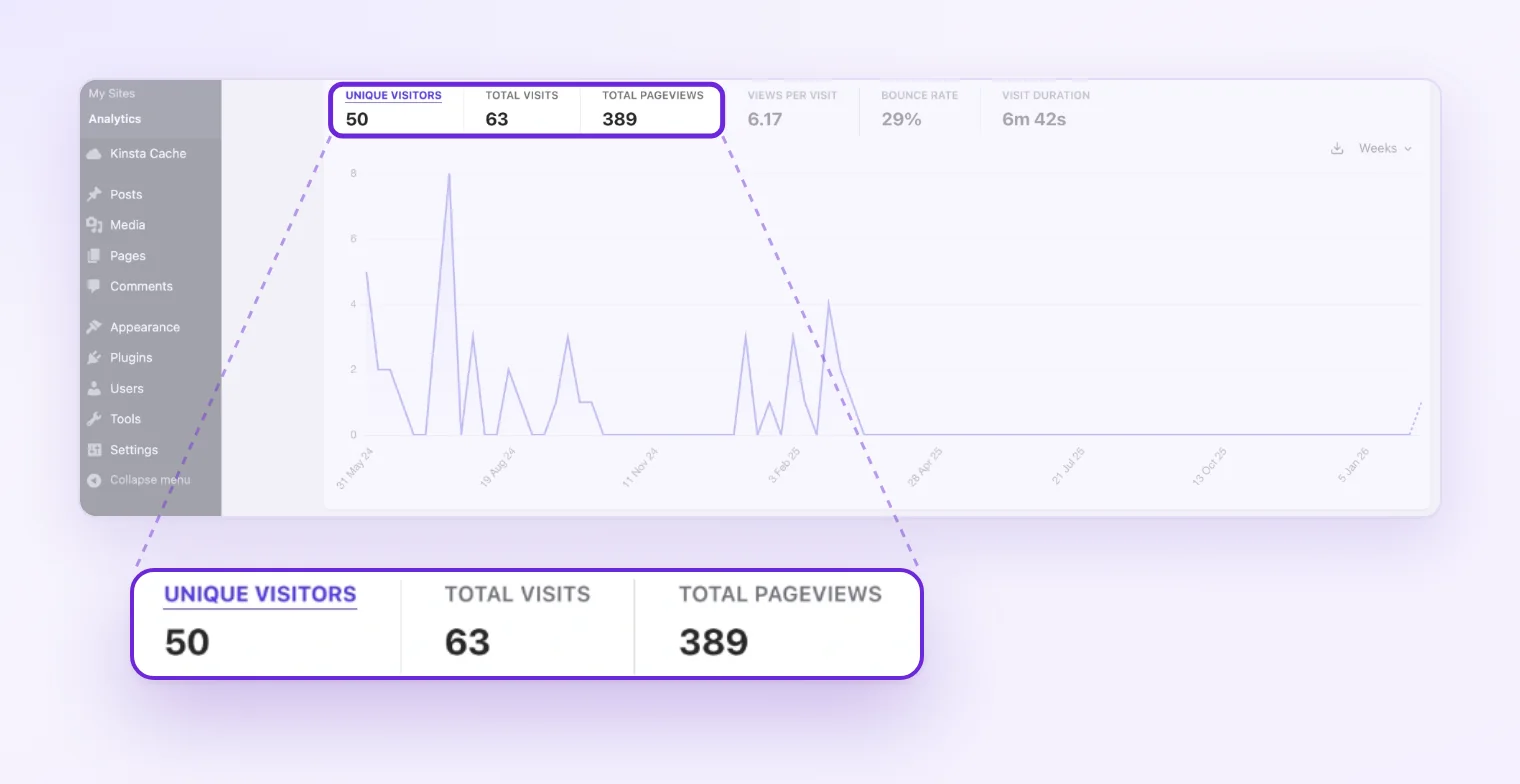
Statable. The Statable plugin is free and creates the account for you: open its menu, enter your email, type the code it sends, and tracking starts.
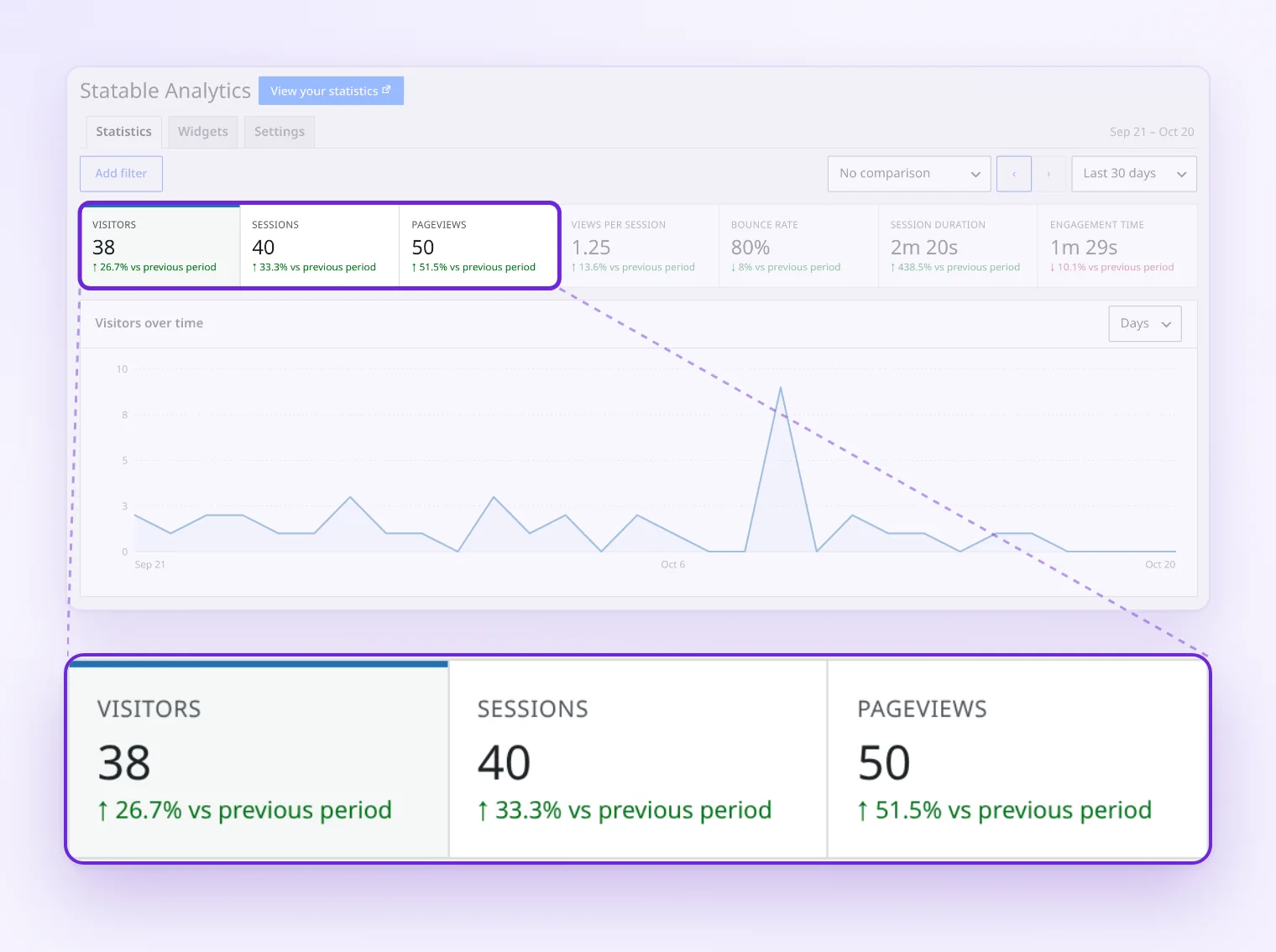
Numbers appear on its Statistics tab, with visitors, sessions, pageviews, bounce rate and session duration against the previous period. Administrators aren’t counted by default.
The visitor ID changes every day, and raw IP addresses aren’t stored. Data sits on servers in the Netherlands.
After a 30-day trial, plans start at $9 a month for 10,000 pageviews (custom events count toward that total), and every plan covers any number of sites.
It’s the newest of the three in the plugin directory, added in September 2026.
Want the background on how these tools count visitors? This plain-English guide covers analytics without cookies.
8. Google Search Console: the search-only view
Search Console doesn’t count visitors. Instead, it shows how often your pages appear in Google Search, how often people click, and for which searches.
- Cost: free, with a Google account.
- Metrics: clicks, impressions, click-through rate and average position, in the Performance report.
- Scope: Google Search only. Discover and Google News get their own reports.
- History: Search Console keeps the last 16 months, and the newest days can still change.
- Setup: no tracking script goes on your pages. You verify the site once, with a DNS record or a meta tag, and Site Kit can do it for you.
Use it next to whichever of the other seven you pick, because it tells you how people find you, which none of the counters above can.
Why WordPress traffic numbers never match between tools
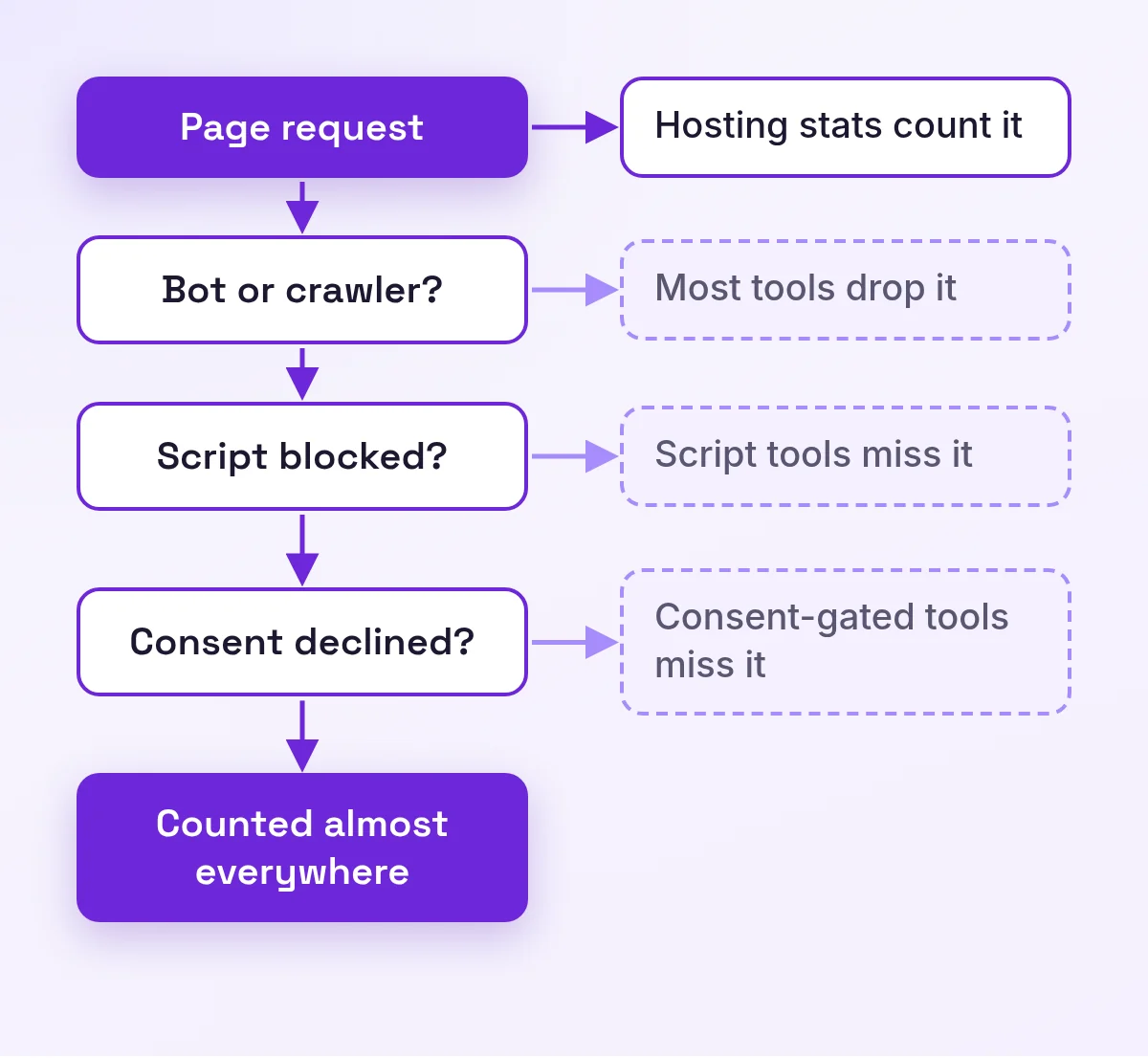
Each method counts something slightly different, so your numbers will never match. That’s why you should pick one tool as your source of truth and compare it only with itself.
On the test site with simulated visits, the same 1,245 pageviews became 758 visitors in WP Statistics, 602 in Koko and 601 in Independent Analytics.
What pushes the numbers apart:
- Bots. Server logs count every request. GA4 automatically excludes known bots, and plugins like WP Statistics filter bots with their own rules.
- Automated browsers. Koko and Independent Analytics quietly skip browsers that report themselves as automated.
- Blocked scripts. If a browser blocks the tracking script, that visit is gone. That’s why Plausible’s plugin even ships a proxy option to get around ad blockers.
- Consent. A tool that waits for cookie consent misses some or all of the people who decline.
- Your own visits. Jetpack on WordPress.com, Plausible and Statable skip logged-in admins by default, while others let you exclude roles.
- Timing. Plugins like WP Statistics show a near real-time count, WordPress.com Stats takes about five minutes, and GA4’s standard reports can lag a day or two.
- Definitions. A “visitor” in one tool isn’t built the same way as a “visitor” in the next.
How to check website traffic on WordPress: FAQ
Does WordPress have built-in traffic stats?
No. A self-hosted WordPress install doesn’t count visitors. Its default dashboard widgets cover posts, comments, drafts and news, but no traffic. WordPress.com is the exception, with Stats built in. On your own install, use your host’s report, a plugin or an outside service.
How do I see views for a single post?
Jetpack adds a Stats column to your Posts and Pages lists, and Independent Analytics shows post views in the Posts menu. Most other tools also list page views for top pages in their reports, where you can find the post. In GA4, open Engagement, then Pages and screens, and search for the post’s address.
Can I see who visits my WordPress site?
Not as named people. Analytics shows totals instead: how many visitors, which pages, countries, devices and sources. Jetpack’s own docs put it plainly: you can see that a post has 285 views, but not which accounts viewed it. Your server logs hold IP addresses, and an IP address isn’t a name.
How can I check WordPress traffic without Google Analytics?
You’ve got several options. Use your hosting panel, Jetpack Stats, a plugin that stores stats in your database (WP Statistics, Burst, Independent Analytics or Koko), or a cookie-free service with a WordPress plugin, such as Fathom, Plausible or Statable. Search Console needs a Google account, but it doesn’t put Google Analytics on your site.
Are WordPress stats accurate?
Accurate enough for trends, but no two tools agree. For example, Jetpack skips your own logged-in visits. GA4 only counts browsers that run its tag and, if you ask for consent, it misses some or all visitors who decline. So compare the trend in each tool, not the exact totals.
How do I check daily traffic on my WordPress site?
To check daily website traffic on your WordPress site, start with the daily chart most tools show by default. In GA4, Realtime covers the last 30 minutes, and standard reports fill in full days once they’re processed. WP Statistics puts today and yesterday side by side, while Koko and Burst chart whatever period you pick.
If you only do one thing today, open your hosting panel and see what it already knows about your website traffic. Then add the one counter from this list that matches how you work, and give it a month before you judge the numbers.

Written by Ellie
Former Head of Analytics at a European digital agency. 8+ years making WordPress analytics make sense. Google Analytics certified. I write the guides I wish existed when I started.
More about me →