The best WordPress analytics plugin for your site comes down to two questions. Neither one shows up on a feature list: where does your traffic data physically end up, and does the plugin drag a cookie banner onto your pages?
Short version. Site Kit wins if GA4 already runs and you want Google’s data at zero cost. Independent Analytics or Burst Statistics suit you better if you want numbers inside wp-admin and no Google property at all. Koko Analytics is the pick when speed and a banner-free site matter most. Matomo for WordPress fits when you want full ownership and your hosting can carry the load. MonsterInsights earns its price only for eCommerce and form reporting, and only on a paid tier.
Below you get a comparison table across four axes, an honest look at where “free” stops, and a “pick this if…” block for five common setups.
What separates the best WordPress analytics plugin from the rest?
Open the plugin directory and you’ll scroll past page after page of tools promising “powerful insights.” However, most of them describe the same thing. A large share do one job: they inject Google’s gtag.js into your pages and then draw GA4 numbers back inside your dashboard. Comparing their feature bullets is therefore close to pointless, because you’re comparing wrappers around one script.
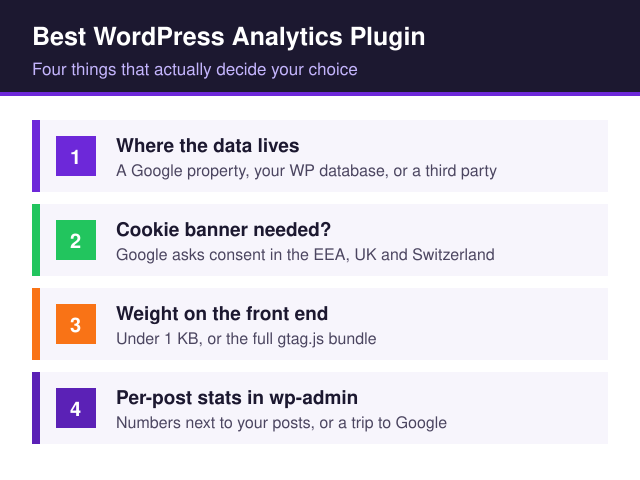
Four things do genuinely differ, and each one has consequences you’ll feel later.
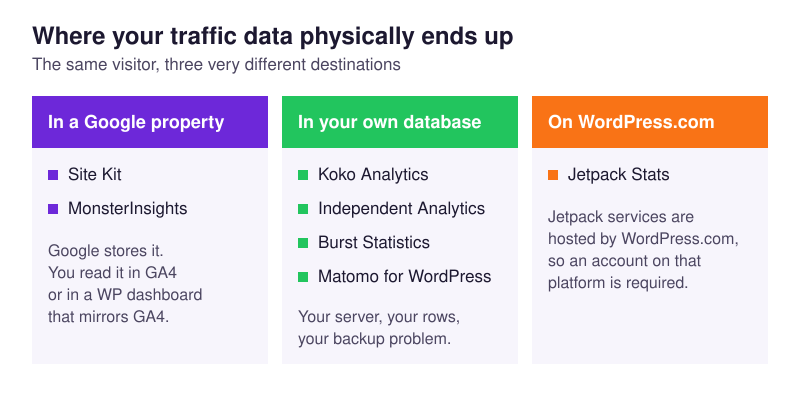
- Where the data lives. Either it sits in a Google Analytics property, or in your own WordPress database, or on a third party’s servers. That single choice decides who can delete your history, who you name in your privacy policy, and what you keep after you cancel.
- The consent footprint. Some plugins put you in cookie-banner territory the moment you activate them. Others never touch a cookie.
- Front-end weight. Analytics runs on every single page view, so the script size is a permanent tax on your Core Web Vitals.
- Per-post reporting. Some plugins show you numbers next to your posts in wp-admin. Others send you off to Google’s interface every time you want to know how yesterday’s article did.
Everything else — heatmaps, funnels, real-time counters — is a bonus you can bolt on later. In short, you pick a data model first and a feature set second.
How do the main WordPress analytics plugins compare?
Seven tools cover almost every realistic setup, and the best WordPress analytics plugin for your site is almost certainly one of them. Prices below come from each vendor’s own pricing page — MonsterInsights, Independent Analytics, Koko Analytics, Matomo, Burst Statistics and Jetpack Stats — and were checked while writing this. Vendors move them around, so confirm before you pay.
| Plugin | Where data lives | Free tier | Paid from | Cookie banner needed? | Front-end weight | Per-post stats in wp-admin |
|---|---|---|---|---|---|---|
| Site Kit by Google | Your GA4 property | Everything, free | — | Yes, in the EEA, UK and Switzerland | Full gtag.js bundle |
Admin-bar tab for the current URL |
| MonsterInsights | Your GA4 property | Lite (basic reports) | Starter $99/yr; Pro $399/yr for eCommerce + forms | Yes, in the EEA, UK and Switzerland | gtag.js plus plugin script |
GA4 reports mirrored in wp-admin |
| Independent Analytics | Your WordPress database | Unlimited sites, unlimited pageviews | Pro $49/yr (1 site) | No — no cookies | Small first-party script | Yes — view counts in the Posts list |
| Koko Analytics | Your WordPress database | Full core plugin | Pro €59/yr (1 site) | No — cookies are optional | “Less than 1 kilobyte” | Dashboard with top posts |
| Matomo for WordPress | Your WordPress database | Yes, self-hosted | Matomo Cloud from $26/mo (50,000 hits) | Not if you disable cookies | Self-hosted Matomo tracker | Full Matomo reports in wp-admin |
| Burst Statistics | Your own server | 1 site, unlimited pageviews | Creator $49/yr (1 site); Business $99/yr | Not in cookieless mode (cookies are the default) | “Tiny tracking script under 4 KB” | Page-level stats for every URL |
| Jetpack Stats | WordPress.com servers | Any site, any traffic | $8.33/mo billed yearly, 10K views/mo | Depends on your setup | Jetpack’s own script | Stats screen in wp-admin |
Read that table top to bottom and a pattern appears. The two Google-facing options cost nothing or cost a lot, and both put your data somewhere you don’t control. The four self-hosted options are cheap or free, weigh less, and skip the consent problem — but they only ever know about your own site. Jetpack Stats sits in the middle and charges by traffic. For a deeper look at the two Google-facing options, see the full MonsterInsights vs Site Kit comparison.
Which WordPress analytics plugins are actually free?
“Free” means five different things across this list, so here is where each one stops.
Site Kit is genuinely free, all of it. Google’s own plugin page states that “the Site Kit plugin is free and open source, and will remain so,” and lists 5+ million active installations. You pay nothing, ever. The catch is that it reports Google’s data and only Google’s data.
MonsterInsights Lite is the weakest free tier here. It shows GA4 reports inside wp-admin and stops there. On the MonsterInsights pricing page, Enhanced eCommerce and Form Conversions both sit on the Pro tier. Since Site Kit gives you comparable dashboard reporting for nothing, Lite mostly functions as an upsell surface. Paid tiers list at $99 a year for Starter and $399 a year for Pro, with introductory pricing on the first year and renewals at full price.
Koko Analytics gives you a complete free core. The paid add-on layers on geolocation, device data, event tracking, UTM campaigns and email reports at €59 a year for one site.
Independent Analytics and Burst Statistics both ship generous free versions. Independent Analytics says you can “track unlimited views on as many sites as you want,” and Burst answers the same question with “no — the only limiting factor is your own database and server.” Both charge from $49 a year for a single site — Independent’s Pro Standard tier and Burst’s Creator tier (Independent, Burst). Pro adds campaign tracking, eCommerce revenue and automated reports.
Jetpack Stats is now free for any site. Jetpack says Stats is free for “any type of site, any amount of traffic,” and that it keeps your full history. Older rules limited the free tier to personal sites, so you’ll still see that claim in other guides. The paid tier starts at $8.33 per month, billed yearly, with 10K site views a month, and adds UTM tracking, device stats and region and city locations.
Matomo for WordPress is free to install but not free to run. You pay in hosting instead, and the page-load section below puts numbers on that.
Which plugins force you into a cookie banner?
This axis kills more setups than any pricing page does. If your traffic includes European visitors, the answer changes what you install.
Google’s own EU User Consent Policy requires publishers to obtain consent for “the use of cookies or other local storage where legally required” across the European Economic Area, the UK and Switzerland. Site Kit and MonsterInsights both load gtag.js, so both land inside that policy. As a result you need a consent tool that blocks the tag until the visitor agrees. You also accept that plenty of visitors will never show up in GA4.
The self-hosted group avoids the problem by design. Koko Analytics states plainly that “cookies are optional in Koko Analytics,” and Independent Analytics advertises “no cookies” and “no communication with external servers.” Burst ships a cookieless tracking option for the same reason, though its plugin page is careful to say cookies are the default “because they’re more accurate” — you have to turn the cookieless mode on.
Matomo needs one deliberate step. Its FAQ documents _paq.push(['disableCookies']); and adds a careful caveat: “if you are only required to ask for tracking consent if you process personal data and you configure Matomo to not process any personal data, the consent may no longer be required.” Matomo tells you to check with your own advisers, and that’s sound advice — the exemption depends on your jurisdiction, not on the plugin.
Still, none of this replaces a proper privacy review. Our guide to GDPR-compliant analytics for WordPress walks through the paperwork side. Curious how much data a banner actually costs you? Then cookie consent and your traffic data covers the damage.
What does each plugin cost you in page load?
Analytics runs on every page view, so weight compounds. Google’s gtag.js is the heavyweight of this group: a third-party bundle fetched from another domain, whose size moves with how the property is configured, which is why nobody publishes a fixed figure for it. Open your browser’s network panel on any GA4 site and you’ll see it dwarf everything else on this list. Site Kit and MonsterInsights both carry it, because both exist to deliver that script.
Meanwhile, Koko Analytics sits at the opposite end: its plugin page states that it “adds less than 1 kilobyte of data to your pages and is fully compatible with all kinds of caching setups.” Burst Statistics publishes its own figure — “a tiny tracking script under 4 KB” — while Independent Analytics gives no byte count and describes itself as “a lightweight analytics plugin that won’t slow your site down.” All three serve that script first-party from your own domain: no third-party DNS lookup, no separate connection, nothing for an ad blocker to intercept.
Matomo lands in between — a full-featured tracker, heavier than the one-kilobyte class, that you at least serve yourself. However, the front end is not where Matomo costs you. Every visit triggers extra server requests, and the archiving process chews through your database on a schedule. Its plugin page notes that “the minimum PHP memory limit is 128Mb, but we recommend to use a higher limit (memory_limit = 256M),” and adds: “if you have high traffic website, or manage a lot of websites with WordPress MultiSite, we recommend installing Matomo On-Premise or signup to Matomo Cloud.” On cheap shared hosting, that warning is not theoretical.
Ultimately the trade is simple: Google costs you front-end bytes, Matomo costs you back-end cycles, and the lightweight self-hosted trio costs you almost nothing on either side. Read the full Matomo for WordPress walkthrough before you commit a small server to it.
Do you get per-post numbers where you actually write?
Here’s the daily-use question nobody asks until they’ve lived with a plugin for a while. First you publish a post. Then, a few days later, you want to know whether anyone read it. Do you get that answer in the same tab you wrote it in, or do you go hunting?
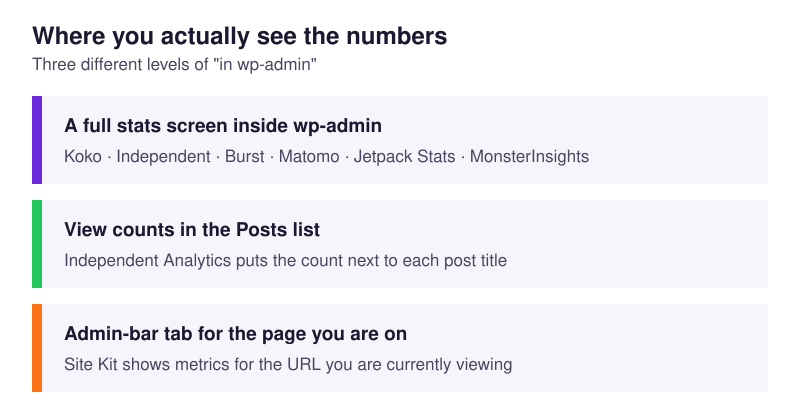
Independent Analytics gets closest to the writing desk. Its plugin page describes exactly that workflow: “check your post view counts in the Posts menu.” The number sits next to the title in the list you already open every day.
Burst Statistics reports per URL. Its plugin page lists “top performing pages and posts at a glance” and tracking of “visitors, sessions, pageviews, bounce rate” for individual pages — all inside your WordPress dashboard, no external account involved.
Koko Analytics and Matomo give you a dashboard, not a column. Both render a proper stats screen in wp-admin with your top posts listed, so you stay inside WordPress — you just click one level deeper. Not sure where to start? Here are eight ways to check website traffic in WordPress, including one with nothing to install.
Site Kit takes the admin-bar approach. Its settings screen lets you “toggle on/off the display of relevant stats in your site’s toolbar”. Leave it on and a Site Kit tab rides along in the WordPress toolbar while you browse the front end; open it and you get figures for whichever URL you’re standing on, pulled from the Search Console and Analytics accounts you connected. Handy while browsing the live site, less so when you want a sortable list.
MonsterInsights mirrors GA4 reports into wp-admin, which reads well but is still Google’s data model. Jetpack Stats gives you its own stats screen. Basically, if your workflow is “publish, check, repeat,” the self-hosted plugins win this axis outright.
Whichever plugin you land on, the per-post column only tells you what already happened. Deciding what to publish next needs a second input from outside your own site — the method to find content ideas from competitor data pairs well with a per-post dashboard, because it tells you which topics are worth the column space before you write them.
So which is the best WordPress analytics plugin for you?
Five scenarios, five answers.
- Personal blog on cheap shared hosting. Koko Analytics — under a kilobyte on the front end, no banner, no account, and nothing that strains an entry-level shared plan.
- Business site with EU traffic. Burst Statistics or Independent Analytics in cookieless mode, so your numbers reflect all visitors instead of the minority who click “accept.”
- WooCommerce store. MonsterInsights Pro if you want GA4 revenue attribution wired up without touching code; Burst Business or Independent Analytics Pro if you’d rather keep sales data on your own server.
- High-traffic magazine. Site Kit plus GA4, because Google absorbs the storage and processing that would otherwise flatten your database — and pair it with a consent tool.
- Agency running client sites. Independent Analytics Pro Agency covers unlimited websites at $199 a year, and you can limit each client to their own posts.
Notice what’s missing: a universal winner. The best WordPress analytics plugin is simply the one that matches your hosting, your audience and the way you work. Any article that crowns a single champion is selling something.
Can you run two analytics plugins at the same time?
Technically yes. Practically it causes more confusion than it solves.
For example, the classic mess is Site Kit plus MonsterInsights. Both inject a GA4 tag, so the same pageview fires twice, sessions inflate, and your bounce rate collapses to something suspiciously flattering. Meanwhile the two dashboards disagree with each other and with GA4 itself, which sends you chasing a problem you created.
Running one Google-based plugin alongside one self-hosted plugin is a different story. Koko or Burst will still report higher numbers than GA4, simply because they count visitors who declined consent or run an ad blocker. That gap is the point — it tells you how much GA4 is missing.
Already have two GA4 tags firing? Check your page source for more than one gtag.js reference. Then deactivate the losing plugin rather than just switching its tracking toggle off, because half-disabled plugins leave tags behind. Our guide on removing Google Analytics from WordPress covers the clean removal. Starting fresh instead? Then the no-code GA4 setup walkthrough gets one tag installed properly the first time.
Best WordPress analytics plugin: FAQ
Is Site Kit enough on its own?
For most blogs, yes. Site Kit connects Search Console, Analytics and PageSpeed Insights, it’s free and open source, and Google maintains it. You’ll outgrow it when you need eCommerce attribution, or when consent losses make GA4 numbers too thin to trust.
Does MonsterInsights Lite give real GA4 data, or just a prettier dashboard?
Real data, prettier packaging. Lite surfaces genuine GA4 reports inside wp-admin — but it’s the same property Site Kit reads for free. The features that justify the plugin, namely eCommerce and form conversion tracking, sit on the Pro tier.
Will a self-hosted analytics plugin slow my site down more than Google Analytics does?
On the front end, no — a first-party tracker of a few kilobytes, served from your own domain, beats Google’s third-party bundle every time. On the server, it depends on the tool. Koko, Burst and Independent Analytics write compact rows and stay light. Matomo is a full analytics platform running inside your WordPress install, and it will make itself felt on shared hosting.
If I use Koko or Independent Analytics, do I still need Google Analytics at all?
Only for things they can’t see. Google Ads conversion data, cross-domain journeys and Google’s own audience modelling all require a GA4 property. For “which posts get read, where do readers come from, what’s growing,” a self-hosted plugin answers faster and counts more people. Our Koko Analytics review and the Jetpack Stats pricing rules are both worth reading before you decide.

Written by Ellie
Former Head of Analytics at a European digital agency. 8+ years making WordPress analytics make sense. Google Analytics certified. I write the guides I wish existed when I started.
More about me →