
This guide shows how to add GA4 to WordPress using trusted plugins—fast, safe, and beginner-friendly. You’ll also see where to insert screenshots and what each should display so your tutorial (or internal SOP) is crystal clear.
What you’ll need (before installing a plugin)
- A Google Analytics account with a GA4 property created.
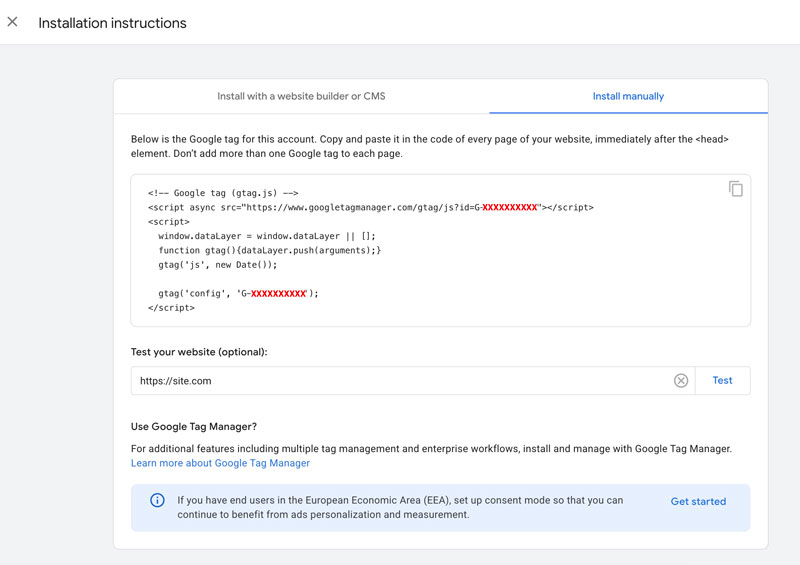
- Your Measurement ID (format:
G-XXXXXXXXXX) from Admin → Data Streams → Web.
Option 1 — Google Site Kit (official & simple)
Best for: Most WordPress sites that want a quick, official connection.
Supports: Basic events via GA’s Enhanced Measurement. (For advanced eCommerce, see the WooCommerce section below.)
Steps
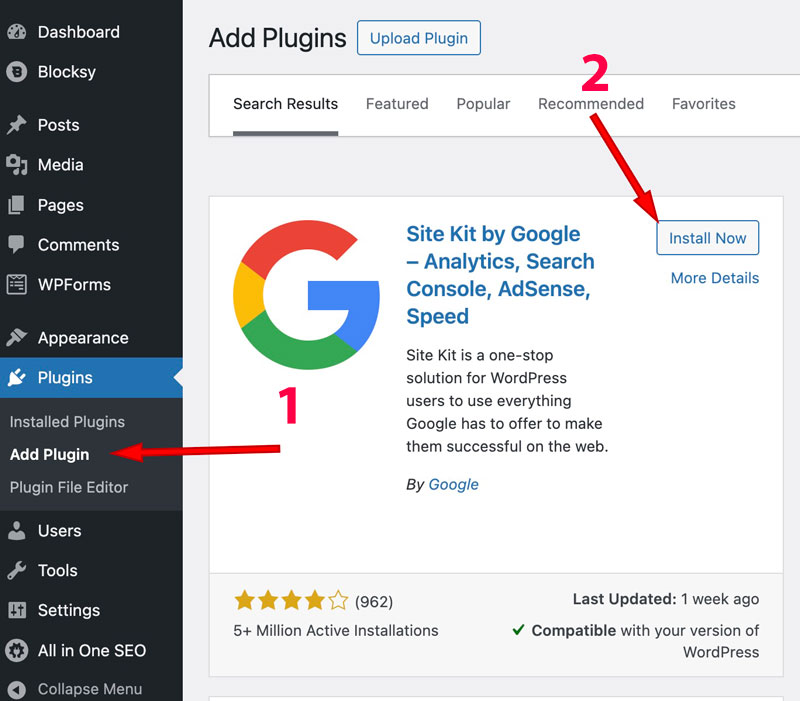
In WordPress, go to Plugins → Add New and search “Site Kit by Google”. Install & Activate.
In Site Kit → Dashboard, click Connect More Services → Analytics.
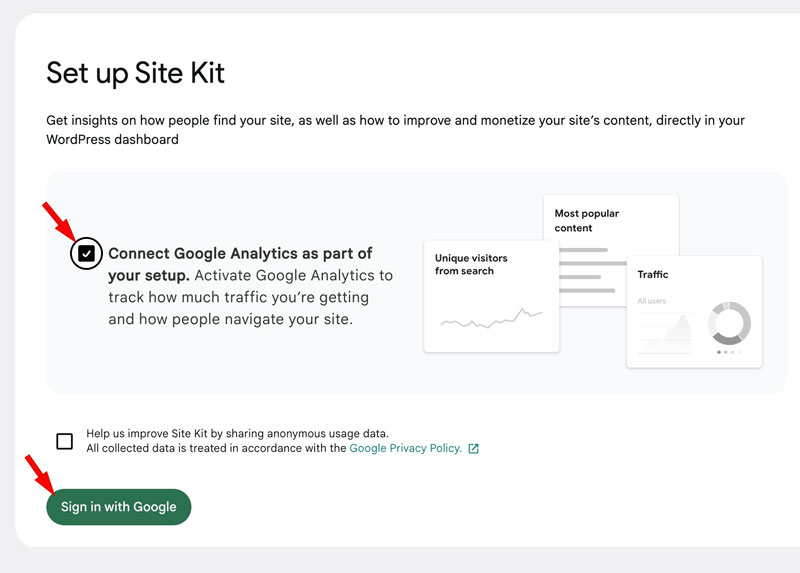
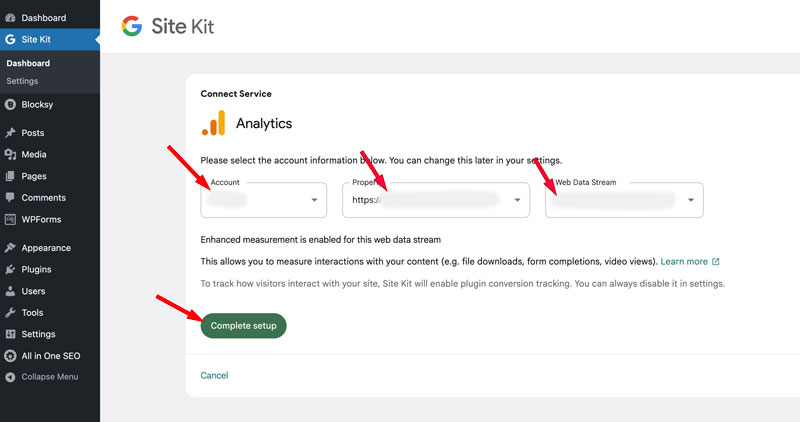
Complete the Google authorization, pick your Account → Property (GA4) → Data Stream, and finish setup.
Verify it’s working
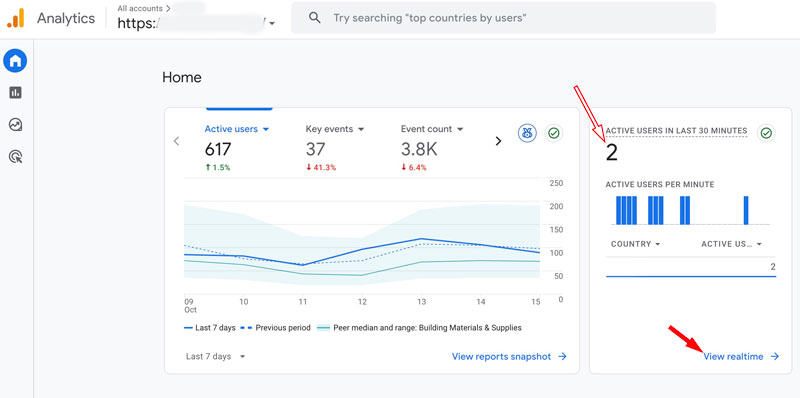
- Open Reports → Realtime in GA4.
- Visit your site in a new tab/incognito and click around.
- You should see an active user within moments.
Option 2 — MonsterInsights (guided setup, dashboards in WP)
Best for: Teams that want GA data inside WordPress plus a friendly wizard.
Free vs Pro: Free handles essentials; Pro adds advanced tracking and eCommerce reports.
Steps
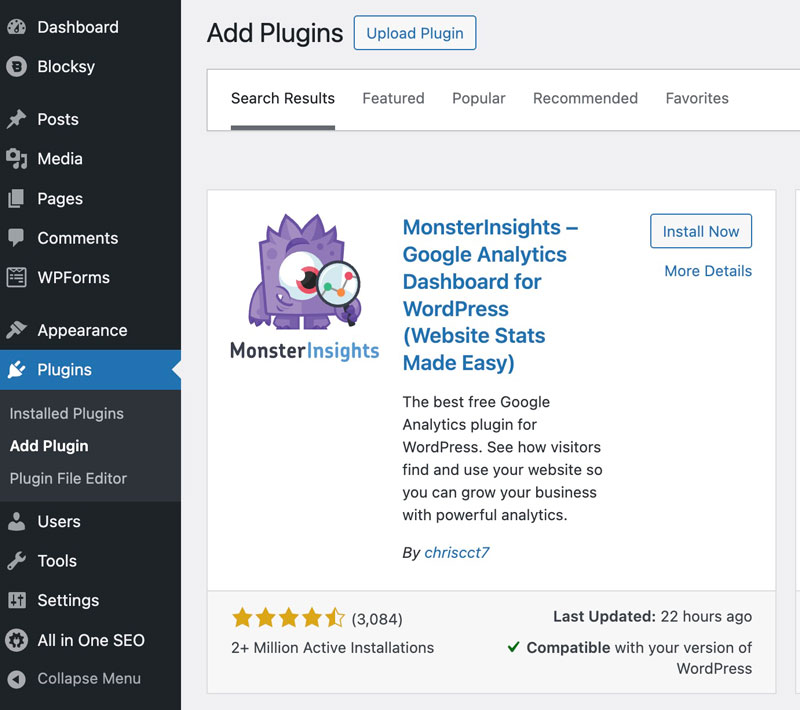
Plugins → Add New → search “MonsterInsights” → Install & Activate.
Launch the Setup Wizard (appears after activation or via Insights → Settings).
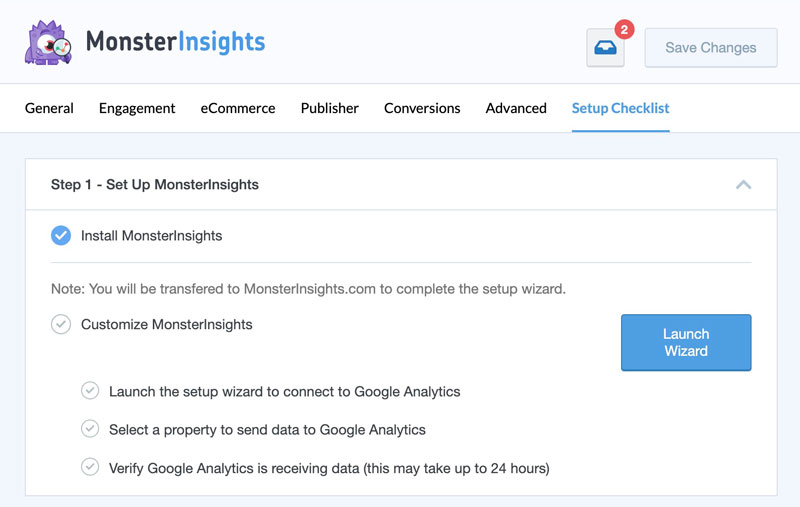
Click Connect MonsterInsights and sign in with Google. Choose your GA4 property.

Follow the recommended settings (you can enable Enhanced Link Attribution, scroll tracking, etc.).
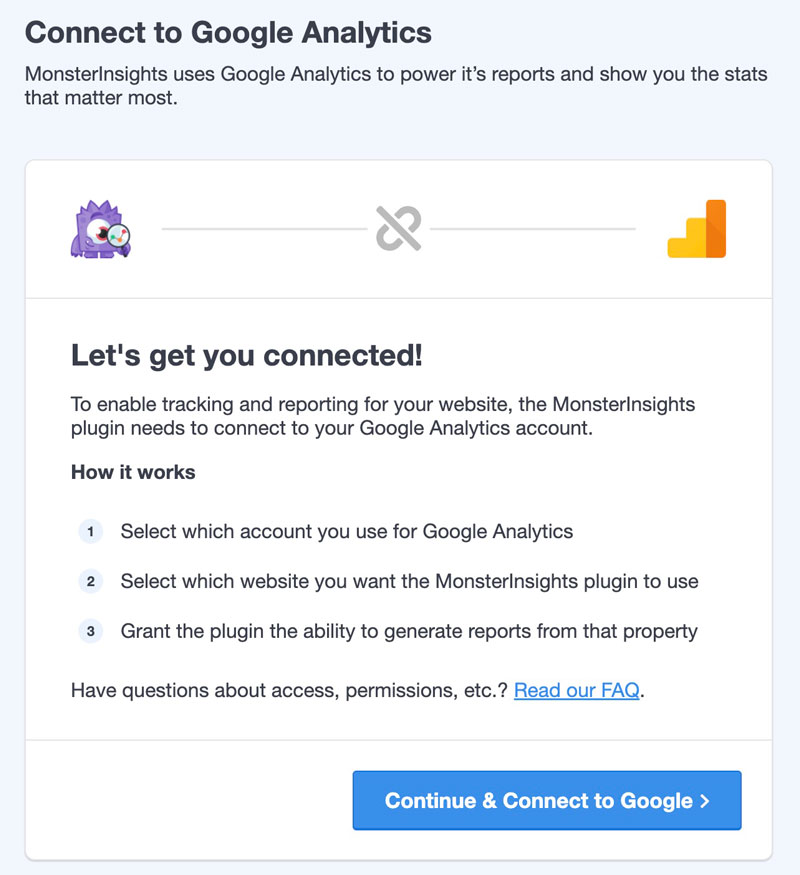
Why choose it
- In-dashboard reports for non-technical users.
- Easy toggles for common events (outbound clicks, file downloads).
Option 3 — ExactMetrics (clean UI, quick connect)
Best for: A straightforward google analytics 4 wordpress connection with simple reporting in the WP admin.
Steps
Plugins → Add New → search “ExactMetrics” → Install & Activate.
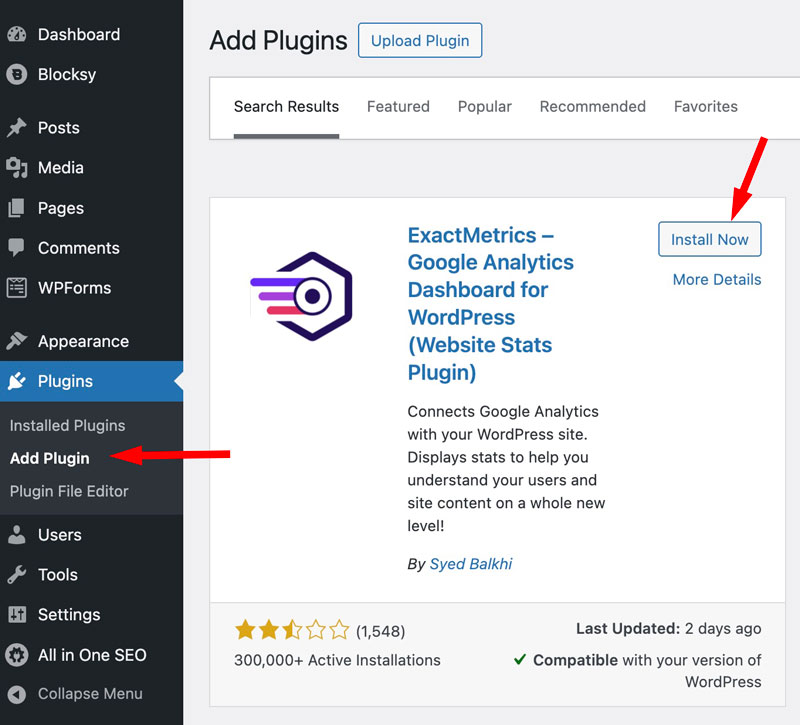
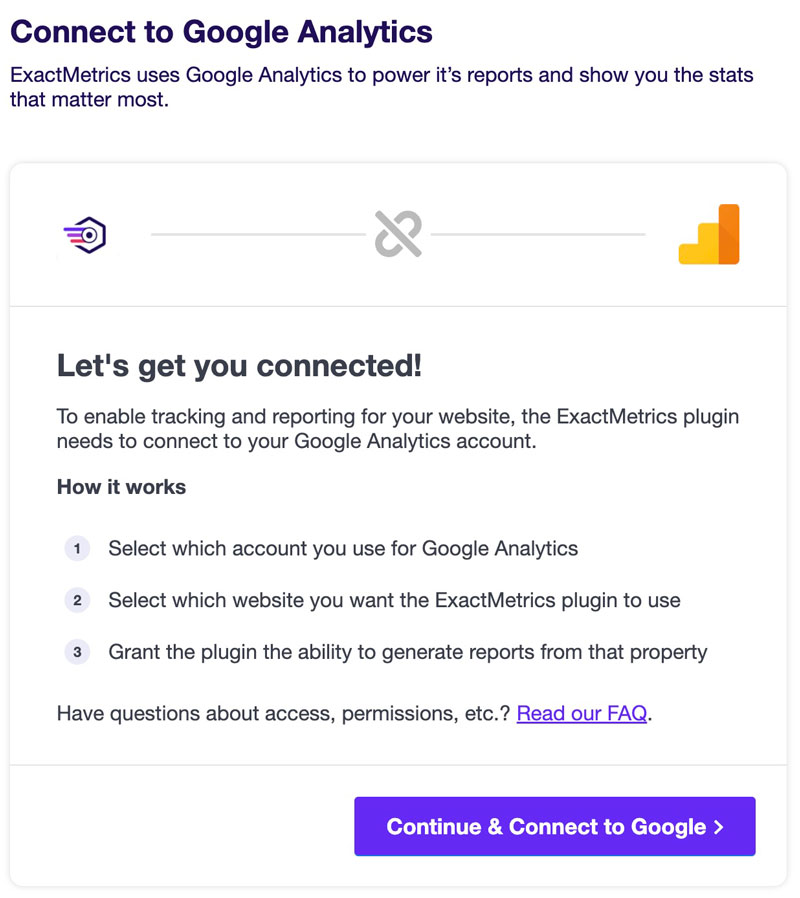
Start the onboarding Connect Google Analytics flow.
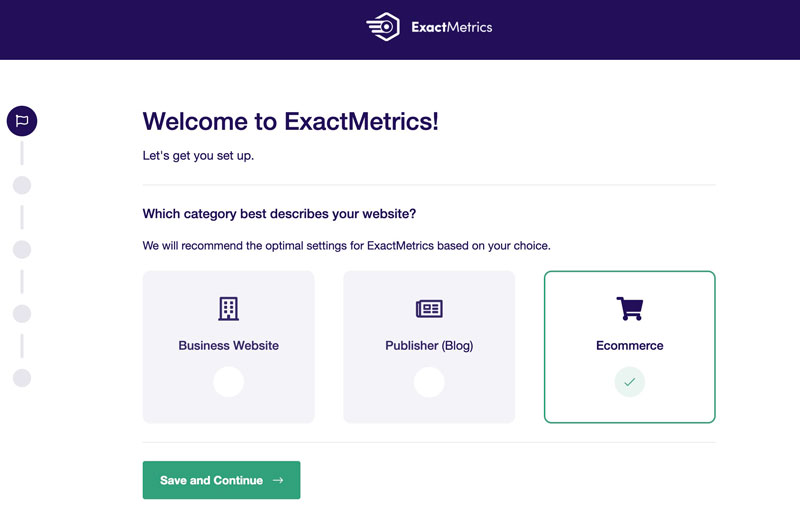
Select your GA4 property; finish the wizard.
WooCommerce? Add eCommerce tracking the right way
If you run a store, you’ll want revenue and product data flowing into GA4—beyond basic pageviews. Two practical routes:
A) MonsterInsights eCommerce (Pro)
- Enable the eCommerce addon in MonsterInsights (Pro version).
- It autoconfigures most GA4 eCommerce events for WooCommerce.
B) Dedicated WooCommerce GA4 plugin
- Search for a wordpress plugin google analytics built for WooCommerce GA4 (e.g., official “WooCommerce Google Analytics” plus GA4 support, or reputable third-party GA4 eCommerce extensions).
- These tools send add-to-cart, view_item, purchase, and more.
Tip: Search phrases like woocommerce ga4 ecommerce tracking in the plugin directory to find maintained solutions with high ratings and GA4-specific documentation.
Quick comparison: which GA4 WordPress plugin fits you?
| Goal | Site Kit | MonsterInsights | ExactMetrics |
|---|---|---|---|
| Fast, official connection | ✅ | ✅ | ✅ |
| In-dashboard reports | Basic via Site Kit | ✅ Deep | ✅ Solid |
| Beginner-friendly wizard | Basic | ✅ | ✅ |
| WooCommerce GA4 eCommerce | Needs extra plugin | ✅ (Pro addon) | With addon/extension |
| Cost | Free | Free + Pro | Free + Pro |
How to confirm data is flowing (applies to all plugins)
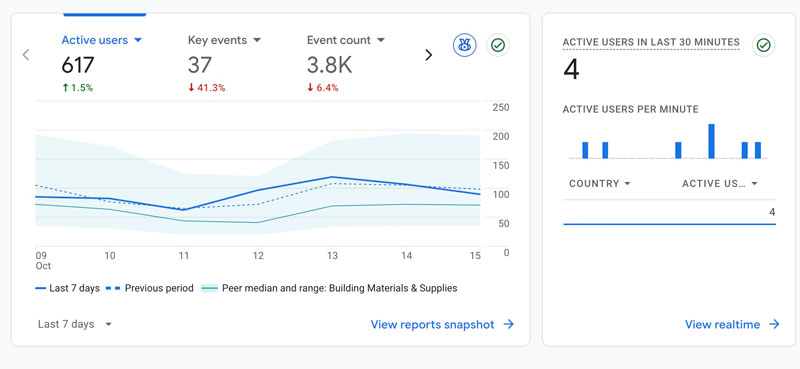
- In GA4: Reports → Realtime.
- Open your site in a private window and click to another page.
- You should see at least 1 Active User and a timeline spike.
Common pitfalls & quick fixes
| Symptom | Likely cause | Fix |
|---|---|---|
| Realtime shows 0 users | Wrong property, ad blocker, or plugin not connected | Confirm Measurement ID/property; test incognito; disable ad blocker |
| Double pageviews | Two GA injections (e.g., Site Kit + another plugin) | Use one active GA4 method; disable duplicates |
| Missing purchase data | eCommerce addon not enabled or no GA4-specific plugin | Turn on the eCommerce module or install a GA4-ready WooCommerce extension |
| Only some pages tracked | Plugin limited to certain post types/templates | Ensure plugin outputs the tag site-wide or enable “track all pages” |
| Old UA property selected | Chose Universal Analytics instead of GA4 | Re-run the plugin wizard; pick your GA4 property |
Final checklist
- Installed one ga4 wordpress plugin (Site Kit, MonsterInsights, or ExactMetrics)
- Connected the correct GA4 property (not UA)
- Verified Realtime shows at least one user
- (Stores) Enabled woocommerce ga4 ecommerce tracking via a Pro addon or a dedicated WooCommerce + GA4 plugin
- Removed duplicate GA tags (keep just one plugin doing the job)
You’re done
Using a WordPress plugin Google Analytics setup takes minutes, keeps your theme files clean, and prevents copy-paste errors. Whether you choose Site Kit for a lightweight link, MonsterInsights for rich in-dashboard reports, or ExactMetrics for a clean UI, you now have setup Google Analytics WordPress the painless way—no code required.

Written by Ellie
Former Head of Analytics at a European digital agency. 8+ years making WordPress analytics make sense. Google Analytics certified. I write the guides I wish existed when I started.
More about me →

1 Comment