Analytics That Respects Your Visitors
WordPress powers over 43% of websites worldwide. Yet most WordPress site owners still rely on Google Analytics for tracking visitor data—a tool that collects personal information, requires consent banners, and processes data on Google’s servers. For WordPress users, there’s a better way.
Koko Analytics is a free, open-source WordPress plugin that runs entirely on your server. No external services, no third-party account, nothing leaving your hosting. Just simple, privacy-friendly analytics built directly into your WordPress dashboard.
This review covers how Koko works, where the free version stops, what Pro adds, and how it holds up against hosted alternatives like Plausible and Umami.
Is Koko Analytics worth it?
The free plugin: yes, for most WordPress blogs. It reports visitors, pageviews, top pages and referrers inside wp-admin, on as many sites as you like, with no account to create and no bill. If the question you ask each week is “did last Tuesday’s post land?”, the free version answers it and you can stop reading after the setup section.
Pro, from €59 a year: only for four specific needs. Country data, custom event tracking, UTM campaign reporting, or scheduled email reports. Nothing in Pro makes the free version measure better — it adds reporting surface. Consultants and agencies who bill for monthly reports clear that bar without thinking. A personal blog does not.
Where it loses: no funnels, no heatmaps, no session recordings, and the numbers sit in your own database — which quietly makes your host’s backup policy your analytics backup policy. If you want a full marketing stack rather than a readership counter, our roundup of the best WordPress analytics plugin for each job covers the heavier options.
Why WordPress Site Owners Are Switching from Google Analytics
Google Analytics Complexity
Google Analytics requires weeks to learn. Marketers spend hours creating custom reports, troubleshooting UTM parameters, and navigating the GA4 interface. Non-technical site owners feel overwhelmed immediately.
Privacy Concerns and Legal Risks
Google Analytics has been ruled non-compliant with GDPR in multiple European countries, including Austria, France, Italy, Denmark, Finland, and Norway. Running GA exposes site owners to legal risk, regardless of where their site is hosted.
Performance Impact
GA’s tracking script weighs 70+ KB and significantly slows page loads. For WordPress sites where every millisecond matters for user experience and SEO, this overhead is unacceptable.
Local Analytics Advantage
Running analytics locally (on your WordPress server) eliminates all three problems: analytics become simple, privacy is guaranteed, and performance stays fast.
What is Koko Analytics?
Koko Analytics is a free, open-source WordPress analytics plugin that collects visitor statistics entirely on your server. Created by Danny van Kooten (also behind MonsterInsights and other popular WordPress tools), it tracks essential metrics—visitors, pageviews, referrers—without any external dependencies.
Core Philosophy
- Privacy-first: only aggregated counts land in your database
- Locally processed: Everything happens on your WordPress server
- Lightweight: adds less than 1 KB to the page
- GDPR compliant: By design, not as an afterthought
- Open-source: Transparent code, community-driven development
- No account required: Everything in your WordPress dashboard
Key Features: Free Version
Visitors & Pageviews
Koko tracks:
- Unique visitors: Individual people visiting your site
- Total pageviews: Every page view (includes returning visitors)
- Visitors vs. pageviews: See if users are exploring deeply or bouncing
Optional cookies help detect returning visitors. You can run completely cookieless if privacy is your primary concern.
Referrer Tracking
See exactly where traffic comes from:
- Search engines (Google, Bing, DuckDuckGo)
- Social networks (Twitter, Facebook, LinkedIn, Reddit)
- Direct traffic (typed URL, bookmarked)
- Other websites (referring links, guest posts)
- Dark referrers (secure pages, no referrer data)
Built-in referrer spam filtering prevents junk data from skewing analytics.
Device & Browser Breakdown (Pro)
Understand your audience’s technical setup:
- Mobile vs. desktop vs. tablet
- Browser types (Chrome, Safari, Firefox, Edge)
- Operating systems (Windows, macOS, iOS, Android, Linux)
This data helps prioritise optimisation work. Note that the device and browser reports moved into Pro — the free plugin reports visitors, pageviews, top pages and referrers.
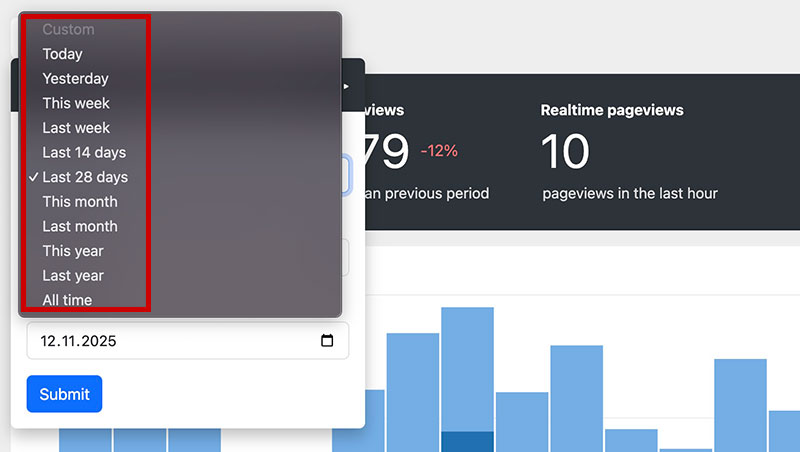
Custom Date Ranges
View analytics for:
- Last 7 days
- Last 28 days (default)
- Last 90 days
- Custom date range
- Real-time (last hour)
Dashboard in WordPress Admin
No external login required. Click Analytics in your WordPress dashboard and see stats immediately. Perfect for clients who need reporting without account access.
REST API Access
Developers can access Koko analytics data programmatically via WordPress REST API, enabling custom integrations and dashboards.
Cache Compatibility
Koko works flawlessly with:
- Browser caching
- Server-side caching (Varnish, Redis)
- Cache plugins (WP Super Cache, W3 Total Cache, LiteSpeed)
This is critical—many analytics tools break when caching is enabled.
AMP Support
Official AMP plugin support means tracking works on Accelerated Mobile Pages, not just traditional pages.
Import Historical Data
Migrate from competing platforms:
- Jetpack Stats: Import visitor history
- Plausible: Import exported data
- Burst Statistics: Import if switching platforms
This prevents losing historical analytics when migrating WordPress sites.
Advanced Features: Koko Analytics Pro
The free version covers the essentials. Pro adds a reporting layer on top of them.
Geo-Location Tracking
See which countries visitors come from:
- By-country breakdown of traffic
- Identify geographic markets
- Understand international audience
Useful for international businesses, content localization, and market analysis.
Event Tracking
Track user actions beyond page views:
- Outbound link clicks (see which external links people click)
- Form submissions (measure lead generation)
- Button clicks (track feature adoption)
- Custom events (any action you define)
Events are critical for understanding user behavior—not just traffic volume.
Email Reports
Automated reporting to your inbox:
- Daily summaries
- Weekly digests
- Monthly reports
- Custom email frequency
Perfect for sharing analytics with teams, clients, or stakeholders without requiring dashboard access.
Getting Your Data Back Out
Two different exports live in the plugin, and it is worth knowing which one you are reaching for. The free version dumps your whole dataset from Analytics > Settings > Data as an NDJSON file — that is the backup-and-migrate route, and it is also what the importer reads back in. Pro adds a Download as CSV button to the report tables, plus a date-ranged CSV export on individual events. The CSV route is the one you want when the destination is a spreadsheet:
- Use in Excel/Sheets for advanced analysis
- Create custom pivot tables
- Integrate with business intelligence tools
- Archive historical data
Admin Bar Chart
Quick-glance pageview chart directly in your WordPress admin bar:
- See daily pageviews at a glance
- No need to visit Analytics page
- Available on every WordPress page
Traffic Spike Notifications
Automatic email alerts when traffic surges:
- Triggered by sudden traffic increases
- Helps identify viral content
- Alerts you to technical issues (spike = problem sometimes)
Pageviews Column in Post List
View pageview counts directly in your WordPress post list:
- See performance of each post/page without visiting Analytics
- Quickly identify top-performing content
- Helps editorial decision-making
Multi-Site Licences
One Pro licence covers 1, 5, or 25 sites depending on the tier you buy. There is no unlimited-sites plan.
Priority Support
Direct support from Koko Analytics team for troubleshooting and feature questions.
Koko Analytics Pricing
Free Version
Cost: Free, no expiry
Websites: Unlimited
Features: Core analytics — visitors, pageviews, top pages, referrers
The free version is genuinely unlimited and never expires. No credit card required, no upsells, no nag screens.
Pro Version
| Plan | Sites | Cost/Year | Best For |
|---|---|---|---|
| Single | 1 | €59 | Individual bloggers, one small site |
| Multi | Up to 5 | €99 | Owners of a handful of sites |
| Agency | Up to 25 | €249 | Agencies and freelancers with client sites |
Every tier ships the same feature set; you are paying for the number of sites, not for capability. Billing is yearly only — there is no monthly option. A single-site licence at €59 a year works out near €4.90 a month, under the entry price of the hosted tools it replaces.
30-Day Refund Policy
Not happy? Get a full refund within 30 days, no questions asked. This eliminates purchase anxiety.
Setup: The Easiest Analytics Installation Ever
Installation Steps
- In WordPress Admin: Go to Plugins > Add New
- Search: Type “Koko Analytics”
- Install: Click “Install Now”
- Activate: Click “Activate Plugin”
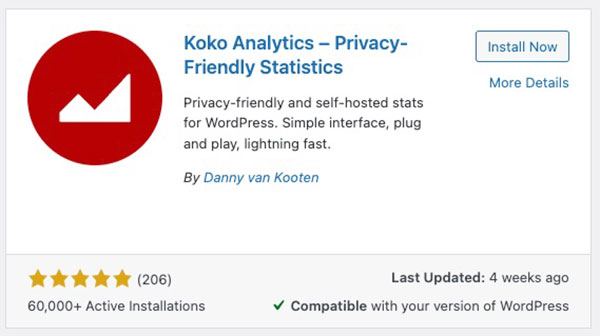
That’s it. Stats start collecting immediately.
Initial Configuration
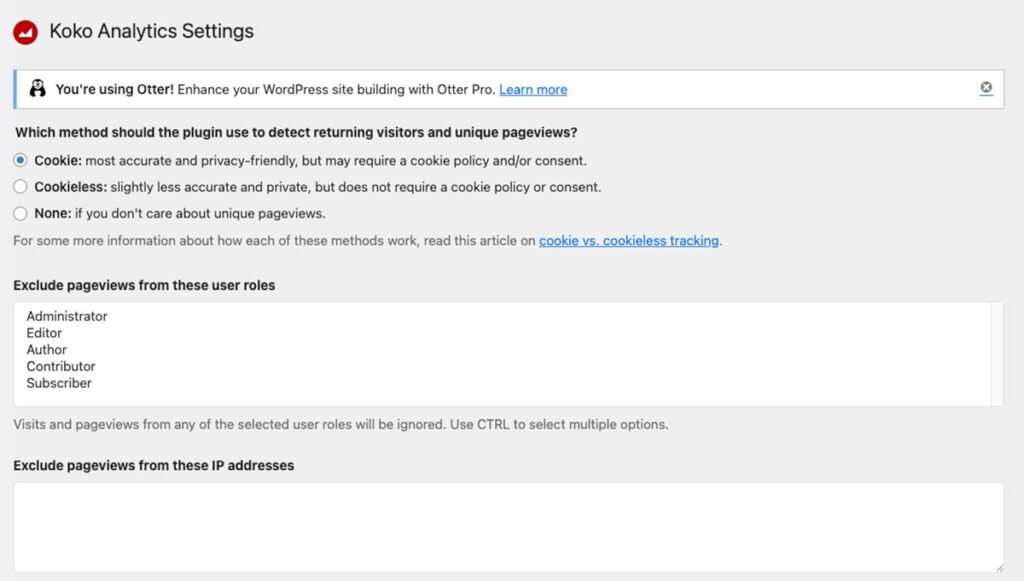
Default settings work for most sites, but you can customize:
Tracking Method:
- Cookie-based (detect returning visitors)
- Cookieless (each visit counts as new visitor)
- No tracking (disable entirely)
Exclude User Roles:
- Prevent admin/editor views from counting as traffic
- Critical for accurate stats on sites with active editing
Exclude IP Addresses:
- Exclude your office IP
- Exclude development server IPs
- Prevent internal traffic from skewing data
Public Dashboard:
- Keep private (default): Only admins see analytics
- Make public: Share your analytics via public link
Data Retention:
- Default: Keep 60 months (5 years)
- Auto-delete older data after set period
Performance Settings:
- View database usage for analytics
- Optimize storage efficiency
- See pageview count
Accessing Analytics
Once installed and traffic arrives:
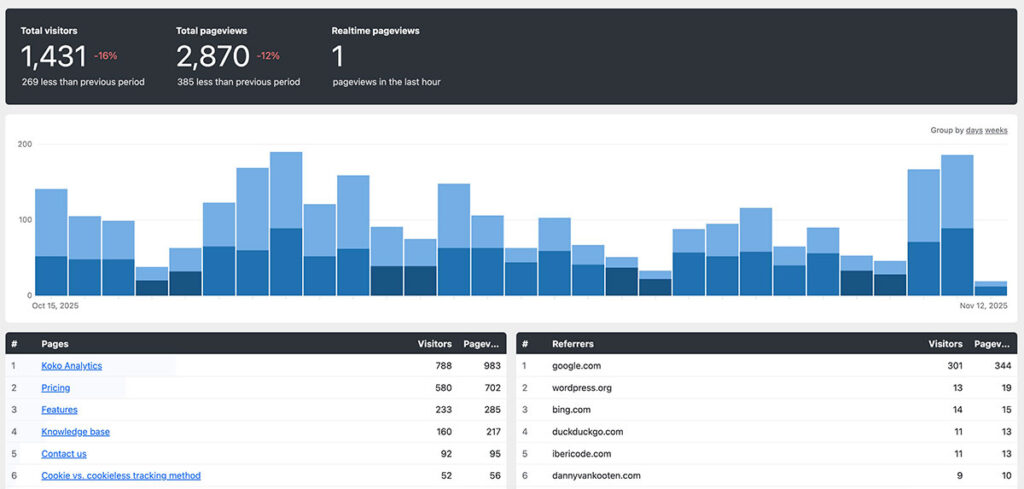
- In WordPress Dashboard, click Analytics (under Dashboard menu)
- View main stats: Visitors, pageviews, bounce rate
- View chart: See traffic trends over time
- View pages table: Top-performing pages
- View referrers table: Traffic sources
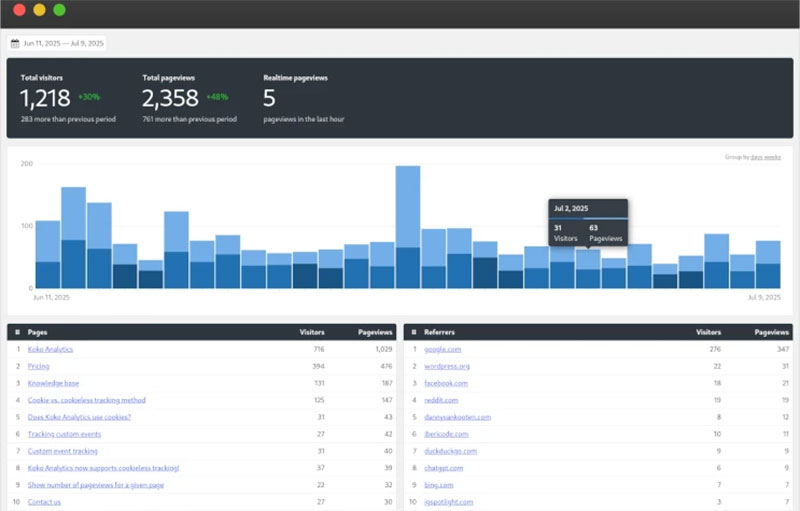
Koko Analytics Dashboard: Walkthrough
Main Metrics Section
At the top, you see key numbers:
- Total Visitors: Unique people
- Total Pageviews: Total page views
- Avg. Pageviews/Visitor: Engagement indicator
- Bounce Rate: Percentage of single-page sessions
Traffic Chart
Visual representation of traffic over your selected date range:
- X-axis: Days
- Y-axis: Visitors or pageviews
- Hover: See exact numbers for any day
- Interactive: Click to drill down into specific periods
Top Pages Table
Ranked list of your site’s pages:
- Page title/URL
- Visitor count
- Pageview count
- Bounce rate (if cookies enabled)
Identify your best-performing content and content gaps.
Referrers Table
Ranked list of traffic sources:
- Referrer domain/source
- Visitor count
- Percentage of total traffic
- Direct vs. organic vs. paid
See which marketing channels drive traffic.
Filters & Date Selection
At the top:
- Date range selector: Switch between 7/28/90 days or custom range
- All data updates: Charts and tables refresh instantly
- Download option: full dataset as NDJSON in the free plugin; report tables as CSV in Pro
Koko Analytics vs. Competitors
Koko vs. Google Analytics
| Feature | Koko | Google Analytics |
|---|---|---|
| Setup time | 30 seconds | 20+ minutes |
| Learning curve | 5 minutes | 2+ weeks |
| GDPR compliant | Yes, by design | Requires workarounds |
| Privacy friendly | Excellent | Poor (surveillance-based) |
| Script size | <1 KB | ~70 KB |
| Data ownership | 100% yours | Google’s |
| Cost | Free forever | Free (but you’re the product) |
| Complexity | Very simple | Very complex |
| Heatmaps | No | No (but can integrate) |
| Best for | WordPress bloggers | Enterprise analytics |
Verdict: Koko is infinitely better for typical WordPress site owners. GA is overkill.
Koko vs. Plausible
| Aspect | Koko | Plausible |
|---|---|---|
| Hosting | Self-hosted (local) | SaaS (their servers) |
| Cost | Free, Pro from €59/year | From $9/month |
| Setup | WordPress plugin | External account |
| WordPress | Native plugin | External tool |
| API | REST API | Yes |
| Geo-location | Pro only | Yes (all plans) |
| Events | Pro only | Yes (all plans) |
| WooCommerce | Manual setup | Better integration |
| Best for | Budget-conscious WP users | Non-WP sites, marketers |
Verdict: Koko wins on cost and WordPress integration. Plausible wins on features and simplicity for non-WP sites.
Koko vs. Umami
| Aspect | Koko | Umami |
|---|---|---|
| Installation | WordPress plugin (easiest) | Docker / VPS (complex) |
| Learning curve | 5 minutes | 30 minutes |
| WordPress | Native integration | Manual code insertion |
| Multi-site support | Yes (native) | Yes (external) |
| Dashboard | In WordPress admin | External app |
| Tech skills required | None | Some |
| Best for | Non-technical WP users | Developers, tech teams |
Verdict: Koko is easier for WordPress users. Umami is better for multi-site technical setups.
Why WordPress Site Owners Choose Koko Analytics
It Lives in WordPress
No external login. No separate dashboard. Click Analytics in your WordPress admin and start reading data. This is especially powerful for client reports—clients don’t need dashboard access; you can share screenshots or export reports.
Privacy Without Compromise
Koko collects zero personal data. No cookies (optional), no cross-site tracking, no third-party servers. Your visitors’ data stays on your server, period.
A Long Track Record
More than 60,000 active installations and a steady five-star rating on WordPress.org point to real-world reliability rather than launch-week hype.
Minimal Performance Impact
Under 1 KB added to the page means no measurable slowdown, against roughly 70 KB for Google Analytics. On a slow mobile connection that difference shows up before anything renders.
No Setup Complexity
Unlike Umami (requires Docker/VPS knowledge), you just install a plugin. Unlike Plausible (external account), everything is local.
Affordable Pro Features
At €59 a year for one site, or €249 for up to 25, Pro sits under the hosted tools. Compare to:
- Plausible Cloud: from $9/month at 10,000 monthly pageviews
- Umami Cloud: a free Hobby tier for low-traffic sites, paid tiers above it
- Google Analytics: Free (but you pay in privacy)
When to Use Koko Analytics Free vs. Pro
Use Free If…
- You’re a blogger tracking basic traffic
- You want page performance data
- You need referrer information
- Privacy is your main concern
- You’re budget-conscious
- You manage 1-3 sites
The free version is genuinely sufficient for 95% of WordPress site owners.
Upgrade to Pro If…
- You run WooCommerce and need event tracking
- You need country/geo-location data for international expansion
- You want automated email reports for clients/stakeholders
- You need traffic spike alerts
- You manage several sites and want one licence covering all of them
- You’re an agency building reports for clients
- You want report tables and event counts as CSV, rather than the raw NDJSON dump the free version gives you
Pro is worth it if analytics reports are part of your business (agencies, consultants) or if you’re optimizing for specific geographic markets.
Real-World Use Cases
Use Case 1: Freelance Blogger
Sarah runs a cooking blog with 5,000 monthly visitors. She installs Koko Analytics free version and within days identifies her top 10 posts. She knows 40% of traffic comes from Pinterest, 35% from Google, 25% direct.
She focuses content creation on high-performing topics. No GA complexity, no privacy concerns, no external accounts. Perfect.
Use Case 2: WordPress Agency
An agency manages 20 client WordPress sites. They install Koko Analytics on each, download the monthly report tables as CSV from the Pro dashboard, and present stats to clients.
With the Agency licence (€249 a year, up to 25 sites), every client is covered, monthly email reports go out on a schedule, and traffic spikes trigger an alert automatically.
Cost per client per month: roughly €1. The margin on a reporting line item at that price speaks for itself.
Use Case 3: WooCommerce Store Owner
Mark runs an e-commerce store on WooCommerce. With Koko Pro, he tracks:
- Product page views
- Add-to-cart events
- Checkout abandonment
- Purchase completions
He sees that traffic from email campaigns converts at 8%, while organic search converts at 2%. He shifts budget to email and increases revenue.
Use Case 4: Multi-Site WordPress Network
A publisher runs 12 WordPress sites covering different topics. Twelve sites fit inside one Agency licence (€249 a year, up to 25 sites), so every property reports into the same dashboard without buying a licence per domain. They see trending topics across properties and shift content resources accordingly.
Installation & Setup Best Practices
Before Installation
- Ensure WordPress is updated: Use latest WordPress version
- Check PHP version: Koko requires PHP 5.6+
- Backup your site: Always backup before installing plugins
- Check database space: Koko uses minimal space (~10 MB/year)
Installation
- Install from WordPress.org plugin repo (easiest)
- Or download from GitHub and upload manually
- Activate plugin
- Go to Analytics > Settings to configure
Initial Configuration
- Choose tracking method: Cookies (default) or cookieless
- Exclude your IP: Add your office/home IP to exclude admin traffic
- Exclude user roles: Prevent admin/editor views from counting
- Set data retention: Default 60 months is fine
- Test: Visit your site and refresh Analytics page—visitor should appear instantly
Verification
After 1-2 hours, you should see:
- 1-2 visitors (just you/testers)
- Several pageviews (your browsing)
- Referrer: “Direct” (no external referrer)
Congratulations—Koko is tracking.
Importing Historical Data
If you’re switching from another analytics tool, Koko supports importing historical data from:
- Jetpack Stats: Common for WordPress sites
- Plausible: Privacy-focused alternative
- Burst Statistics: Another WordPress analytics tool
How to Import
- Export data from your current analytics tool (usually CSV)
- In Koko, go to Analytics > Settings > Import
- Choose source platform
- Upload exported file
- Koko imports historical data
You don’t lose historical analytics when switching—critical for trend analysis.
Privacy & Compliance Details
GDPR Compliance
Koko is GDPR compliant by design:
✅ Nothing leaves your hosting for a third-party service
✅ No cookies (optional—you choose)
✅ Visitors not tracked across sites
✅ Only aggregated counts stored
✅ The dataset lives in your own WordPress database
You don’t need consent banners or privacy policy disclosures for Koko itself (though you still need them for other services).
CCPA Compliance
Koko meets CCPA requirements for California visitors:
✅ No sale of personal information
✅ Transparent data collection
✅ No secondary uses of data
Cookie Usage (Optional)
If you enable cookies:
- Single cookie:
_koko_analytics_pages_viewed - Lifetime: 24 hours max
- Data: Only a hash, not personal info
- Purpose: Detect unique visitors
You can disable cookies entirely for zero-cookie analytics.
Pro Tips & Best Practices
Optimize Traffic Tracking
- Exclude your IP: Prevents personal browsing from inflating stats
- Exclude editors/admins: Prevents internal site management from counting as traffic
- Use UTM parameters: Add
?utm_source=newsletter&utm_medium=emailto links to track campaigns - Test referrer spam filter: Koko blocks known spam referrers automatically
Report Generation
- Download the report tables as CSV weekly (Pro): build a trends spreadsheet
- Share public dashboard: Great for transparency reports
- Use Pro email reports: Automate stakeholder reporting
- Create comparison reports: Track monthly growth
Client Management
If you manage client sites:
- Install on all client sites: one Agency licence covers up to 25 of them
- Set up automated reports: Email clients monthly digests
- Exclude client’s own IP: Prevent inflated stats
- Create public dashboards: Some clients want transparent tracking
Performance Optimization
- Use HTTP/2 Server Push: For faster tracking script delivery
- Enable site caching: Koko works fine with caching enabled
- Monitor database size: Koko stores efficiently; monitor quarterly
- Archive old data: Use retention settings to keep database lean
Troubleshooting Common Issues
Analytics Not Showing Data
Problem: Installed Koko, but no visitors showing
Solution:
- Wait 1-2 hours for data to accumulate
- Visit your site yourself and refresh Analytics page
- Check that you’re not excluded (excluded IPs won’t show)
High Bounce Rate
Problem: Bounce rate seems artificially high
Solution:
- Ensure cookies are enabled (helps detect returning visitors)
- Long bounce rates are normal for blogs (readers visit one post, leave)
Data Looks Wrong
Problem: Visitor/pageview numbers seem off
Solution:
- Check if you’re excluding your own IP (might undercount)
- Compare with UTM parameters (helps isolate specific traffic)
- Remember: Koko counts accurately—other tools might be inflating numbers
Plugin Conflicts
Problem: Koko breaks with other plugins
Solution:
- Disable other plugins temporarily to isolate the issue
- Update WordPress and Koko to latest versions
- Check compatibility on WordPress.org
Database Growing Too Large
Problem: Koko analytics database using lots of space
Solution:
- Reduce data retention period (default 60 months is fine)
- Koko is efficient—1 year of data = ~10 MB
- Export the dataset to NDJSON from Settings > Data, then delete old records
Analytics for WordPress Site Owners
If you run WordPress and want simple, private, local analytics, Koko Analytics is the obvious choice. It drops the complexity of Google Analytics, respects visitor privacy, and costs either nothing (free version) or €59 a year for a single-site Pro licence.
Koko Analytics transforms analytics from a headache into a helpful tool. Install it, forget about external accounts and privacy concerns, and focus on what visitors actually do on your site.
For WordPress bloggers, small businesses, agencies, and anyone tired of Google Analytics:
Install it from the WordPress plugin repository, activate, and start tracking immediately. If the free reports leave you wanting country data or email summaries, Pro starts at €59 a year.
That’s it. Simple analytics for simple sites.

Written by Ellie
Former Head of Analytics at a European digital agency. 8+ years making WordPress analytics make sense. Google Analytics certified. I write the guides I wish existed when I started.
More about me →