If you’ve ever looked at your Google Analytics dashboard, you’ve seen the “Sessions” metric. It’s one of the most fundamental measurements in web analytics, yet many WordPress site owners don’t fully understand what it means or how it’s calculated.
In this guide, you’ll learn exactly what Google Analytics sessions are, how GA4 calculates them differently from Universal Analytics, and how to use session data to improve your WordPress site’s performance.
What Is a Session in Google Analytics?
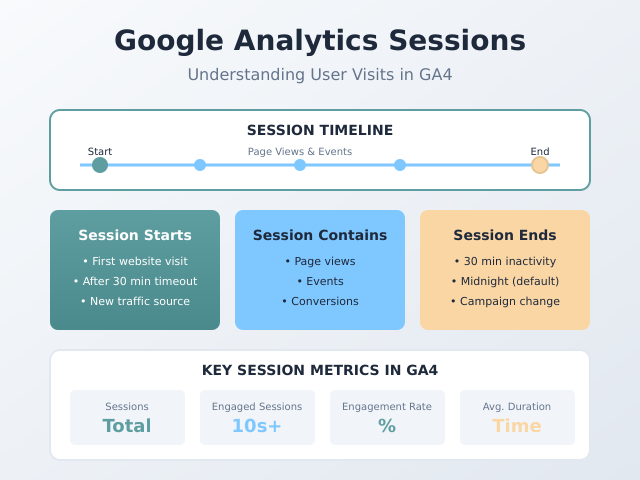
A session in Google Analytics represents a single visit to your website. Think of it as one continuous interaction between a user and your site, starting when they arrive and ending when they leave or become inactive.
During a session, a visitor might:
- View multiple pages
- Trigger events (like button clicks or video plays)
- Complete conversions (like form submissions or purchases)
- Scroll through content
All of these actions get grouped together under a single session. This grouping is essential because it helps you understand user behavior as a complete journey rather than isolated page views.
How GA4 Calculates Sessions
Google Analytics 4 uses an event-based model to track sessions. Every interaction on your site is recorded as an event, and GA4 uses a special event called session_start to mark the beginning of each session.
Here’s what triggers a new session in GA4:
1. First Visit to Your Site
When a user arrives at your WordPress site for the first time (or returns after clearing cookies), GA4 fires a session_start event and begins tracking their activity. If you haven’t set up GA4 yet, check out our guide on how to set up GA4 on WordPress.
2. After 30 Minutes of Inactivity
If a user stays on your site but does nothing for 30 minutes—no scrolling, clicking, or page navigation—their session ends. When they become active again, a new session starts.
You can adjust this timeout period in GA4’s admin settings from 5 minutes to 7 hours, depending on your site’s typical usage patterns. For most WordPress blogs, the default 30-minute timeout works well.
3. Sessions Don’t Reset at Midnight (By Default)
Unlike Universal Analytics, GA4 doesn’t automatically end sessions at midnight. A user browsing your site from 11:45 PM to 12:15 AM will be counted as one session, not two. This change provides a more accurate picture of user behavior.
Sessions in GA4 vs Universal Analytics
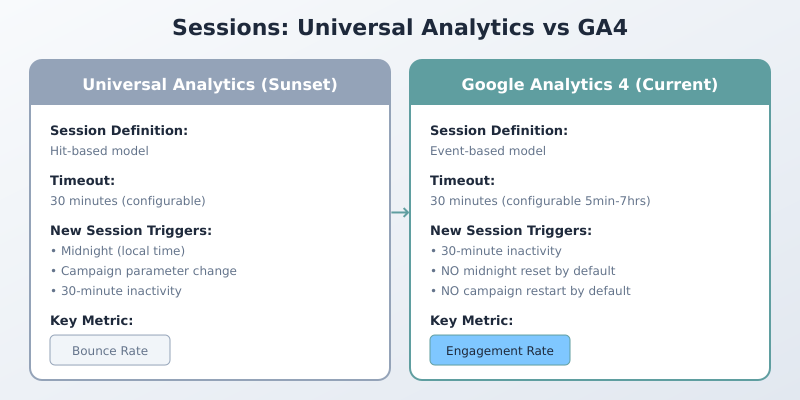
If you migrated from Universal Analytics to GA4, you might have noticed differences in your session counts. Understanding these differences is important for accurate reporting.
Key Differences
| Feature | Universal Analytics | GA4 |
|---|---|---|
| Data model | Hit-based | Event-based |
| Default timeout | 30 minutes | 30 minutes |
| Midnight reset | Yes | No (by default) |
| Campaign change | Starts new session | No new session |
| Primary engagement metric | Bounce Rate | Engagement Rate |
Because of these differences, you might see 10-20% fewer sessions in GA4 compared to what you would have seen in Universal Analytics for the same traffic. This isn’t a tracking error—GA4’s methodology is simply more accurate.
What Is an Engaged Session?
GA4 introduced a concept called engaged sessions, which represents sessions where users showed meaningful interest in your content. This metric is far more useful than raw session counts for WordPress site owners.
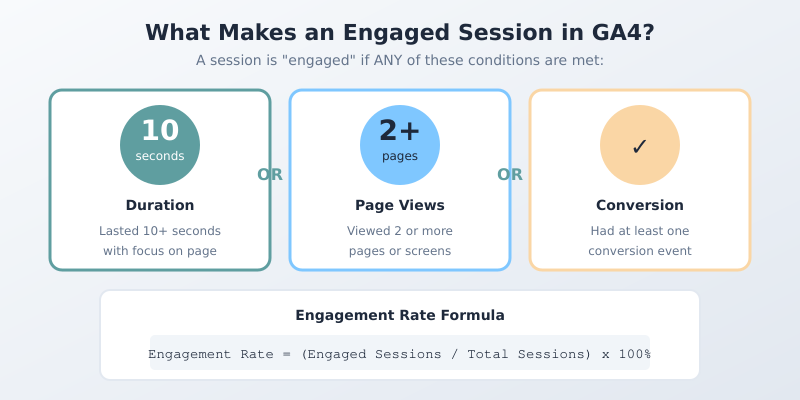
A session is considered “engaged” if it meets any of these criteria:
- Duration: The session lasted 10 seconds or longer
- Page Views: The user viewed 2 or more pages
- Conversion: The session included at least one conversion event
For WordPress bloggers, engaged sessions tell you whether visitors actually consumed your content or bounced immediately. A session where someone reads your article for 3 minutes is very different from one where they left in 2 seconds.
Key Session Metrics in GA4
GA4 provides several session-related metrics that you should monitor:
Sessions
The total number of sessions on your site during the selected time period. This gives you a baseline for traffic volume.
Engaged Sessions
The count of sessions that met the engagement criteria (10+ seconds, 2+ pages, or conversion). Higher is better.
Engagement Rate
The percentage of sessions that were engaged. This is calculated as:
Engagement Rate = (Engaged Sessions ÷ Sessions) × 100%
For most WordPress sites, a good engagement rate falls between 50-70%. If your rate is below 40%, you might have issues with content relevance, page speed, or user experience.
Average Session Duration
How long sessions last on average. For content sites, longer is typically better, though this varies by content type. For a deeper dive into this metric, see our guide on time on site and what it actually tells you. A quick reference article might have shorter sessions than an in-depth tutorial.
Sessions per User
How many sessions each user has on average. Higher numbers indicate strong content that brings people back.
How to View Session Data in GA4
To see your session metrics in GA4:
- Go to your GA4 property
- Navigate to Reports → Engagement → Engagement overview
- Here you’ll see engaged sessions, engagement rate, and average engagement time
For more detailed session data:
- Go to Reports → Acquisition → Traffic acquisition
- This shows sessions broken down by traffic source
- Use the dropdown to view by channel, source, medium, or campaign
Sessions vs Users: What’s the Difference?
Many WordPress site owners confuse sessions with users. Here’s the distinction:
- Users: Unique individuals who visited your site (tracked by cookies)
- Sessions: Total visits to your site
One user can have multiple sessions. For example, if someone visits your site Monday morning, returns Tuesday afternoon, and checks again Wednesday night, that’s:
- 1 user
- 3 sessions
The ratio of sessions to users indicates how “sticky” your content is. A site with 1,000 users and 3,000 sessions has an average of 3 sessions per user—meaning people return multiple times.
Common Session Tracking Issues in WordPress
WordPress sites can encounter specific issues that affect session tracking accuracy:
Caching Plugins
Aggressive caching can sometimes interfere with GA4 tracking. Make sure your caching plugin excludes the gtag.js script from caching and that tracking code runs on every page load.
Cookie Consent Banners
If you’re using a GDPR cookie consent plugin, GA4 won’t track sessions until the user accepts cookies. This is expected behavior, but it means your session counts will be lower than actual visits.
Ad Blockers
Some visitors use ad blockers that also block Google Analytics. Depending on your audience, this could represent 10-30% of your traffic that goes untracked.
Bot Traffic
Ensure GA4’s bot filtering is enabled. Bots can inflate your session counts with non-human traffic. In GA4, go to Admin → Data Streams → your stream → Configure tag settings → Show all → Internal traffic definition.
Tips for Improving Session Quality
Raw session numbers matter less than session quality. Here’s how to improve your engaged session rate on WordPress:
Optimize Page Speed
Slow-loading pages cause users to bounce before GA4 even counts them as engaged. Use a caching plugin, optimize images, and consider a CDN. Target under 3 seconds for full page load.
Improve Content Above the Fold
The first thing visitors see determines whether they stay. Make sure your headlines are compelling and your content starts strong—don’t bury the value below lengthy introductions.
Add Internal Links
Internal links encourage users to view more pages, which increases engaged sessions. Link naturally to related articles, and consider adding a “related posts” section.
Reduce Intrusive Pop-ups
Aggressive pop-ups that appear immediately can drive users away before they engage. If you use pop-ups, trigger them after 10-30 seconds or on exit intent.
Match Search Intent
If your content doesn’t match what users searched for, they’ll leave quickly. Review your top landing pages and ensure they deliver what visitors expect.
How Sessions Affect Your WordPress SEO
While Google hasn’t confirmed that session metrics directly affect rankings, engaged sessions correlate with positive user signals:
- Users who stay longer consume more content
- Multiple page views indicate content depth
- Return visits suggest brand recognition
Additionally, understanding session data helps you identify content that resonates with your audience. High-performing pages can inform your content strategy, while pages with poor engagement need optimization.
Session Timeout: When to Adjust It
The default 30-minute session timeout works for most WordPress sites, but consider adjusting it if:
- Your content is very long: If users read articles that take 45+ minutes, extend the timeout to avoid splitting reads into multiple sessions
- You run an e-commerce site: Shoppers might browse, get distracted, and return—consider a longer timeout
- Your site has video content: Long videos might exceed 30 minutes; extend timeout to capture complete viewing sessions
To change session timeout in GA4: Admin → Data Streams → your stream → Configure tag settings → Adjust session timeout.
Frequently Asked Questions
Does a page refresh count as a new session?
No. Refreshing a page creates a new page view event, but the session continues. A new session only starts after 30 minutes of inactivity.
Why do my sessions look lower in GA4 than they were in Universal Analytics?
GA4 doesn’t reset sessions at midnight or when campaign parameters change. Additionally, if you implemented cookie consent, users who don’t accept cookies aren’t tracked at all.
Can the same user have multiple sessions at once?
If someone visits your site on their phone and their laptop simultaneously, GA4 will count these as separate sessions (and potentially separate users) because they have different cookies.
What’s a good session duration for a WordPress blog?
It depends on your content length. For a typical 1,500-word blog post, 2-4 minutes is good. For shorter news-style posts, 30-60 seconds might be appropriate. Focus on whether duration matches content length rather than arbitrary benchmarks.
Summary
Google Analytics sessions are fundamental to understanding how visitors interact with your WordPress site. In GA4:
- A session represents one visit from arrival to departure or 30 minutes of inactivity
- Sessions are tracked using the event-based model with
session_startevents - Engaged sessions (10+ seconds, 2+ pages, or conversion) are more valuable than raw session counts
- GA4 calculates sessions differently from Universal Analytics, typically showing 10-20% fewer sessions
Focus on improving your engagement rate rather than chasing higher session numbers. Quality visits from interested users matter far more than inflated traffic counts from users who bounce immediately.

Written by Ellie
Former Head of Analytics at a European digital agency. 8+ years making WordPress analytics make sense. Google Analytics certified. I write the guides I wish existed when I started.
More about me →